How to Make Image Corners Round Online without Photoshop
✨ Round Corner Image Cropper
Create beautiful rounded images with custom corners
Click to upload or drag & drop
JPG, PNG, WebP • Max 10MB
📋 On This Page
What is a Round Corner Image Cropper?
Let's be real—sharp, square corners on images feel a bit... harsh, don't they? That's where a rounded corner photo editor comes in handy. It's a simple online tool that softens those jagged edges, giving your images a polished, professional appearance without the headache of learning complex software.
Understanding the Difference
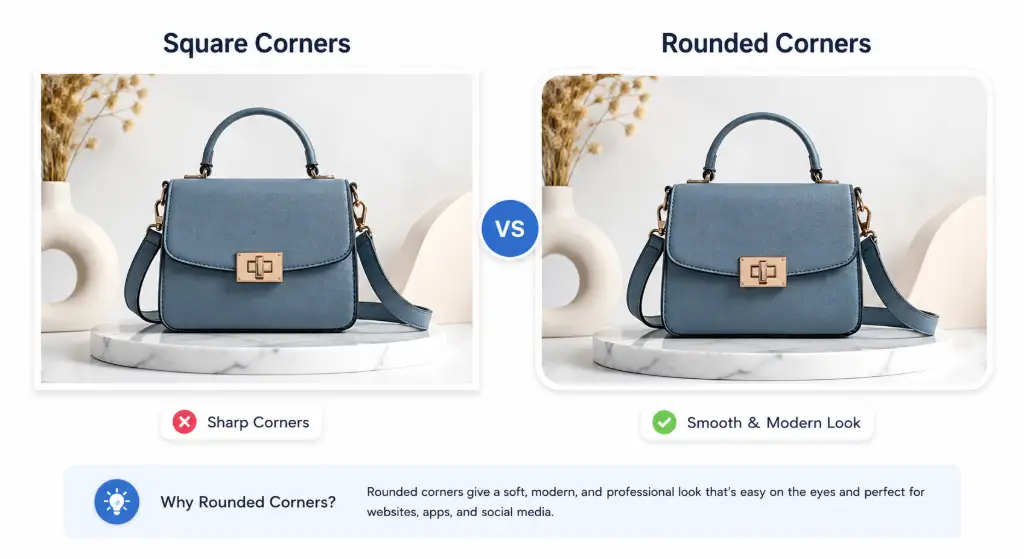
Here's something many people mix up: cropping and rounding corners aren't the same thing. When you crop an image, you're cutting out parts of it to change the composition or size. But when you add rounded corners to an image, you're keeping the entire photo intact while simply smoothing out the edges.
Traditional Cropping
Removes portions of your image to change dimensions or focus
Rounded Corners
Softens edges while preserving your entire image content
Why Do People Love This?
Think about the last time you scrolled through Instagram or browsed a modern website. Notice how almost every image has those smooth, rounded edges? That's no accident. People use rounded corners because they:
- Create a softer, more approachable visual experience
- Make images feel more modern and professional
- Help photos blend better with contemporary web designs
- Draw attention to the content rather than harsh edges
Whether you're creating social media posts, designing a website, or putting together a presentation, knowing how to make image corners round online can instantly elevate your visual content.
Why Rounded Corner Images Look Better
Ever wonder why your favorite apps and websites all use rounded corners? It's not just a trend—there's actual psychology behind it.
The Psychology of Soft Shapes
Our brains are wired to perceive soft, rounded shapes as more friendly and trustworthy. Sharp corners, on the other hand, can subconsciously signal danger or aggression (think about warning signs—they're often triangular with sharp points). When you make image corners round, you're tapping into this psychological preference, making your content feel more welcoming and approachable.
Modern UI Demands It
Look at Apple's iOS, Google's Material Design, or Microsoft's Fluent Design—they all embrace rounded corners heavily. When your images match this aesthetic, they feel native to the platform rather than out of place.
Better Readability & Premium Appearance
Rounded corners create natural spacing between the image edge and surrounding content. This breathing room makes your designs look less cramped and more premium. It's the difference between a DIY look and a professionally designed piece.
Higher Engagement Rates
Social media managers have noticed something interesting: posts with rounded corner images tend to get more clicks and shares. The softer appearance encourages users to pause their scrolling and engage with your content.
Top 15 Uses of Rounded Corner Images
Wondering where you can actually use these rounded images? Pretty much everywhere! Here are the most popular applications:
Social Media Magic
Instagram posts that stand out in the feed, Facebook ads that convert better, LinkedIn banners that look professional, and Pinterest Pins that get saved more often.
Website Design
Blog featured images that draw readers in, hero sections that make strong first impressions, service cards that look cohesive, and testimonial photos that build trust.
eCommerce Excellence
Product images on your online store, Amazon listings that convert browsers to buyers, and Shopify product galleries that showcase items beautifully.
Education & Presentations
School projects that impress teachers, PowerPoint slides that look modern, and PDF reports with professional polish.
Marketing Materials
Email banners that get opened, landing pages that convert visitors, and digital ads across all platforms.
Personal Branding
Profile pictures on all platforms, portfolio pieces that showcase your work, and business cards with a modern twist.
Why Designers Prefer Rounded Corners
Let's talk about the big players. Every major tech company has embraced rounded corners, and here's why:
These companies didn't choose rounded corners randomly. They invested millions in user experience research and found that rounded elements create:
- A cleaner, more approachable look
- Better visual hierarchy
- Improved mobile touch targets
- Reduced visual fatigue
- Higher perceived quality
When you use a rounded corner photo editor, you're aligning your content with these industry standards. It's not just about looking good—it's about meeting user expectations.
How to Use the Round Corner Image Cropper?
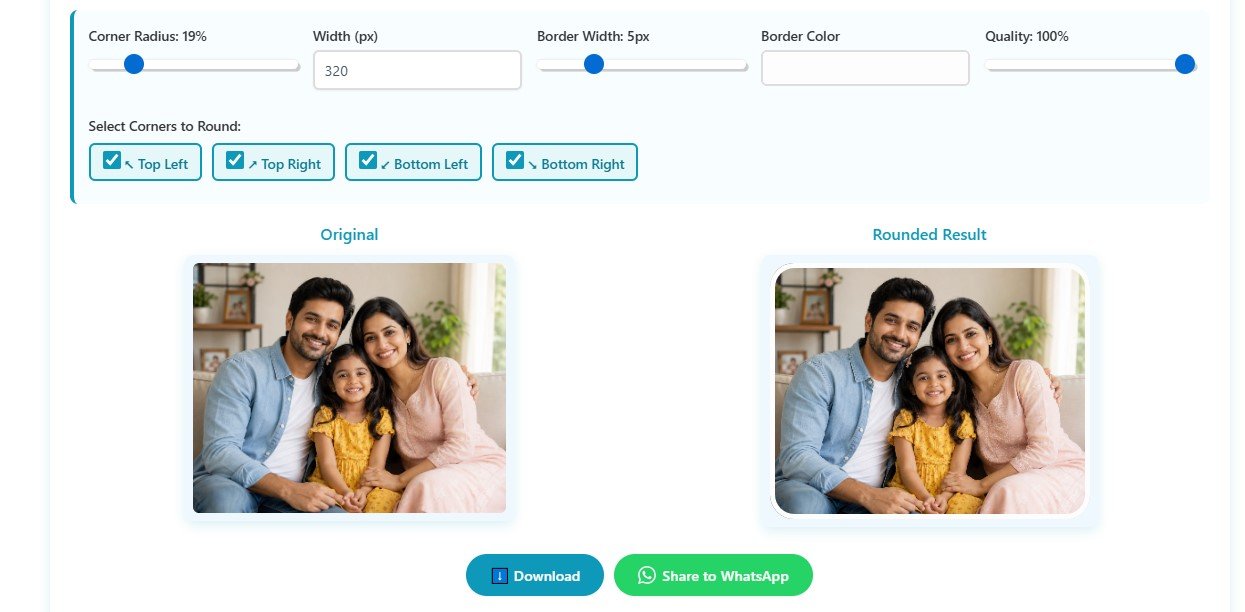
Creating rounded corners for your images is quick and easy with the Round Corner Image Cropper. Follow these simple steps to customize your image exactly the way you want.
Upload Your Image
Click the Upload Image button and choose a photo from your device. The tool supports popular formats like JPG, PNG, WEBP, GIF, BMP, and more. No need to convert your files first—just upload and go.
Adjust the Corner Radius
Use the Corner Radius slider to control how rounded the image corners should be:
- 0% – Sharp square corners
- 10–30% – Soft rounded corners (ideal for websites and social media)
- 50%+ – Highly rounded corners for a modern look
The image preview updates instantly as you move the slider, so you can see exactly what you're getting.
Set the Image Width (Optional)
Enter your desired Width (px) to resize the image while maintaining its aspect ratio. This is super useful for creating images that fit your website, blog, or social media platform perfectly.
Add a Border (Optional)
If you want a stylish frame around your image, move the Border Width slider to choose the border thickness. Set it to 0 px if you don't need a border—totally up to you!
Choose the Border Color
Click the Border Color picker and select any color that matches your brand, website, or design. The border preview updates immediately, so you can experiment with different colors until you find the perfect match.
Adjust Image Quality
Use the Quality slider to balance image quality and file size:
- 100% – Maximum image quality
- 80–90% – Best balance between quality and file size
- Below 70% – Smaller files for faster website loading
Select Which Corners to Round
One of the unique features of this tool is the ability to round individual corners. Simply check or uncheck the corner options:
- ✅ Top Left
- ✅ Top Right
- ✅ Bottom Left
- ✅ Bottom Right
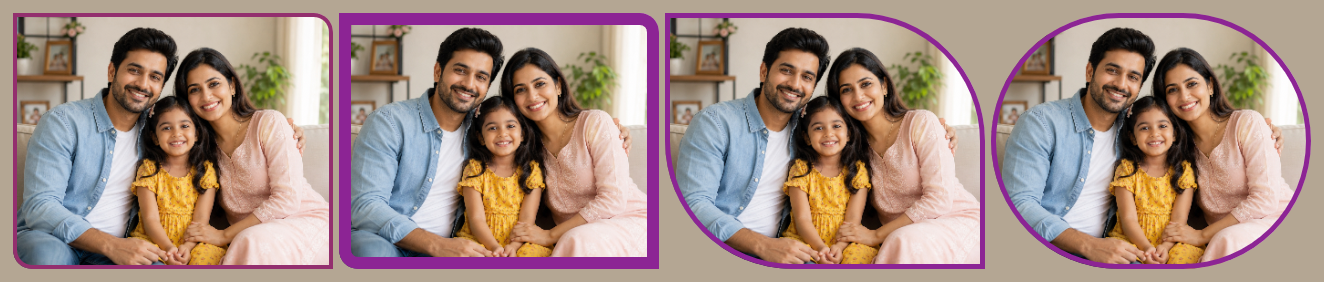
You can round all four corners, only the top corners, only the bottom corners, or even just a single corner. Create custom corner combinations for unique designs that stand out!
Preview Your Changes
The live preview updates instantly, allowing you to see every adjustment before downloading your image. Fine-tune the corner radius, border, and quality until you're completely satisfied with the result.
Download Your Rounded Image
Click the Download button to save your newly edited image in high quality. Your rounded-corner image is now ready to use on websites, social media, presentations, online stores, blogs, or marketing materials.
Best Corner Radius Guide
Not sure how round is too round? Here's a quick reference guide:
| Use Case | Recommended Radius | Why It Works |
|---|---|---|
| Website Cards | 10–15px | Subtle rounding that doesn't distract from content |
| Social Media | 20–30px | Matches platform aesthetics, stands out in feeds |
| Mobile Apps | 18–24px | Optimized for touch interfaces and small screens |
| Product Images | 12px | Professional look without overwhelming the product |
| Profile Images | 50% | Circular appearance for avatars and headshots |
| Blog Featured Images | 20px | Balanced look that draws attention to articles |
| eCommerce Thumbnails | 8–10px | Minimal rounding keeps focus on products |
| Marketing Banners | 15–25px | Eye-catching without looking unprofessional |
PNG vs JPG for Rounded Corners
This is crucial—choosing the wrong format can ruin your rounded corners. Let me break it down:
PNG Format
Best for: Images with transparent backgrounds
Advantages:
- Supports transparent corners (no white box around your rounded image)
- Lossless compression—best quality
- Perfect for logos and graphics
Downside: Larger file sizes
JPG Format
Best for: Photographs and complex images
Advantages:
- Smaller file sizes
- Faster loading times
- Better for photos with many colors
Downside: No transparency support (rounded corners will have a background color)
WEBP Format
Best for: Modern websites
Advantages:
- Supports transparency like PNG
- Smaller file sizes than both PNG and JPG
- Excellent quality
Note: Not supported by very old browsers
AVIF Format
Best for: Cutting-edge web performance
Advantages:
- Smallest file sizes
- Fastest loading
- Supports transparency
Note: Newest format, limited browser support
Need to convert between formats? Check out our image format converter to switch formats without losing quality.
Common Mistakes to Avoid
Even experienced designers make these errors. Here's what to watch out for:
❌ Too Much Radius
Don't go overboard with the rounding. A 100px radius on a small image can make it look like a blob. Keep it proportional to your image size.
❌ Cropping Important Content
When you round corners aggressively, you might cut off important details at the edges. Always check your preview carefully.
❌ Wrong Export Format
Exporting as JPG when you need transparency? Big mistake. Always match your format to your needs (PNG for transparency, JPG for photos).
❌ Low Quality Settings
Saving at 50% quality to reduce file size might seem smart, but it creates visible artifacts. Stick to 80-90% for the best balance.
❌ Huge File Sizes
Uploading a 10MB image to your website will slow it down. Use our image compressor after rounding corners to optimize file size.
❌ Inconsistent Rounding
Using different corner radius values across your website looks unprofessional. Pick one radius and stick with it for visual consistency.
Round Corner vs Circle Crop vs Other Shapes
Confused about which shape to use? Here's a quick comparison:
| Shape Type | Best For | When to Use |
|---|---|---|
| Circle Crop | Profile pictures, avatars, icons | When you need a perfectly circular image (50% radius on all corners) |
| Rounded Rectangle | Product photos, blog images, cards | Most common use case—professional yet approachable |
| Oval Shape | Portraits, vertical images | When you want an elongated circular look |
| Custom Shape | Creative projects, unique designs | When standard shapes don't fit your vision |
| Heart Shape | Valentine's content, emotional posts | For romantic or love-themed content |
| Star Shape | Awards, highlights, special features | To draw extra attention to important content |
Looking for other shapes? We've got you covered:
- Crop image into heart shape for romantic content
- Crop image into polygon shape for geometric designs
- Crop image into star shape for highlighting special items
Benefits for SEO and Website Performance
Here's something most people don't realize: rounded corners can actually help your SEO!
How Rounded Images Boost SEO:
- Better Thumbnails: Rounded images stand out in Google Image Search and social media previews, increasing click-through rates
- Faster Loading: When you combine rounded corners with proper compression (try our image compressor), your pages load faster—a key Google ranking factor
- Better User Experience: Google rewards sites that keep visitors engaged. Rounded images create a more pleasant browsing experience, reducing bounce rates
- Mobile Optimization: Rounded images look better on mobile devices, and Google uses mobile-first indexing
- Social Sharing: Images with rounded corners get shared more on social media, creating backlinks and social signals that boost SEO

Best Image Sizes for Rounded Corners
Size matters! Here are the optimal dimensions for different platforms:
| Platform | Recommended Size | Corner Radius |
|---|---|---|
| Instagram Post | 1080 x 1080px | 20-30px |
| Instagram Story | 1080 x 1920px | 15-20px |
| Facebook Post | 1200 x 630px | 15-25px |
| Facebook Ad | 1080 x 1080px | 20px |
| Pinterest Pin | 1000 x 1500px | 20-25px |
| LinkedIn Post | 1200 x 627px | 15px |
| Twitter Post | 1200 x 675px | 15-20px |
| YouTube Thumbnail | 1280 x 720px | 10-15px |
| Blog Featured Image | 1200 x 630px | 20px |
| Website Hero | 1920 x 1080px | 15-25px |
| eCommerce Product | 2048 x 2048px | 12px |
| Profile Picture | 400 x 400px | 50% (circle) |
Need to resize your images? Use our resize image tool to get the perfect dimensions before adding rounded corners.
How Rounded Images Improve Website Design
Let's talk about real-world applications. Here's where rounded corners make the biggest impact:
Service Cards
Rounded corners on service cards create visual consistency and make your offerings feel more approachable. They guide the eye naturally from one card to the next.
Testimonials
Customer photos with rounded corners feel more personal and trustworthy. The soft edges make testimonials feel less corporate and more genuine.
Portfolio Pieces
Showcase your work with rounded corners to create a cohesive gallery. It's especially effective for photography and design portfolios.
Product Displays
eCommerce sites see higher conversion rates with rounded product images. They stand out against white backgrounds and look more premium.
Landing Pages
Rounded images on landing pages create visual flow and guide visitors toward your call-to-action buttons (which should also be rounded!)
Team Pages
Employee photos with rounded corners look professional yet friendly, perfect for "About Us" pages and team introductions.
Pro tip: Pair your rounded images with other rounded elements like buttons and cards for a cohesive design language throughout your site.
Who Should Use This Tool?
Spoiler alert: pretty much everyone! But here are the people who benefit most:
Advanced Features Explained
The Round Corner Image Cropper isn't just basic—it's packed with professional features:
Adjustable Corner Radius
Fine-tune from 0-100% with pixel-perfect precision. See changes in real-time as you adjust.
Border Width Control
Add stylish frames around your images. Choose from 0px (no border) to 50px+ for bold statements.
Border Color Picker
Match your brand colors exactly with our full-spectrum color picker. Supports hex codes, RGB, and preset colors.
Image Quality Settings
Balance quality and file size. Perfect for web optimization without visible quality loss.
Custom Width Input
Resize images to exact dimensions while maintaining aspect ratio. No more guessing!
Individual Corner Control
Round only specific corners for unique designs. Mix and match for creative effects.
High-Quality Export
Download in PNG, JPG, WEBP, or other formats without watermarks or quality degradation.
Instant Preview
See every change immediately. No waiting, no guesswork—what you see is what you get.
Browser-Based Processing
Your images never leave your computer. All processing happens locally in your browser for maximum privacy and security.
Need more editing power? Check out our professional image editor or advanced photo editor for even more features.
Why Use ImageToolsZone?
There are tons of image tools out there. Here's why thousands of people choose us:
- 100% Free: No hidden fees, no premium tiers, no credit card required
- No Signup: Just upload and edit—no accounts, no emails, no hassle
- Secure: All processing happens in your browser. Your images never touch our servers
- Fast Processing: Edit images in seconds, not minutes
- Mobile Friendly: Works perfectly on phones, tablets, and desktops
- High-Quality Output: Professional results every time
- Multiple Tools: Access 30+ image editing tools in one place

Ready to Create Perfect Rounded Images?
Join thousands of designers, marketers, and creators who use our free tools daily. No signup, no watermarks, just professional results.
Start Editing Now — It's Free!Frequently Asked Questions
Simply use our free Round Corner Image Cropper. Upload your image, adjust the corner radius slider to your preferred roundness, and download. It takes less than 30 seconds and requires no design skills!
Yes! Our tool is 100% free with no hidden charges. You can round corners on as many images as you want without paying a cent. No watermarks, no limitations, no credit card required.
Absolutely! Our tool lets you control each corner individually. You can round just the top-left corner, only the bottom corners, or any combination you want. This is perfect for creating unique, custom designs.
JPG files can display rounded corners, but they don't support transparency. This means your rounded image will have a solid background color (usually white). If you need transparent rounded corners, use PNG or WEBP format instead.
Use PNG if you need transparent backgrounds (so your rounded image blends with any website color). Use JPG for photographs where file size matters more than transparency. WEBP is the best of both worlds if your platform supports it.
Yes! Our tool includes a border feature where you can add colored frames around your rounded images. Adjust the border width from 0px to 50px+ and choose any color to match your brand or design.
For most social media platforms, 20-30px works perfectly. Instagram posts look great with 25px, Facebook ads with 20px, and LinkedIn posts with 15-20px. Profile pictures should use 50% radius for a perfect circle.
Definitely! Our tool is fully responsive and works perfectly on smartphones and tablets. You can upload images from your phone's gallery, edit them on the go, and download directly to your device.
Not if you use our tool correctly! We maintain the original quality of your image. Just make sure to set the quality slider to 80-100% when downloading. Avoid going below 70% to prevent visible quality loss.
Yes! Profile pictures look best with a 50% corner radius, which creates a perfect circle. This works for LinkedIn, Twitter, Facebook, Instagram, and any other platform that uses circular profile images.
Absolutely! App icons typically use rounded corners. For iOS, use a radius of about 20-25% of your image size. For Android, 15-20% works well. Our tool makes it easy to create perfectly rounded app icons.
That's exactly what our tool is for! You don't need Photoshop or any expensive software. Our online tool does everything Photoshop does for rounded corners, but it's free, faster, and much easier to use.
WEBP is the best format for modern websites—it offers transparency like PNG but with smaller file sizes like JPG. If you need maximum compatibility, use PNG for graphics with transparency and JPG for photographs.
Yes! Rounded product images work beautifully on Shopify. Use a 12-15px radius for product photos to create a professional, cohesive look across your store. This matches Shopify's modern design aesthetic perfectly.
No! All image processing happens directly in your browser. Your images never leave your computer, which means maximum privacy and security. We don't store, share, or even see your images.
Our tool supports images up to 10MB, which is more than enough for most photos. If your image is larger, try using our image compressor first to reduce the file size.
Currently, our tool processes one image at a time to ensure the highest quality and give you full control over each image. However, the process is so fast (usually under 10 seconds) that editing multiple images is still quick and easy.
Start Creating Beautiful Rounded Images Today
Join over 100,000 users who trust ImageToolsZone for their image editing needs. Fast, free, and professional results every time.
Try It Free Now