Add Image to PDF Online Free – Insert Images in Seconds
Looking to add image to pdf online free? You are in the right place. Whether you need to drop a company logo onto an invoice, insert a scanned signature into a contract, or place a photograph into a report, our tool makes it effortless. You do not need expensive software, complicated tutorials, or a steep learning curve. Simply upload your document, place your image, and download the updated file instantly. This guide walks you through every feature, use case, and pro tip to ensure your PDFs look perfectly polished every single time.
📋 On This Page
- How to Add an Image to a PDF Online
- What Can You Add to a PDF?
- How Do I Add an Image to a PDF?
- Add Multiple Images to a PDF
- Add an Image to a Specific Page in PDF
- Position, Resize and Rotate Images in PDF
- Your PDF Files Stay Private
- Add Image to PDF on iPhone, Android, and Mobile
- When Should You Add an Image to a PDF?
- Add an Image to PDF Without Installing Software
- Which Image Formats Can You Add to a PDF?
- Will Adding an Image Reduce PDF Quality?
- Add Image to PDF vs Convert Image to PDF
- Common Problems When Adding Images to PDFs
- Why Use ImageToolsZone to Add Images to PDF?
- Frequently Asked Questions
How to Add an Image to a PDF Online
Follow these simple steps to place, resize, and rotate images on any PDF page. No software installation required.
Upload Your PDF
Click the "Upload PDF" button or drag and drop your PDF file directly into the workspace. The tool instantly loads your document and displays it in the main editing area. You can work with PDFs up to 50 MB in size.
- ✓ Supports PDFs up to 50 MB
- ✓ Drag & drop or click to browse
- ✓ Files stay on your device
Free • No Signup • Works in Your Browser
Add Your Image
Click the "+ Add Image" button in the toolbar or at the bottom of the page. Select your image file (JPG, PNG, or WebP) from your device. The image appears centered on the current PDF page, ready for positioning.
- ✓ Supports JPG, PNG, WebP formats
- ✓ Add multiple images to one PDF
- ✓ Images up to 20 MB each
Click "+ Add Image" to insert your photo, logo, or signature
Position, Resize & Rotate
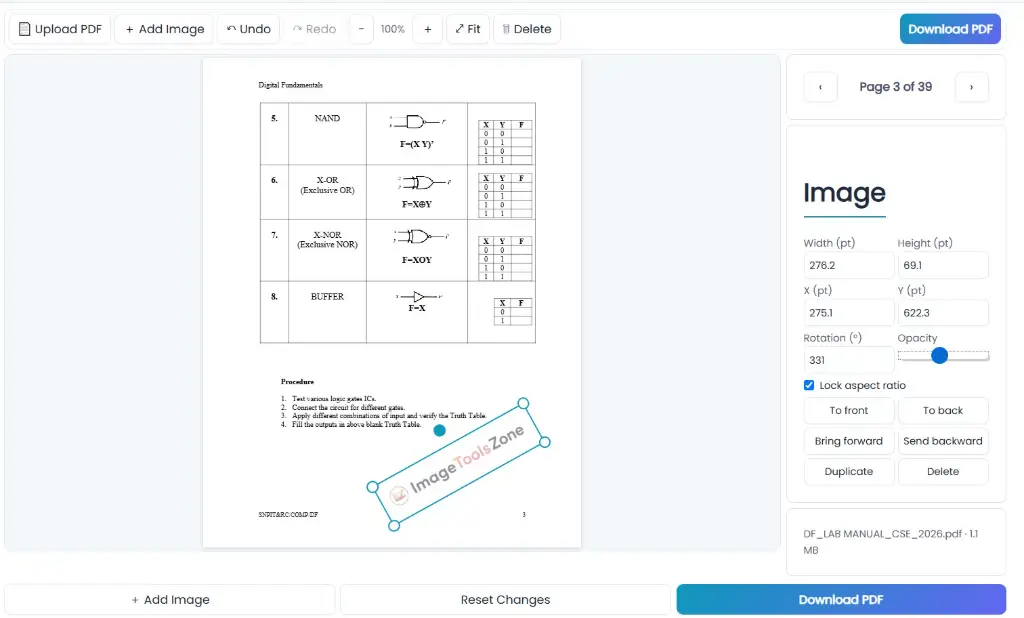
Click and drag the image to move it anywhere on the PDF page. Use the corner handles to resize while maintaining proportions. The rotation handle at the top lets you adjust the angle precisely. Use the right-side panel for exact measurements in points.
- ✓ Drag & drop positioning
- ✓ Corner handles for resizing
- ✓ Rotation handle for angle adjustment
- ✓ Opacity control for watermarks
Image Controls
Navigate Between Pages
Use the page navigation controls in the right sidebar to move between PDF pages. Add different images to different pages—place a logo on page 1, a chart on page 5, and a signature on the final page. Each image stays on its assigned page.
- ✓ Add images to any specific page
- ✓ Multiple images per page supported
- ✓ Zoom in/out for precise placement
Download Your PDF
Click the "Download PDF" button to save your edited document. The tool processes everything locally in your browser—your files never leave your device. Download instantly with no watermarks, no signup, and no waiting.
- ✓ Instant download
- ✓ No watermarks added
- ✓ Original PDF quality preserved
- ✓ 100% browser-based processing
ajirafi.pdf · 1.2 MB
💡 Pro Tips for Best Results
Use PNG for Logos
PNG files support transparency, so your logo blends seamlessly without a white background box.
Lock Aspect Ratio
Keep the checkbox enabled to prevent distortion when resizing your images.
Adjust Opacity
Lower opacity to create watermark-style overlays or subtle background images.
Use Keyboard Shortcuts
Press Ctrl+Z to undo, Ctrl+Y to redo, and arrow keys to nudge images precisely.
What Can You Add to a PDF?
Our tool is built to handle a wide variety of visual elements. Whatever your document requires, you can seamlessly integrate it without disrupting the original layout.
Photos
Add a personal or professional photograph to resumes, reports, or identification forms.
Company Logos
Establish brand consistency by placing your logo on invoices, proposals, and official letters.
Signatures
Insert a clean, scanned image of your handwritten signature to finalize contracts digitally.
Stamps
Mark documents as "Approved," "Paid," "Confidential," or "Draft" with custom stamp graphics.
Charts & Graphs
Embed visual data representations directly into analytical reports or business presentations.
Screenshots
Insert step-by-step screenshots into user manuals, tutorials, or technical documentation.
ID Photos
Place passport-style or supporting identification photos precisely into official application forms.
Graphics
Enhance marketing PDFs, brochures, or school projects with custom illustrations and visual elements.
How Do I Add an Image to a PDF?
People search for solutions in different ways. Below are quick, targeted answers to the most common ways you might want to enhance your document.
How to Add a Photo to a PDF
Adding a personal or professional photo is simple. Upload your document, select the photo from your device, and click on the exact spot where you want it to appear. You can easily drag the corners to adjust the size so it fits perfectly within margins or designated photo boxes.
How to Insert a Picture Into a PDF
Whether it is a product picture or a family memory, the process remains the same. The tool accepts standard image formats and places them as independent layers over your existing PDF content, ensuring the original text remains fully readable and selectable.
How to Put a Logo on a PDF
Branding matters. To put a logo on a PDF, use a PNG file with a transparent background. This ensures your logo blends seamlessly into the document without an ugly white box surrounding it. Position it in the header or footer for a professional finish.
How to Add a Signature Image to a PDF
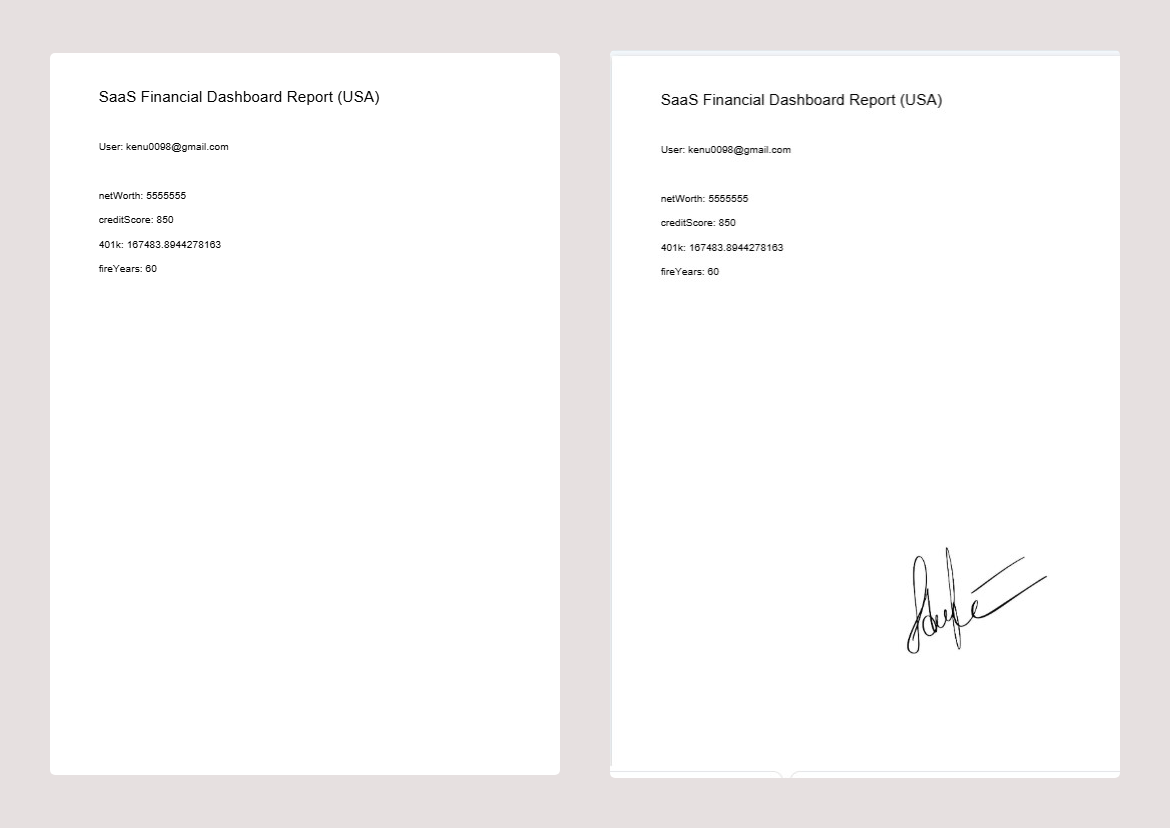
Instead of printing, signing, and scanning, just insert a signature image. Take a clear photo of your signature on white paper, crop it tightly, and drop it onto the signature line of your PDF. Adjust the opacity slightly if you want it to look like real ink.
How to Add an Image to a Specific PDF Page
Navigate to the thumbnail view or page selector within the tool. Click on page 2, page 5, or any specific page you need to modify. The image will only be placed on the active page you are currently viewing, giving you complete granular control.
How to Add Multiple Images to a PDF
You are not limited to just one picture. Repeat the upload and place process as many times as you need. You can add a logo to the first page, a chart to the middle, and a signature to the final page, all in a single session.
How to Add an Image to a PDF on Mobile
The interface is fully responsive. Open the tool in your mobile browser, tap to upload your PDF from your camera roll or files app, tap again to add your image, and use touch gestures to pinch, resize, and drag it into place before downloading.
How to Add an Image to PDF Without Adobe Acrobat
You do not need expensive subscriptions or heavy desktop software. This browser-based solution gives you all the essential placement and resizing features you need, completely free and without forcing you to create an account.
Add Multiple Images to a PDF
Managing complex documents often requires more than a single visual element. Our tool allows you to add multiple images to a single PDF effortlessly. You can place different images on different pages, resize each image independently to match your layout, and move them around until the visual hierarchy is perfect. Whether you are adding several photos to one PDF page for a collage effect or distributing graphics across a lengthy report, the tool handles it smoothly. When you are satisfied, download everything bundled neatly into one cohesive PDF file.
Add an Image to a Specific Page in PDF
Precision is key in professional documentation. Need to add a photo to page 2, a logo to page 1, and a signature to the final page? Simply upload your PDF, use the page navigation to select the exact page, and place each image exactly where you need it. This targeted approach ensures you do not accidentally alter other sections of your document. It perfectly satisfies needs like wanting to add image to page 1 of PDF, add image to page 2 of PDF, insert picture into specific PDF page, put photo on one page of PDF, or even add logo to every page of PDF by repeating the quick placement step.
Position, Resize and Rotate Images in PDF
Once your image is on the page, you have full creative control over its presentation. We provide intuitive, interactive tools to make sure it looks exactly right.
Drag & Drop
Click and hold to move an image anywhere on the PDF page with pixel-perfect accuracy.
Resize
Grab the corner handles to make the image smaller or larger while automatically maintaining its original proportions.
Rotate
Turn an image to the exact angle you need, perfect for fixing sideways photos or aligning diagonal graphics.
Opacity
Adjust transparency to create subtle background overlays or professional watermark-style images.
Layering
Bring images forward or send them backward to ensure text remains readable and visuals are properly stacked.
Live Preview
See exactly where the image will appear and how it interacts with existing text before you finalize the download.
Your PDF Files Stay Private
Security is not an afterthought; it is the foundation of our tool. Your PDF and images are processed directly in your browser. Files do not need to be uploaded to a remote server, helping you keep private documents, sensitive forms, signatures, and personal photos securely on your local device.
Private Processing
Files are processed locally in your browser environment, ensuring maximum data privacy.
No Signup
Use the tool immediately without creating an account, providing an email, or sharing personal data.
No Watermark
Your downloaded PDF is clean and professional, with no ImageToolsZone branding forced onto your work.
Fast Processing
Edit and download instantly without waiting for slow server uploads or queue times.
Add Image to PDF on iPhone, Android, and Mobile
Productivity does not stop when you leave your desk. You do not need to install a heavy PDF editor app on your device. Simply open ImageToolsZone in your mobile browser on iPhone, Android, iPad, Windows phone, Mac, or Chromebook. Upload your PDF from your device storage, add your image, adjust its position using intuitive touch gestures, and download the finished document directly to your files. The responsive design guarantees that buttons are easy to tap and the workspace remains fully visible on smaller screens.
When Should You Add an Image to a PDF?
Understanding the right time to enhance a document can save you hours of formatting headaches. Here is a quick reference guide for real-world applications.
| Use Case | Example |
|---|---|
| Business Documents | Add a company logo to letterheads and proposals. |
| Invoices | Add a "Paid" or "Approved" stamp for clear accounting. |
| Contracts | Add a legally binding signature image to finalize agreements. |
| Resumes | Add a professional profile photo for creative or international roles. |
| Reports | Add charts, graphs, or screenshots to support data analysis. |
| Applications | Add supporting photographs for visas, permits, or memberships. |
| Forms | Insert an ID or document image into designated boxes. |
| Marketing PDFs | Add branding elements, seals, or promotional graphics. |
| Certificates | Add official logos, seals, or decorative borders. |
| School Projects | Add diagrams, historical photos, and illustrative elements. |
Add an Image to PDF Without Installing Software
The days of purchasing bulky software suites just to perform a simple edit are over. When you choose to add image to PDF without Adobe, add picture to PDF without Acrobat, or insert image into PDF online, you are choosing efficiency. Our platform allows you to edit PDF online free, directly in your browser. There are no hidden downloads, no background processes slowing down your computer, and no software updates to manage. It just works.
Which Image Formats Can You Add to a PDF?
To ensure the best results, it helps to know which file types work best for different visual needs. Our tool supports the most common and reliable formats.
| Format | Best For |
|---|---|
| JPG / JPEG | Photographs and complex images with many colors. |
| PNG | Logos, signatures, and graphics requiring transparent backgrounds. |
| WebP | Modern web images that balance high quality with small file sizes. |
| GIF | Simple graphics or icons (note: animation is not preserved in static PDFs). |
Will Adding an Image Reduce PDF Quality?
A common concern is whether inserting a new element will degrade the existing document. Rest assured, original PDF pages remain completely intact and retain their original vector or raster quality. The final appearance of your added image depends entirely on the source image you provide. Avoid unnecessarily enlarging a low-resolution image, as this will cause pixelation. For crisp text and logos, PNG is highly recommended due to its lossless compression and transparency support. For standard photographs, a high-quality JPG is generally suitable and keeps the overall file size manageable.
Add Image to PDF vs Convert Image to PDF
It is important to choose the right tool for your specific goal. Add Image to PDF means you already have an existing, multi-page (or single-page) PDF document, and you want to place a new visual element onto it alongside existing text and graphics. Conversely, Image to PDF means you are starting with a standalone image (or a batch of images) and you want to generate a brand new PDF file from scratch, turning the picture itself into the document. Our tool is specifically optimized for the former: enhancing existing documents.
Common Problems When Adding Images to PDFs
Even with intuitive tools, minor hiccups can occur. Here is how to quickly resolve the most frequent issues.
Image Looks Too Large
Simply click on the image and drag the corner handles inward to resize it before downloading. Maintaining proportional scaling prevents distortion.
Image Is in the Wrong Position
Use the live preview feature. Click and hold the image, then drag it smoothly into the correct location. The grid alignment helps you center it perfectly.
Image Looks Blurry
This happens when a low-resolution image is stretched. Always start with a higher-resolution source image to ensure crisp output, especially for print.
PDF File Is Too Large
If your final document is too heavy to email, consider using an image compression step beforehand to reduce the source image size without noticeable quality loss.
Transparent Logo Has a White Background
This indicates the source file is a JPG, which does not support transparency. Convert your logo to a PNG format with a transparent background before uploading.
Image Covers PDF Text
Resize the image to be smaller, move it to an empty margin, or adjust its opacity and layering settings to ensure the underlying text remains legible.
Why Use ImageToolsZone to Add Images to PDF?
We built this tool to solve real problems without creating new ones. Here is a factual breakdown of what you get when you choose our platform.
| Feature | ImageToolsZone |
|---|---|
| Add images to PDF | ✓ |
| Support for multiple images | ✓ |
| Drag & drop positioning | ✓ |
| Resize images freely | ✓ |
| Rotate images to any angle | ✓ |
| Works across multiple PDF pages | ✓ |
| Fully mobile friendly | ✓ |
| No signup required | ✓ |
| Secure browser-based processing | ✓ |
| Free, watermark-free download | ✓ |
Frequently Asked Questions
How do I add an image to a PDF online?
Simply open our tool, upload your existing PDF file, select the image you want to insert from your device, click on the page to place it, adjust the size and position, and click download. The entire process takes seconds.
Can I add multiple images to one PDF?
Yes, absolutely. You can repeat the upload and placement process as many times as needed, allowing you to add several different images to a single document or spread them across multiple pages.
Can I add an image to a specific PDF page?
Yes. Use the page navigation in the tool to select the exact page you want to edit. Any image you add will only appear on that specific, active page.
Can I resize an image before adding it to a PDF?
Yes. Once the image is placed on the PDF, you can click and drag its corner handles to make it smaller or larger while maintaining its original aspect ratio.
Can I rotate an image in a PDF?
Yes. The tool includes a rotation handle, allowing you to turn the image to any angle you need to match the layout or orientation of your document.
Can I add a logo to a PDF?
Yes, this is one of the most common use cases. For the best results, use a PNG file with a transparent background so your logo blends seamlessly without a white box around it.
Can I add a signature image to a PDF?
Yes. You can upload a clear photo or scan of your handwritten signature, place it on the signature line, and even lower the opacity slightly to make it look like authentic ink.
Can I add an image to a PDF on my phone?
Yes. The tool is fully responsive and works perfectly in mobile browsers on iPhone, Android, and tablets, using touch gestures for easy dragging and resizing.
Can I add an image to a PDF without Adobe Acrobat?
Yes. Our browser-based tool provides all the essential features you need to insert and position images without requiring any expensive, heavy desktop software.
Is ImageToolsZone's Add Image to PDF tool free?
Yes, the core functionality of adding, positioning, and downloading your updated PDF is completely free to use.
Are my PDF files uploaded to a server?
No. Your files are processed locally within your web browser. This ensures your sensitive documents, signatures, and personal photos never leave your device.
Does adding an image change the original PDF?
The original text and layout of your PDF remain intact. The image is added as a new layer on top, preserving the integrity of the existing document content.
What image formats are supported?
We support all major web and document image formats, including JPG, PNG, WebP, and GIF, ensuring compatibility with almost any graphic you need to insert.
Ready to Add an Image to Your PDF?
Upload your PDF, add your photo, logo, signature, or graphic, position it exactly where you want, and download your edited PDF instantly.
Add Image to PDF Free →Free • Easy to Use • No Signup • Mobile Friendly
Enhance Your Images Before Adding Them
To get the absolute best results when you add image to pdf online free, preparing your visual assets beforehand can make a massive difference. We offer a suite of complementary tools designed to help you perfect your images before they go into your document.
If your logo has a distracting background, you can easily remove the background online to ensure it blends perfectly with your PDF. If you are working with a high-resolution photograph that might make your final PDF too large to email, it is wise to compress the image first, reducing file size while preserving visual clarity.
Need your photo to fit a strict dimensional requirement on a form? You can resize your image to exact dimensions before inserting it. If your source file is in an uncommon format, you can convert the image format without quality loss to a universally accepted PNG or JPG.
For those needing minor visual tweaks, our professional image editor allows you to adjust brightness, contrast, or crop edges without adding unwanted branding. If you have several small graphics that belong together, you can merge images online into a single file before placing them into your document. Finally, if your document is intended for professional printing, using our image DPI changer ensures your graphics meet the high-resolution standards required for crisp, physical output.