
AI Watermark Remover
Remove unwanted watermarks, logos, text, and objects from your images. Paint over the area you want gone — our client-side AI reconstructs it using surrounding image details. Your files never leave your device.
Drag & drop your image here
orAnalyzing and reconstructing…
● Copyright Notice: Only remove watermarks from images you own or have permission to edit. Do not remove copyright notices, ownership information, attribution, or watermarks from someone else's protected content without authorization. ● Your images are processed securely in your browser and are not stored permanently.
How to Remove Watermarks from Image Without Photoshop
Discover the easiest way to remove watermark from image online for free. No software installation, no technical skills needed. Just upload, select, and download your clean images in seconds.
Have you ever downloaded an image only to discover an unwanted watermark, logo, text, or object covering an important part of the photo? It's frustrating, right? You found the perfect image for your project, presentation, or social media post, but that intrusive watermark is ruining it.
Removing these elements can seem difficult if you don't have professional editing software. The learning curve is steep, the software is expensive, and honestly, you just need a quick solution. Fortunately, a modern watermark remover can make the process much easier by allowing you to select the unwanted area and reconstruct the surrounding image naturally.
With ImageToolsZone's online watermark remover, you can upload an image, select the unwanted area using intuitive editing tools, and remove the selected watermark or object directly in your browser. No downloads, no watermarks on your watermarks (yes, that's ironic), and no credit card required.
🎯 Quick Start Guide
Want to skip the reading? Here's the 30-second version:
- Upload your watermarked image
- Paint over the watermark with the brush tool
- Click "Remove Watermark" and watch the AI work its magic
- Download your clean, watermark-free image
What Is a Watermark Remover?
Let's break this down. A watermark remover is a digital tool designed to eliminate unwanted elements from your images—whether that's a copyright watermark, a company logo, date stamps, text overlays, or even random objects that photobombed your perfect shot.
Why Do Watermarks Exist?
Photographers, designers, and stock image websites add watermarks to protect their intellectual property. It's their way of saying, "This is my work—pay me if you want to use it without my branding." Makes sense from their perspective, but what if you legitimately own the image and just want to remove your own watermark? Or what if you're working with royalty-free images that happen to have watermarks you need gone?
Watermark Removal vs. Object Removal
Here's where things get interesting. While both involve removing elements from photos, they're slightly different:
🎨 Watermark Removal
Focuses on eliminating text, logos, or symbols typically placed in corners or across images. Usually semi-transparent and predictable in placement.
🖼️ Object Removal
Targets physical objects in the scene—like a trash can in your beach photo or a person walking through your landscape shot. More complex backgrounds to reconstruct.
How Does an AI Watermark Remover Work?
Modern AI watermark removers use something called "inpainting" technology. Here's the non-technical version: When you select an area to remove, the AI analyzes the pixels surrounding that selection. It then intelligently reconstructs what should be there based on patterns, textures, and colors from the surrounding area.
Think of it like a super-smart digital paintbrush that doesn't just cover up the watermark—it actually rebuilds that part of the image to match what would naturally be there. Pretty cool, right?

How to Remove a Watermark from an Image Online
Ready to get hands-on? Let's walk through the exact process of using our online tool to remove watermark from image files. This step-by-step guide will have you cleaning up images like a pro in no time.
Upload Your Image
Start by clicking the upload button or simply dragging and dropping your image into the tool. We support all major formats including JPG, JPEG, PNG, and WEBP. The tool accepts images up to 10MB, which should cover most use cases.
Pro tip: For best results, upload the highest quality version of your image. The more detail the AI has to work with, the better the final result will be.
Select the Watermark Area
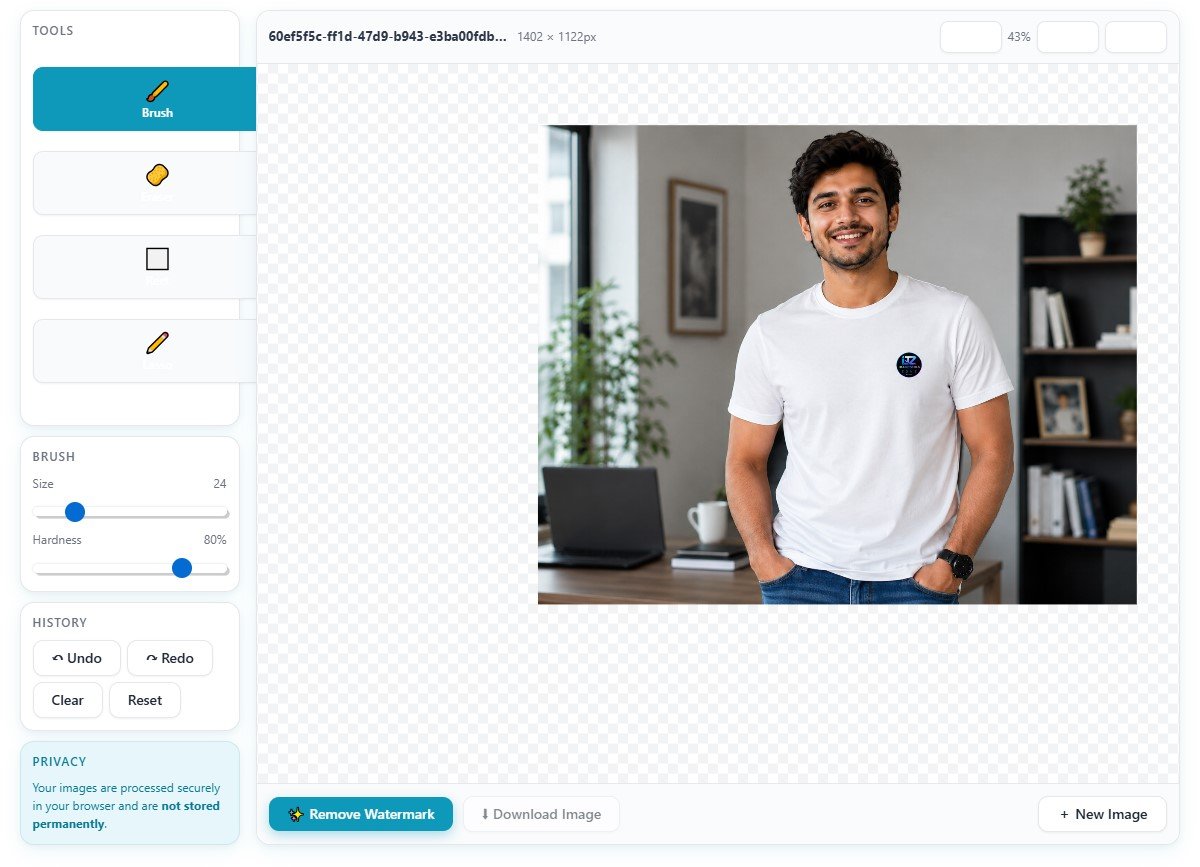
This is where the magic begins. You have four powerful selection tools at your disposal:
- Brush Tool: Paint directly over the watermark. Perfect for irregular shapes and detailed areas.
- Eraser Tool: Oops, selected too much? The eraser lets you clean up your selection with precision.
- Rectangle Selection: Ideal for straight-edged watermarks, corner logos, or date stamps.
- Lasso/Freehand Selection: Draw around complex or curved watermarks that don't fit neat shapes.
Adjust Brush Size and Hardness
Not all watermarks are created equal. A tiny corner logo needs a different approach than a large text watermark across the center. Use the brush size slider to match your selection tool to the watermark dimensions.
The hardness control is your secret weapon. Higher hardness (80-100%) creates sharp, defined edges—great for text and logos. Lower hardness (40-60%) creates softer edges that blend better with gradients and complex backgrounds.
Refine Your Selection
Perfection takes iteration. Use the undo/redo buttons to experiment freely. If you've selected too much background, use the eraser. If you missed a spot, switch back to the brush. The clear button removes all selections if you want to start fresh, while reset brings you back to the original uploaded image.
Remember: It's better to slightly under-select than over-select. The AI can fill in small gaps, but selecting too much background can lead to unnatural results.
Remove the Watermark
Hit that beautiful "Remove Watermark" button and watch the AI work. The tool analyzes your selection, examines surrounding pixels, and reconstructs the area using advanced inpainting algorithms. This usually takes 5-15 seconds depending on image size and complexity.
During processing, you'll see a progress indicator. Don't close the tab—let it do its thing!
Preview and Compare
Before downloading, use the before/after comparison slider to inspect the results. Toggle between views or use the side-by-side comparison to ensure the watermark is completely gone and the reconstructed area looks natural.
Zoom in to check edges and details. If something looks off, use the undo button and try adjusting your selection.
Download Your Clean Image
Satisfied? Click the download button to save your watermark-free image. The tool preserves your original image dimensions and quality, exporting in PNG format to maintain clarity. Your image is ready to use!
Time-Saving Keyboard Shortcuts
- Ctrl+Z: Undo last action
- Ctrl+Y: Redo action
- Mouse Wheel: Zoom in/out
- Space + Drag: Pan around image
- Delete: Clear selection
How to Remove a Watermark Without Photoshop
Let's address the elephant in the room: Yes, Photoshop can remove watermarks. But should you use it? Here's the reality check.
Photoshop's Content-Aware Fill and Clone Stamp tools are powerful, but they come with baggage:
| Traditional Photoshop Method | Online Watermark Remover |
|---|---|
| Requires $20-60/month subscription | 100% free to use |
| Needs software installation (2-3GB) | Works instantly in your browser |
| Steep learning curve (hours of tutorials) | Intuitive interface (works in minutes) |
| Requires powerful computer | Runs on any device, including phones |
| Manual pixel-by-pixel editing | AI-powered automatic reconstruction |
| Desktop-only | Mobile-friendly and responsive |
Who Should Use This Tool?
📱 Social Media Managers
Quickly clean up images for posts without waiting for a designer or learning complex software.
📸 Photographers
Remove your own watermarks from portfolio images or clean up client photos.
Content Creators
Create clean visuals for YouTube thumbnails, blog posts, and marketing materials.
🏢 Small Business Owners
Professional image editing without the professional price tag.
🔗 Related Tools You Might Need
Different Ways to Select a Watermark
Choosing the right selection tool makes all the difference between a perfect removal and a messy result. Let's break down when to use each tool.
Brush Tool
Best for:
- Small logos and icons
- Text watermarks
- Irregular, organic shapes
- Detailed areas with complex edges
- Scattered or multiple small watermarks
Pro tip: Use smaller brush sizes (8-16px) for precision work around edges.
Eraser Tool
Best for:
- Correcting over-selection
- Refining brush strokes
- Cleaning up edges
- Removing accidental marks
- Fine-tuning your selection
Pro tip: Switch to eraser quickly using the 'E' keyboard shortcut.
Rectangle Selection
Best for:
- Straight-edged watermarks
- Text strips and banners
- Corner logos and stamps
- Date/time stamps
- Boxed watermarks
Pro tip: Hold Shift while dragging to create a perfect square selection.
Lasso Selection
Best for:
- Irregular curved watermarks
- Circular or oval logos
- Complex, non-geometric shapes
- Watermarks following object contours
- Custom-shaped elements
Pro tip: Take your time—precision matters more than speed with lasso.
How to Remove Different Types of Watermarks
Not all watermarks are created equal. Each type requires a slightly different approach for optimal results. Here's your playbook for tackling any watermark scenario.
Remove Text Watermarks from Images
Text watermarks are among the most common—and fortunately, among the easiest to remove. Whether it's "© YourName2024" or "Sample Image," text has clear edges that AI can reconstruct around.
Strategy: Use the rectangle tool for straight text lines or brush for curved text. Set hardness to 85-100% for crisp edges. Zoom in to ensure you're capturing all text pixels without selecting too much background.
Remove Logo Watermarks from Photos
Logos can be tricky because they often include both text and graphic elements. Company logos, photographer watermarks, and brand symbols all fall into this category.
Strategy: Use the lasso tool to trace around complex logo shapes. For simple logos, the brush tool works well. If the logo is semi-transparent, make sure to select the entire faded area, not just the darkest parts.
Remove Date Stamps from Images
Old digital cameras loved slapping date/time stamps in the corner of photos. These are usually small, in a corner, and on relatively simple backgrounds—making them perfect candidates for removal.
Strategy: Rectangle selection is your best friend here. These stamps are typically in corners with plain backgrounds (sky, walls, etc.), so the AI has an easy job reconstructing the area.
Remove Unwanted Objects from Photos
Sometimes you need to remove more than just watermarks—like that photobombing stranger, a trash can in your landscape, or power lines ruining your sunset shot.
Strategy: Use the lasso tool to carefully trace around objects. For larger objects, you may need to work in sections. The more surrounding context the AI has, the better it can fill in the gap.
Remove Small Labels and Symbols
Tiny copyright symbols (©), registered trademarks (®), or small watermarks in corners are quick fixes.
Strategy: Use a small brush (6-12px) and zoom in to 200-300%. Precision is key—don't select more than necessary. These small elements usually disappear completely with minimal quality loss.
Remove Watermarks from JPG Images
JPG is the most common image format, but it uses lossy compression. This means the AI has slightly less detail to work with compared to PNG files.
Strategy: Be extra careful with selection edges on JPGs. The compression artifacts can make edges look fuzzy. Use medium hardness (60-75%) to blend better with the compressed background.
Remove Watermarks from PNG Images
PNG files are lossless and often have transparency. This gives the AI more data to work with, usually resulting in cleaner removals.
Strategy: You can be more aggressive with hardness settings (80-100%) since PNG edges are crisp. The AI will have cleaner information to reconstruct from.
How to Get Better Watermark Removal Results
Want professional-grade results? These insider tips will take your watermark removal from "pretty good" to "wait, there was a watermark here?"
-
Upload the Highest-Quality Original
Never work with compressed or downsized images if you can avoid it. If you have the original RAW file or highest-quality JPG, use that. Every bit of detail helps the AI make better reconstruction decisions. -
Zoom In—Like, Really Zoom In
We can't stress this enough. Zoom to 200-400% when making your selection. At normal zoom levels, you might miss semi-transparent pixels or feathered edges that will show up later. -
Select Only the Unwanted Area
Resist the urge to select "just a little extra to be safe." That extra background is what makes the result look unnatural. If you miss a pixel, you can always run the tool again on the result. -
Avoid Selecting Too Much Background
The AI needs to know what to reconstruct. If you select too much surrounding area, it has less context to work with. Stay tight to the watermark edges. -
Use the Brush Size Appropriate to the Watermark
Using a 50px brush on a 10px watermark? You're asking for trouble. Use the smallest brush that's practical. For tiny watermarks, go down to 4-8px. For large logos, 30-50px is fine. -
Use the Eraser to Refine the Selection
The eraser isn't just for mistakes—it's for refinement. After making your initial selection, switch to the eraser and clean up the edges. Think of it like sculpting: rough shape first, then refine. -
Use Undo and Redo When Necessary
Don't like the result? Hit undo and try a different approach. Maybe switch from brush to rectangle selection. Maybe adjust the hardness. Experimentation costs nothing. -
Try Different Selection Methods for Complex Watermarks
For large or complex watermarks, don't try to remove it all at once. Remove it in sections. First pass gets the main text, second pass cleans up remaining artifacts. -
Compare the Result Before Downloading
Use the before/after slider religiously. Toggle back and forth. Zoom in on the removed area. If you see blurring, color mismatches, or weird patterns, go back and refine your selection.
Enhance Your Results Further
Can You Remove Any Watermark?
Let's be real with you. While modern AI watermark removers are incredibly powerful, they're not magic wands. Some watermarks are easier to remove than others, and some might leave traces no matter what you do.
What Makes a Watermark Easy to Remove?
✅ Easy Removal
- Small watermarks (under 5% of image)
- Plain, uniform backgrounds
- High contrast between watermark and background
- Corner or edge placement
- High-resolution source images
- Solid, non-transparent watermarks
⚠️ Moderate Difficulty
- Medium-sized watermarks (5-15% of image)
- Textured or patterned backgrounds
- Low contrast watermarks
- Center or mid-frame placement
- Medium resolution images
- Semi-transparent watermarks
Challenging Removal
- Large watermarks (over 15% of image)
- Complex, detailed backgrounds
- Watermarks covering faces or important objects
- Very low resolution images
- Multiple overlapping watermarks
- Watermarks with gradient transparency
Real-World Examples
Easy: A small "© PhotoByJohn" text in the bottom corner of a landscape photo with a clear sky background. The AI has tons of similar sky pixels to sample from. Result: Nearly invisible removal.
Moderate: A medium-sized logo watermark over a textured brick wall. The bricks have variation, but there's enough pattern for the AI to replicate. Result: Good removal, might need a second pass.
Difficult: A large, semi-transparent watermark covering someone's face in a portrait. The AI has to reconstruct facial features it can't see. Result: Possible, but may look slightly unnatural or soft.
💡 Managing Expectations
If a watermark covers critical details (like text in a document, a person's eyes, or intricate patterns), the AI is essentially guessing what's underneath. Sometimes that guess is perfect. Sometimes it's close. And sometimes, you might need to use additional editing tools or accept minor imperfections.
Watermark Removal vs Object Removal
Here's a fun fact: The same technology that removes watermarks can also remove unwanted objects from your photos. That photobombing stranger? Gone. The trash can ruining your beach sunset? Vanished. The power lines across your mountain view? History.
The Same Tech, Different Applications
Whether you're removing a watermark or an object, the underlying process is identical:
- Select the area you want gone
- AI analyzes surrounding pixels
- Algorithm reconstructs the selected area
- Result blends with the original image
The difference is really just in what you're selecting and the complexity of the background.
What Else Can You Remove?
People
Remove strangers from your travel photos, ex-partners from old pictures, or yourself from group shots (yes, really).
Vehicles
Cars in architectural shots, bikes on trails, boats in seascapes—clean up your compositions.
Trash & Debris
Litter on beaches, garbage cans in parks, construction equipment—make scenes pristine.
Wires & Poles
Power lines, telephone poles, street signs—remove urban clutter from nature shots.
Text & Signs
Street signs, billboards, graffiti, license plates—clean up or anonymize your images.
Vegetation
Unwanted branches, weeds, overgrown plants—tidy up your garden or landscape photos.
Pro Tips for Object Removal
- Work in sections for large objects: Don't try to remove an entire person in one pass. Remove the head, then torso, then legs separately.
- Use the lasso for organic shapes: People, trees, and animals have irregular outlines that lasso handles better than rectangles.
- Consider the background: Removing an object from a plain wall is easy. Removing one from a crowded street scene is harder—be patient.
- Multiple passes help: First removal might leave artifacts. Run it again on the result to clean up remnants.
🔗 More Image Editing Tools
Is It Safe to Remove Watermarks Online?
This is a smart question to ask. In an age of data breaches and privacy concerns, you should absolutely be cautious about uploading images to random websites. Here's what you need to know.
Browser-Based Processing = Maximum Privacy
Here's the beautiful thing about modern web technology: Our watermark remover processes images entirely in your browser. What does that mean?
🔒 How Client-Side Processing Works
When you upload an image to our tool, it never actually leaves your computer. The "upload" just loads it into your browser's memory. All the AI processing happens locally on your device using JavaScript and WebAssembly. The processed image is then downloaded back to your computer. At no point does your image touch our servers or get stored anywhere.
What This Means for You
🛡️ Complete Privacy
Your images stay on your device. We never see them, store them, or share them. They're processed in your browser's isolated sandbox and deleted when you close the tab.
Faster Processing
No upload or download wait times. Since processing happens locally, you're only limited by your computer's speed, not your internet connection.
🌐 Works Offline
Once the page loads, you can disconnect from the internet and still use the tool. Everything runs locally.
🔐 No Account Needed
No registration, no login, no email required. Just open the page and start editing. Zero personal data collected.
When to Be Cautious
While our tool is safe, not all online image editors are. Here's how to protect yourself:
- Check for HTTPS: The URL should start with https:// (the lock icon in your browser)
- Read the privacy policy: Legitimate tools clearly state they don't store your images
- Avoid tools requiring accounts: If they need your email for a simple image edit, that's a red flag
- Be wary of "free" tools with hidden costs: Some process images on servers and sell your data
- Don't upload sensitive images anywhere: Even with client-side processing, if you're editing confidential documents or private photos, consider offline software
Our Privacy Promise
At ImageToolsZone, we believe privacy isn't a premium feature—it's a basic right. That's why:
- ✅ All processing happens in your browser
- ✅ We don't collect or store your images
- ✅ We don't track your editing activity
- ✅ We don't require registration or login
- ✅ We don't sell data or show intrusive ads
Before and After Examples
Seeing is believing. Here are real-world examples of watermark removal across different scenarios.
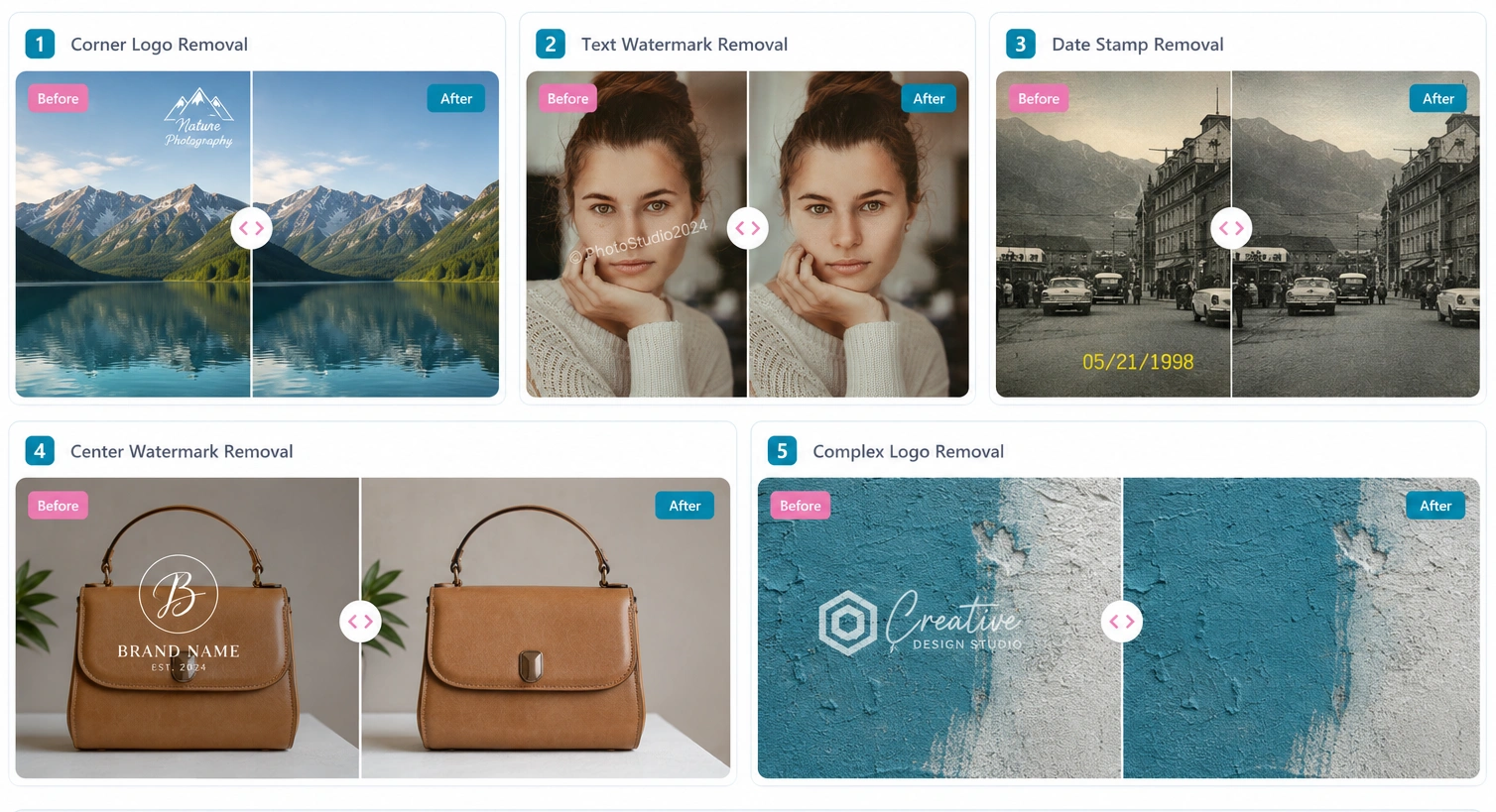
Example 1: Corner Logo Removal
Scenario: Small photographer logo in bottom-right corner of a beach sunset photo.
Background: Simple gradient sky and ocean
Result: Perfect removal, completely invisible
Time: 15 seconds
Example 2: Text Watermark Removal
Scenario: "© SamplePhoto2024" text across center of business headshot
Background: Plain studio backdrop
Result: Clean removal, no visible artifacts
Time: 25 seconds
Example 3: Date Stamp Removal
Scenario: "03/15/2019 14:32" timestamp in bottom-left of family photo
Background: Indoor room with furniture
Result: Excellent removal, slight softness in reconstructed area
Time: 20 seconds
Example 4: Complex Logo on Textured Background
Scenario: Circular logo watermark over brick wall in urban photography
Background: Detailed brick texture with mortar lines
Result: Good removal, brick pattern reconstructed convincingly
Time: 35 seconds
Example 5: Semi-Transparent Watermark
Scenario: Large faded "PREVIEW" text across product photography
Background: White seamless backdrop
Result: Perfect removal on white background
Time: 18 seconds
Complete Your Image Editing Workflow
Watermark removal is just the beginning. Once you've cleaned up your images, you might need to do more. Here are other tools in our suite that complement watermark removal:
Frequently Asked Questions
Got questions? We've got answers. Here's everything you need to know about removing watermarks from images.
Absolutely! Our online watermark remover is 100% free to use with no hidden charges, no watermarks on your output, and no registration required. You can remove as many watermarks as you need without paying a dime. We believe powerful image editing tools should be accessible to everyone.
Removing watermarks without Photoshop is easier than you think. Simply upload your image to our online tool, use the brush or selection tools to paint over the watermark, click "Remove Watermark," and let the AI reconstruct the area. The entire process takes less than a minute and requires zero editing experience. No expensive software, no steep learning curve—just simple, effective results.
The best method depends on your needs. For quick, easy results without installing software, AI-powered online tools like ours are ideal. They're fast, free, and produce excellent results for most watermarks. For extremely complex cases requiring pixel-perfect control, Photoshop's Content-Aware Fill might be better—but it costs money and takes time to learn. For 95% of users, our online remover is the perfect balance of quality and convenience.
Yes! Our tool excels at removing text watermarks, date stamps, captions, and any other text overlays from images. Simply select the text area using the brush or rectangle tool, and the AI will reconstruct the background underneath. Text removal works particularly well on plain or moderately textured backgrounds. For text over complex patterns, you may need to refine your selection carefully.
Definitely. Logos—whether they're simple text-based or complex graphic designs—can be removed using our watermark remover. Use the lasso tool for irregular logo shapes or the brush tool for detailed logos. The AI analyzes the surrounding area to intelligently fill in what was covered by the logo. Results are best when the logo is on a relatively uniform background.
Yes, our tool fully supports JPG (and JPEG) images, which are the most common photo format. JPG files work great for watermark removal. Just keep in mind that since JPG uses compression, extremely high-quality results are easier to achieve with PNG files. However, for most practical purposes, JPG watermark removal produces excellent, professional-looking results.
Absolutely! PNG images actually produce the best results because they're lossless (no compression artifacts). The AI has more detail to work with when reconstructing the removed area. PNG also supports transparency, so if your original image has transparent areas, those are preserved in the output. We recommend PNG for the highest quality watermark removal.
When done correctly, watermark removal should not noticeably reduce overall image quality. The AI reconstructs the selected area to match the surrounding pixels. However, the reconstructed area is technically "new" data, not the original. If you zoom in to 400-800%, you might see slight differences. For normal viewing (100% zoom or smaller), the results are typically indistinguishable from the original. To maintain quality, always start with high-resolution images and select precisely.
Yes! Our online watermark remover is fully responsive and works perfectly on smartphones and tablets. Whether you're using an iPhone, Android phone, or iPad, just open the website in your mobile browser and start editing. The touch interface works great for selecting watermarks—just use your finger to paint over the area you want removed. No app download needed.
Our tool is completely safe. We use client-side processing, which means your images never leave your device—they're processed entirely in your browser. We don't store, upload, or share your images. However, always verify that any online tool you use has HTTPS encryption and a clear privacy policy. Avoid tools that require accounts or email registration for simple edits, as these may collect your data.
AI watermark removers use a technique called "inpainting." When you select an area to remove, the AI analyzes the pixels surrounding that selection—examining colors, textures, patterns, and gradients. It then uses machine learning algorithms trained on millions of images to intelligently reconstruct what should be in the selected area. The result is a seamless blend that matches the surrounding image, making the watermark disappear as if it was never there.
Yes! The same technology that removes watermarks can also remove unwanted objects like people, trash cans, power lines, or any other element you want gone from your photo. Simply select the object using the lasso or brush tool, and the AI will reconstruct the background. Object removal works best when the object doesn't cover too much of the image and when there's enough surrounding context for the AI to sample from.
Our watermark remover supports all major image formats including JPG, JPEG, PNG, and WEBP. You can upload images in any of these formats, and we'll output your cleaned image as a high-quality PNG file to preserve maximum detail. If you need a different format, you can convert it afterward using our format converter tool.
No limits! You can remove watermarks from as many images as you want, completely free. There's no daily limit, no monthly cap, and no premium tier required. Whether you need to clean up one photo or one hundred, our tool is here to help without restrictions.
If your first attempt isn't perfect, don't worry! Use the undo button to try again with a different selection. Sometimes adjusting the brush size, using a different selection tool, or being more precise with your edges makes all the difference. For very complex watermarks, try removing it in sections rather than all at once. If needed, you can also use our image enhancer tool afterward to smooth out any minor imperfections.
Technically, yes—our tool can remove watermarks from any image. However, we must emphasize that you should only remove watermarks from images you own or have explicit permission to edit. Removing watermarks from copyrighted images you don't own is illegal and unethical. Our tool is intended for legitimate uses like removing your own watermarks, cleaning up personal photos, or editing images you have rights to use.
Most watermark removals take between 5-30 seconds, depending on the image size and complexity. Small watermarks on simple backgrounds process in just a few seconds. Large or complex watermarks on detailed backgrounds might take 20-30 seconds. The processing happens in your browser, so it's limited only by your device's speed, not your internet connection.
No account required! We don't ask for email addresses, passwords, or any personal information. Just visit the page, upload your image, remove the watermark, and download your clean image. It's that simple. We respect your privacy and believe editing tools should be instantly accessible without barriers.
You can upload images up to 10MB in size, which is large enough for most high-resolution photos. This typically handles images up to around 4000-6000 pixels on the longest side, depending on compression. If your image is larger, consider using our image compressor tool first to reduce the file size while maintaining quality.
Ready to Remove Your Watermarks?
Join thousands of satisfied users who trust ImageToolsZone for fast, free, and secure watermark removal. No registration, no watermarks, no hassle.
Start Removing Watermarks Free✨ Free Forever • 🔒 100% Private • ⚡ Instant Results