Resize Image for Instagram Post Without Cropping: The Complete Free Guide
If you've ever uploaded a photo to Instagram and watched it chop off someone's head or cut a product in half, you already know the problem. Here's exactly how to resize image for Instagram post without cropping — plus every dimension, format, and quality trick you actually need.
What Is an Instagram Post Resizer?
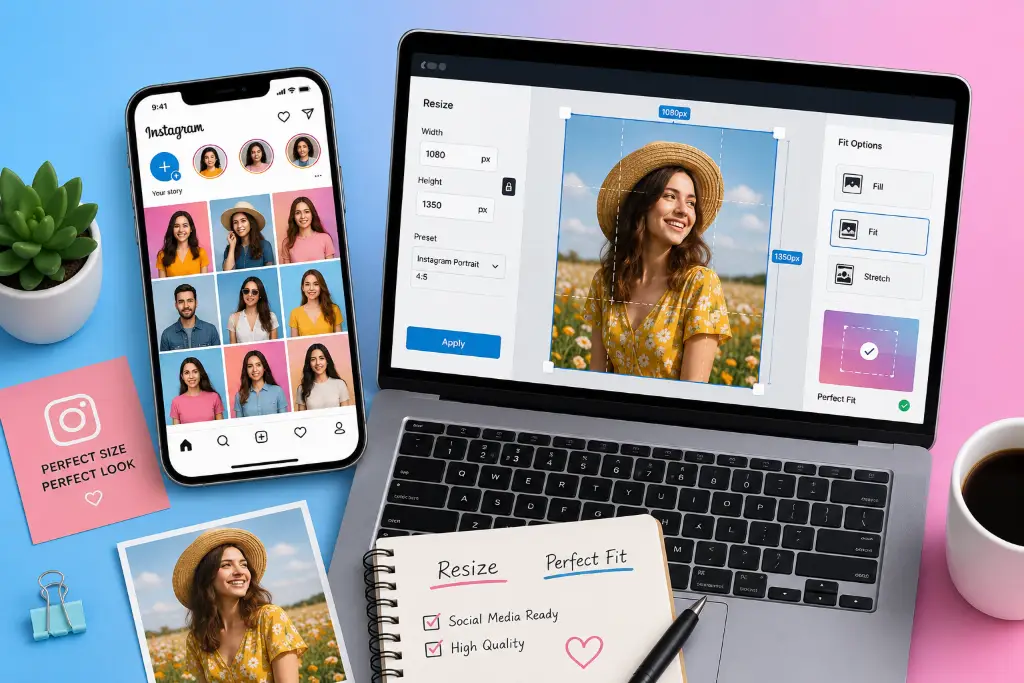
An Instagram post resizer is a browser-based tool that takes any photo — a phone snapshot, a DSLR shot, a product photo, whatever — and reshapes it into the exact pixel dimensions Instagram expects. Instead of guessing, exporting, re-uploading, and hoping for the best, you upload once, pick a format, and the tool handles the math.
The good ones do this entirely inside your browser using HTML5 Canvas, which means your photo never actually leaves your device. No server upload, no waiting on a queue, no account required. You just resize image for Instagram post, download it, and post.
- Works with JPG, PNG, and WebP files
- Supports Crop, Fit, and Stretch resizing modes
- Lets you zoom, drag, and reposition before exporting
- Generates every Instagram format from one upload
Instagram Image Sizes: The Only Table You Need
Before you resize photo for Instagram, it helps to know what you're aiming for. Instagram supports a handful of fixed canvas sizes, and every post, story, and reel gets forced into one of them whether you plan for it or not.
| Instagram Format | Recommended Size | Aspect Ratio |
|---|---|---|
| Portrait Post | 1080 × 1350 | 4:5 |
| Square Post | 1080 × 1080 | 1:1 |
| Landscape Post | 1080 × 566 | 1.91:1 |
| Story | 1080 × 1920 | 9:16 |
| Reel | 1080 × 1920 | 9:16 |
| Profile Picture | 320 × 320 | 1:1 |
Portrait (4:5) tends to take up the most vertical space in the feed, which is a big reason so many creators default to it now instead of the classic square. Whatever size you land on, the goal is the same — match your image resizer for Instagram to the format before you upload it, not after.
Know your ideal Instagram size? Resize your image now — free, no signup.
Resize My Image →How to Resize an Image for Instagram Without Cropping
This is the part most guides skip. Instagram crops photos to force them into its supported ratios, and by default, that means your resizer might be doing the same thing — quietly slicing off the edges of your photo without asking. If you want to resize image for Instagram post without cropping, the fix comes down to one setting: use Fit mode instead of Crop mode.
✂️ Crop Mode
Fills the entire canvas edge to edge. Looks seamless, but the parts of your photo that don't fit the target ratio get trimmed away. Great for photos with plenty of breathing room around the subject.
🖼️ Fit Mode
Shrinks your whole photo down so nothing is cut off, then fills any leftover space with a background color. Nothing gets lost — you just gain some padding around the image.
How to add background space instead of cropping
When you switch to Fit mode, the tool automatically works out how much empty space is left over and lets you fill it with white, black, transparent, or a custom color. A neat trick: use the "sampled image color" option, which pulls a shade directly from your photo so the padding blends in instead of looking like an obvious border.
How to preserve the complete photo
Stick with Fit mode, keep zoom at 100%, and leave the position centered unless you specifically want to shift the subject toward one edge. This guarantees the entire original photo survives the resize.
Don't want to crop your photo? Use ImageToolsZone's Instagram Post Resizer and choose Fit mode.
Open Instagram Post Resizer →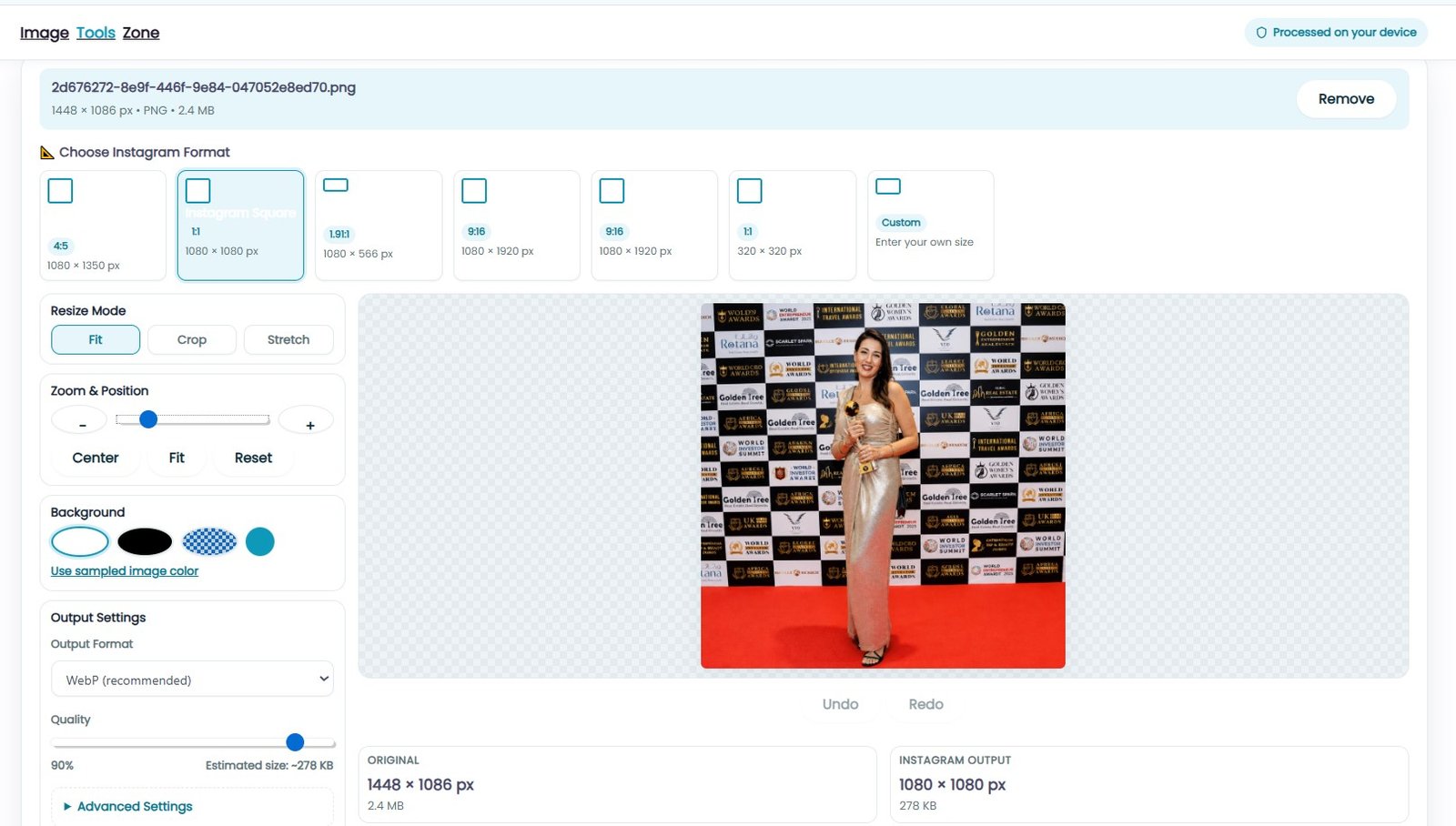
How to Resize an Image to 1080 × 1350 for Instagram
The 1080 × 1350 size — a 4:5 aspect ratio — has become the go-to portrait post size because it occupies more of the screen than a square photo, which generally means more attention while someone scrolls. If your original photo is a different shape, here's what happens when you convert it:
- From a 4:3 photo (a typical DSLR shot): a small amount of the top and bottom gets trimmed in Crop mode, or thin bars appear in Fit mode.
- From a 16:9 photo (wide landscape or screenshot): expect noticeably more trimming in Crop mode, so Fit mode is usually the safer pick here.
- From a square (1:1) photo: Fit mode adds padding above and below; Crop mode zooms in and loses the outer edges.
To resize photo for Instagram at this exact size, select the Portrait preset in the resizer, choose Crop or Fit depending on how much of the original frame you want to keep, then nudge the position slider until the subject sits where you want it.
Free Instagram Post Resizer Online
Here's the entire workflow, start to finish, using ImageToolsZone's free Instagram post resizer:
- Upload — drag and drop your photo, paste it from your clipboard, or choose it from your device.
- Select Format — pick Portrait, Square, Landscape, Story, Reel, or set a custom size.
- Crop or Fit — decide whether to fill the frame or preserve the full photo.
- Adjust — zoom in, drag to reposition, and fine-tune the background if needed.
- Choose Quality — pick JPG, PNG, or WebP and set the compression level.
- Download — save the finished file, correctly sized and ready to post.
You don't need Photoshop, Canva, or a design background to resize image for Instagram post correctly. The whole process takes under a minute once you know which format you're aiming for.
How to Resize Instagram Photos Without Losing Quality
Resizing always involves some trade-off, but you can keep it practically invisible if you follow a few habits:
- Start high-resolution. A photo that's already small gets blurry when stretched up to fill 1080px — there's no way around this, so always begin with the largest version you have.
- Use the correct dimensions the first time. Resizing an image multiple times through different apps compounds quality loss with every pass.
- Pick a sensible JPEG quality. Anything between 85% and 95% is usually indistinguishable from the original to the human eye, while keeping file size reasonable.
- Try WebP. It typically produces a smaller file than JPG at the same visual quality, which means faster uploads and less compression artifacting.
- Avoid repeated compression. Every time a JPG gets re-saved, it loses a little more detail. Keep an original master file and resize from that each time instead of resizing an already-resized copy.
- Sharpen after resizing, not before. A light sharpen pass after the resize can restore some of the crispness that scaling naturally softens.
- Don't enlarge small images. Blowing up a small photo to fit a large canvas will look soft no matter what settings you choose — it's a resolution problem, not a settings problem.
The resizer's Advanced Settings include an optional sharpen pass and a live quality slider that shows the estimated output size as you drag it, so you can see the trade-off in real time instead of guessing.
Ready to resize your image?
Resize Image Free →Instagram Post vs Story vs Reel Size
| Format | Dimensions | Ratio | Best For |
|---|---|---|---|
| Portrait | 1080×1350 | 4:5 | Feed posts, maximum screen space |
| Square | 1080×1080 | 1:1 | Grid consistency, classic look |
| Landscape | 1080×566 | 1.91:1 | Wide scenery, group photos |
| Story | 1080×1920 | 9:16 | Full-screen, temporary content |
| Reel | 1080×1920 | 9:16 | Short vertical video and cover images |
Which Instagram size should you choose?
Use square when you want a clean, uniform grid. Use portrait (4:5) when you want the post to command more attention while scrolling. Use landscape only when the subject genuinely benefits from a wide frame, like a skyline or a group shot. Use the 9:16 canvas for anything meant for Stories or Reels.
Why Does Instagram Crop My Photos?
Instagram crops photos because its feed is built around a fixed set of aspect ratios. When you upload something that doesn't match — a wide screenshot, a phone photo shot in a random ratio, an old scan — the app has to make a decision about what to keep and what to cut. It does this automatically, and it doesn't always guess correctly.
Think of it as three stages: Original photo → Instagram's canvas → Final result. If your original doesn't already match the canvas shape, something has to give — either part of the image gets trimmed (cropping) or space gets added around it (padding). Resizing the image yourself, before you upload it, is the only way to control which of those two things happens.
Resizing Different Image Types for Instagram
Resize JPG for Instagram
JPG is the most common photo format and works well for Instagram. Export at 85–95% quality to keep detail while managing file size.
Resize PNG for Instagram
PNG is ideal for graphics, text overlays, or logos that need transparency. For plain photographs, JPG or WebP usually gives a smaller file with no visible quality difference.
Resize WebP for Instagram
WebP often produces the smallest file size at a given quality level, which means faster uploads. It's a solid default for both photos and graphics.
Resize HEIC Photos for Instagram
iPhone photos are often saved as HEIC by default. Convert to JPG, PNG, or WebP first, since HEIC isn't universally supported by browser-based tools.
Resize DSLR Photos for Instagram
DSLR photos are usually very high-resolution and shot in ratios like 3:2 or 4:3. Expect some cropping or padding when converting to Instagram's ratios — Fit mode is the safer choice for preserving composition.
Resize Smartphone Photos for Instagram
Most phones shoot in 4:3 by default, which is close to Instagram's portrait ratio, making it one of the easier formats to work with.
Instagram Resizer for Businesses
For a business account, consistent sizing across posts isn't just cosmetic — it keeps the feed looking professional and makes product photos easier to browse. Use an Instagram photo resizer to quickly prepare:
- Product photos in a matching square or portrait format
- Promotional graphics and sale banners
- Brand announcements sized correctly for the feed
- Customer photos reused for social proof posts
- Advertisement creatives for feed and Story placements
Batch-resizing every product photo to the same dimensions also makes a shop feed look far more polished than a mix of random sizes.
Instagram Resizer for Influencers & Creators
Creators shoot in every ratio imaginable, and a resizer that respects composition matters here more than almost anywhere else. Whether it's portrait photography, travel shots, fashion content, food photography, or lifestyle imagery, the goal is the same — resize image for Instagram without losing the framing that made the shot worth posting in the first place.
Best format for creators: Portrait (4:5) is the most common choice for feed posts because it takes up more screen space, while Reels and Stories default to the 9:16 canvas for anything vertical-video based.
Advantages of Using an Instagram Post Resizer
Fast
Resize an image in seconds, right in your browser.
Private
Your photo is processed on-device and never uploaded.
Free
No signup, no watermark, no hidden paywall.
Mobile Friendly
Touch-optimized controls work smoothly on any phone.
Accurate
Exports at the exact pixel dimensions Instagram expects.
No Distortion
Crop and Fit modes both preserve proportions automatically.
Where to Use This Tool
Instagram Posts
Feed-ready portrait, square, and landscape sizes.
Stories & Reels
Full-screen 9:16 vertical formatting.
E-commerce
Consistent product photo dimensions.
Marketing
Promotional graphics sized correctly the first time.
Travel Photography
Preserve wide scenery without awkward crops.
Food Photography
Square or portrait framing for recipe posts.
Frequently Asked Questions
What size should an Instagram post be?
What is the best Instagram portrait size?
Can I resize an image to 1080 × 1350?
Can I resize images for Instagram Stories?
Can I resize an image without losing quality?
Does the Instagram Post Resizer reduce image quality?
Is this Instagram image resizer free?
Are my uploaded images stored?
Can I resize JPG, PNG and WebP images?
Can I resize images on mobile?
How do I resize an image for Instagram without cropping it?
Why does Instagram crop my photos automatically?
What is the difference between Crop and Fit mode?
What file format is best for Instagram, JPG or PNG?
How do I resize a square photo into a portrait Instagram post?
Can businesses use this tool for product photos?
Resize Your Image for Instagram
Upload a photo, pick a format, and download it in the exact size Instagram expects — free, private, and ready in seconds.
Upload an Image →