Resize image to exact size online free and get the exact width and height a form, website or social platform asks for, without opening heavy editing software. Type your pixels, pick a preset or drop in a whole folder of photos, and download the result in seconds. Below, you'll find how each resize mode works, when to use which, and the small mistakes that quietly ruin otherwise good images.
Resize Image to Exact Size Online for Free
When people say "resize image to exact size," they usually mean one thing: the picture must be a specific number of pixels wide and a specific number of pixels tall. Not roughly 600 by 600. Exactly 600 by 600. That's what an image resizer online is for, and it's what this tool is built around.
You enter the width and height you need, decide whether the original proportions should stay locked, and the tool produces a new copy at that size. It runs in your browser, so there's nothing to install and no account to create. If you've ever tried to resize a photo to exact size by dragging corners in a basic editor and ended up with a stretched face, you'll see the difference immediately.
One thing worth knowing early: resizing changes the dimensions of an image. It doesn't automatically change how good the image looks, and it doesn't always change the file size. We'll untangle all of that further down.
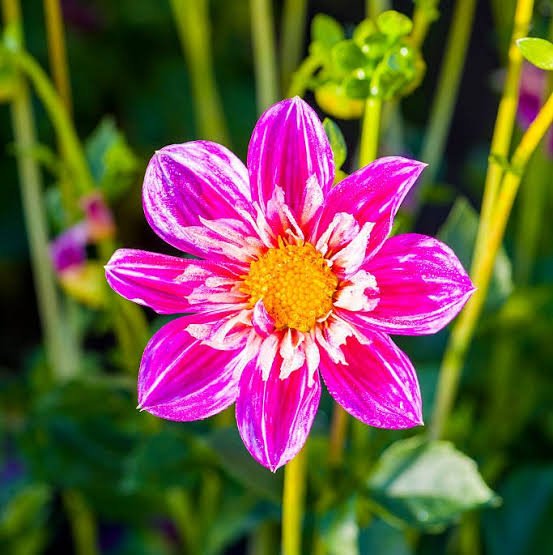
Original: 553 × 555 px · 62.6 KB
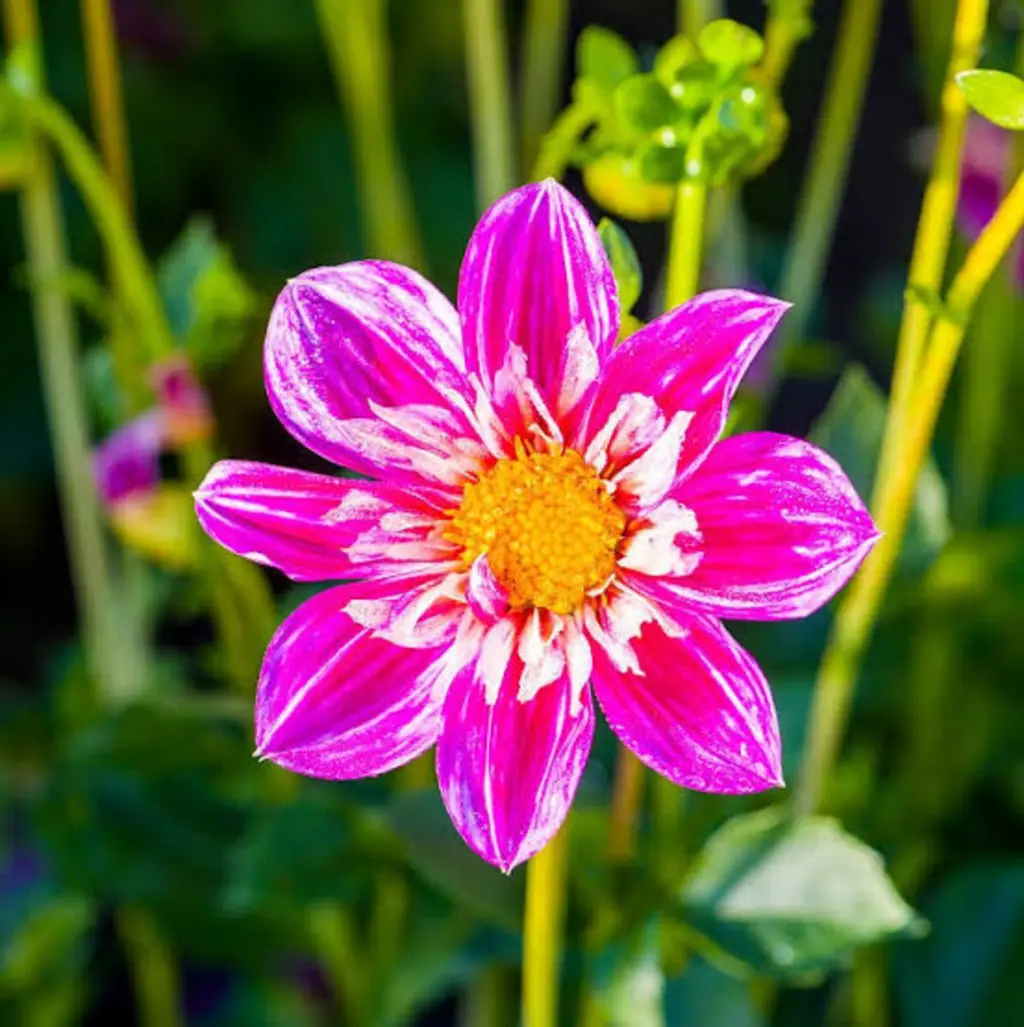
Resized: 1495 × 1500 px · 3.08 MB · PNG
People search for this in different ways: resize image to specific dimensions, resize image to exact dimensions, resize image to specific size or simply resize image online free. They all lead to the same need, and the same simple workflow covers them.
Need an Image in Exact Dimensions?
Most of us only think about image size when something goes wrong. A form rejects the upload. A banner looks cropped. A product photo shows up huge on one page and tiny on another. Here are the situations that send people looking for an exact image resizer.
Application photos
A job portal or exam form asks for a photo at 600 × 600 px, and your phone picture is 4000 × 3000.
Website banners
Your theme wants a banner at one fixed size, and anything else gets cropped or stretched.
Marketplace listings
Product images must fall within set dimensions before the listing is approved.
Social platforms
Every network wants its own shape, and a wrong size means awkward automatic cropping.
Too big or too small
The image is simply larger or smaller than the form or page can accept.
Distorted by hand
Changing width and height separately can squash the picture without you noticing until it's published.
The fix is a short loop:
And because not every job is the same, you can pick your approach up front: Exact Pixels, Percentage, Social Presets or Bulk Resize. Each has its own panel in the tool above.
How to Resize an Image to Exact Size
These steps follow the "Resize by Pixels" panel, which is the one most people need.
Upload your image
Click Choose file and select the picture from your device. Common formats such as JPG, PNG and WebP are what the file picker is meant for. If your file doesn't appear, convert it first with the format converter linked below.
Enter width and height
Type the pixel values you need into the Width and Height boxes. For an Instagram-style square, that's 1080 in both. For a wide web header, maybe 1920 and 1080.
Choose the aspect ratio behavior
Leave Keep aspect ratio ticked and the second value adjusts automatically so nothing stretches. Untick it only when you truly need a forced width and height, and expect the picture to distort if the shapes don't match.
Click Resize Image
The tool builds the new version at your chosen size. Need to start over? Reset clears the fields and Change Image lets you swap in another file.
Download and check the result
Save the resized image to your device, then open it once and confirm the dimensions and the look before you upload it anywhere.
Choose the Right Resize Method
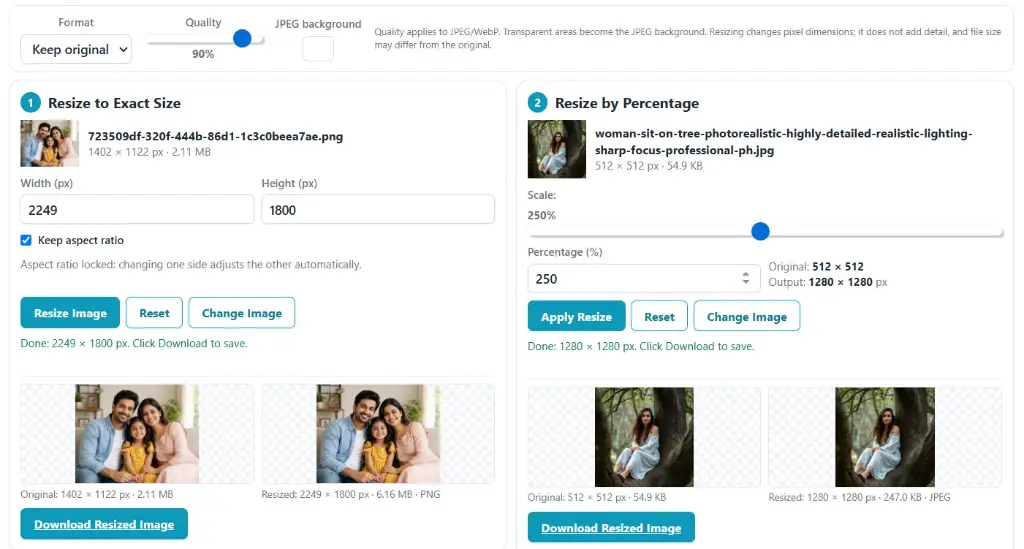
The tool gives you four ways to resize image online free. Picking the right one saves time.
A. Resize by Pixels
Enter the exact width and height. Best when someone has told you the number: website requirements, application forms, profile images, documents, product images and design work.
B. Resize by Percentage
Scale the whole image proportionally with a slider. You don't need to know the pixels, just how much bigger or smaller you want it.
C. Social Media Presets
Pick Instagram, YouTube, Facebook or Twitter and the tool fills in the right dimensions for you.
D. Bulk Resize
Drop in many images, set a maximum width and height and process them together.
Resize by percentage: quick examples
If you want to resize image by percentage, the slider starts at 100%, which keeps the original dimensions. From there:
- 50% halves the width and height, a fast way to reduce image dimensions.
- 75% makes the image slightly smaller.
- 150% enlarges it by half again.
- 200% doubles each side, which means four times as many pixels but no new detail.
It's the easiest way to scale an image online when the target is "smaller" rather than "exactly this."
Resize Images for Social Media
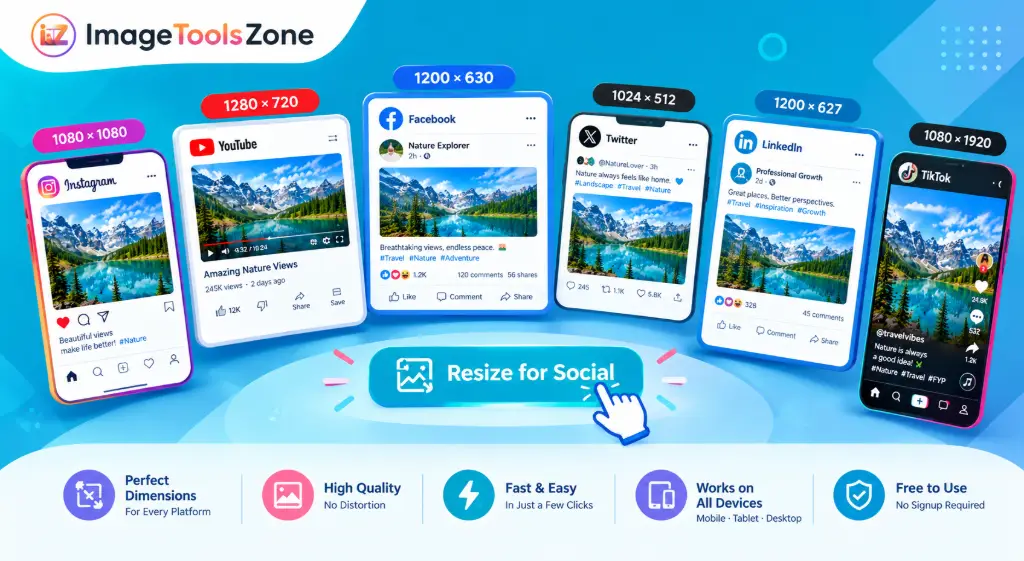
Instead of searching for the right dimensions every time, choose a platform preset, upload your picture and click Resize for Social. If you often work with Instagram, the dedicated Instagram post resizer is also worth bookmarking.
Instagram Post
The classic square. Use it to resize an image for Instagram when you want a clean grid.
Instagram Story
A tall vertical frame for stories and reels covers. Keep text away from the very top and bottom.
YouTube Thumbnail
A 16:9 frame. A reliable YouTube thumbnail resizer saves you from blurry or cropped previews.
Facebook Post
Suits link-style posts and shared images, so the whole picture shows in the feed.
Twitter Header
A very wide, short banner. Place faces and logos near the middle.
Profile Picture
A square profile picture resizer for avatars, team pages and account photos.
Platforms update their layouts now and then, so treat these as solid starting sizes and double-check a placement if it matters, like an ad or a banner.
Resize Multiple Images at Once
Resizing one photo is easy. Resizing fifty is where patience runs out. The bulk panel works as a bulk image resizer: upload many files by clicking or dragging them in, set a Max Width and Max Height, keep the aspect ratio on, and click Resize All Images.
📷 The photographer
You have 50 photos that must be 1920 px wide at most for a portfolio site. Set the maximum width once, and the batch image resizer handles the rest.
🏷️ The online seller
Dozens of product shots came from different phones and cameras. Give them all the same maximum dimensions so your catalog looks consistent.
Because the values are maximums, smaller images aren't blown up unnecessarily, and every image keeps its own proportions. It's handy for anyone who needs to resize multiple images online, resize multiple photos at once, or batch resize JPG images before sharing. Very large files or long batches take longer, so give the browser a moment.
Who Can Use This Image Resizer?
Students
Fit images into assignments, presentations, college forms, online applications and project submissions.
Photographers
Shrink big photographs for portfolios, sharing and client previews.
Graphic designers
Prepare quick versions for social posts, websites and presentations.
Bloggers and site owners
Set sensible dimensions before publishing so pages load cleanly.
Online sellers
Keep product photos at the same dimensions across the whole store.
Office workers
Handle photos for documents, forms, slides and employee profiles.
Content creators fit in here too: one original image can be resized for several platforms without redoing the design.
Practical Ways to Use an Exact Image Resizer
Resize a photo for an online application
Many portals state the exact dimensions they accept. Enter them, resize, and the upload goes through on the first try.
Resize a profile picture
Sites that need a square profile image reject wide or tall photos. Resize to a square, and if the subject is off-center, crop the photo first.
Resize product images
Marketplaces often set minimum and maximum dimensions. Matching them avoids rejected listings and uneven catalogs.
Resize images for websites
Uploading a 5000 px photo into a 800 px column wastes bandwidth. Resize it to the displayed size first.
Resize images for social media
Use the built-in presets instead of typing dimensions from memory.
Resize images for documents
Photos pasted into Word files, slides or PDFs behave better when they're already the size you need. If the end goal is a PDF, add the resized image to a PDF afterwards.
Resize multiple photos
Switch to bulk mode when many files need the same ceiling for width and height.
Key Features of Our Online Image Resizer
Exact pixel dimensions
Enter the width and height you need.
Percentage scaling
Use a slider from small to large.
Aspect ratio option
Keep original proportions when appropriate.
Social presets
Six common platform sizes, one click each.
Bulk resizing
Handle multiple images in one workflow.
Browser-based and simple
No heavy software, and a layout built for beginners.
Advantages and Limitations
No tool is perfect, so here's the honest picture.
✅ Advantages
- Quick resizing with exact pixel control
- Percentage scaling
- Social media presets
- Bulk resizing
- Aspect ratio option
- Beginner-friendly interface
- No advanced photo software needed
⚠️ Limitations
- Enlarging a small image can't recreate missing detail.
- Big enlargements may look blurry or pixelated.
- Forcing width and height can distort the image.
- Output quality depends on the original image.
- Very large images or batches take longer.
- Supported formats and file size limits depend on your browser and device.
Exact Pixels vs Percentage Resizing
| Method | Best for |
|---|---|
| Resize by Pixels | You know the required dimensions |
| Resize by Percentage | You want to scale proportionally |
| Social Media Presets | You need common platform sizes |
| Bulk Resize | You're processing multiple images |
A simple rule: if someone gave you numbers, use pixels. If you just want "about half the size," use percentage.
Image Dimensions vs Resolution vs File Size
These three get mixed up constantly, and the confusion causes most resizing frustration.
Dimensions
Width and height in pixels, like 1920 × 1080.
Resolution
Usually PPI or DPI, mostly relevant for printing. Need to change it? Try the image DPI changer.
File size
Storage used, such as 500 KB or 2 MB.
So 1920 × 1080 px describes dimensions, while 500 KB describes file size. Changing dimensions does not automatically guarantee a smaller file, because format and compression matter too. If a form wants "under 200 KB," use the image compressor after resizing.
Can You Resize an Image Without Losing Quality?
Often, yes, especially when going smaller. Reducing dimensions usually keeps a photo looking sharp, because you're discarding pixels you didn't need on that screen.
Going bigger is different. Enlarging stretches existing pixels, which can introduce softness or blockiness, and the original image quality sets the ceiling. Resizing and enhancing are separate jobs: resizing changes size, while enhancement tries to improve clarity. Resizing can't restore detail that was never captured. If a small picture needs to look cleaner at a larger size, run it through the image enhancer and then check the result at full size.
Resize Image Online vs Manual Image Editing
| Task | Online resizer | Manual software |
|---|---|---|
| Exact dimensions | Easy | Available, more steps |
| Percentage resize | Quick | Available |
| Social presets | Built in | Manual setup |
| Bulk resizing | Available | Depends on the software |
| Learning curve | Low | Often higher |
| One-time resize | Convenient | Often overkill |
Use an online resizer when you only need to change dimensions. Reach for advanced editing software when you need layers, retouching, drawing, complex effects or detailed editing.
Common Image Resizing Mistakes
1. Wrong dimensions
Width comes first, height second. Typing 1080 × 1920 instead of 1920 × 1080 flips a landscape image into a portrait one.
2. Ignoring aspect ratio
Force a square photo into a wide rectangle and it stretches. Keep the ratio locked unless the shape truly must change.
3. Over-enlarging
Pushing a low-resolution image far past its size leads to visible pixelation.
4. Mixing up size types
Dimensions are in pixels, file size is in KB or MB. A resized image can still be a heavy file.
5. Wrong social preset
A post, a story and a cover image each use different sizes. Pick the one matching your placement.
6. Skipping the final check
Open the result before uploading. It takes five seconds and catches most problems.
Ready to Resize Your Image?
Scroll back up, choose a mode, and get your exact dimensions in a few clicks.
Go to the ResizerFrequently Asked Questions
Can I resize an image to exact dimensions?
Yes. Enter the width and height in pixels in the Resize by Pixels panel, then click Resize Image. The output matches the numbers you typed.
How do I resize an image to a specific pixel size?
Upload your image, type the required width and height, choose whether to keep the aspect ratio, and resize. Download the result and confirm the size on your device.
How do I resize an image without changing the aspect ratio?
Keep the "Keep aspect ratio" box ticked. When you change one value, the other adjusts automatically so the picture isn't stretched or squashed.
Can I resize an image by percentage?
Yes. Use the Resize by Percentage slider. 50% halves each side, 100% keeps the original, and 200% doubles it. Click Apply Resize to finish.
Can I resize multiple images at once?
Yes. The Bulk Image Resizer accepts several files, applies your maximum width and height, and processes them together.
Can I resize an image for Instagram?
Yes. Choose Instagram Post (1080 × 1080) or Instagram Story (1080 × 1920) in the Social Media Presets panel and click Resize for Social.
Can I resize an image for a YouTube thumbnail?
Yes. The YouTube Thumbnail preset uses 1280 × 720 px, the standard 16:9 size.
Does resizing an image reduce its file size?
Usually when you shrink the dimensions, but not always. File size also depends on format and compression. For a specific KB target, resize first and then compress.
Does enlarging an image reduce quality?
It can. Enlarging stretches existing pixels, so large increases may look soft or pixelated. Smaller increases from a high-quality original usually hold up better.
What is the difference between image size and resolution?
Image size usually means pixel dimensions or file size. Resolution, often PPI or DPI, describes pixel density and matters mostly for printing.
What image formats are supported?
Common web formats like JPG, PNG and WebP are the intended inputs. If a file isn't accepted, convert it to one of these first.
Is there a maximum image size?
Limits depend on your device and browser memory. Very large images or big batches may be slow, so process them in smaller groups if needed.
Related Image Tools You May Need Next
Resizing often leads to a second step. These tools pair well with it.
Image Compressor
Reduce KB or MB after you've set the dimensions.
Image Cropper
Change the composition before resizing.
Image DPI Changer
For print requirements that mention DPI.
Image Enhancer
Improve clarity on small or soft pictures.
Convert Image Format
Switch between JPG, PNG and WebP.
Instagram Post Resizer
Platform-specific sizing for Instagram.
Add Image to PDF
Place resized images into a PDF document.