📋 On This Page
- Instagram Reel Thumbnail Maker
- Create an Instagram Reel Thumbnail in Seconds
- Instagram Reel Thumbnail Size Guide
- How to Make an Instagram Reel Thumbnail
- Why Use an Instagram Reel Thumbnail Maker?
- Customize Your Reel Cover With Powerful Editing Tools
- Instagram Reel Thumbnail Templates & Presets
- How to Design an Eye-Catching Instagram Reel Thumbnail
- Instagram Reel Cover vs. Reel Thumbnail
- Best Practices for Instagram Reel Covers
- Who Can Use This Instagram Reel Thumbnail Maker?
- Download Your Instagram Reel Thumbnail
- Is the Instagram Reel Thumbnail Maker Free?
- Instagram Reel Thumbnail Maker for Mobile
- Reel Thumbnail Maker vs. Traditional Software
- Frequently Asked Questions
- More Free Image Tools
Instagram Reel Thumbnail Maker – Create Eye-Catching Reel Covers Free
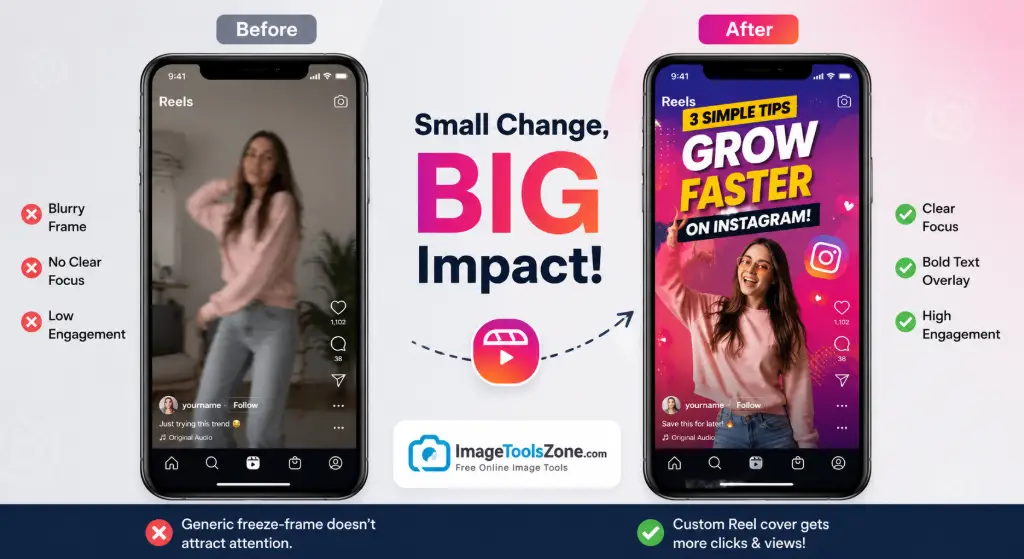
Let's be honest – your Instagram Reels deserve better than a random freeze-frame as their cover image. You've spent hours crafting the perfect video, editing it to perfection, and adding that catchy audio. So why would you let a blurry, awkward moment be the first thing people see?
That's exactly where an Instagram Reel Thumbnail Maker comes in. Whether you're calling it a Reel cover, thumbnail, or preview image, this tool gives you complete control over how your content appears in feeds, on your profile grid, and in the Reels tab.
Here's the thing: you don't need expensive software or design skills to create professional-looking Reel covers. Our free online tool lets you upload any image, crop it to the perfect 9:16 ratio, add eye-catching text, and download your finished thumbnail in seconds. No watermarks, no signup, no complications.
Think of it as your secret weapon for stopping the scroll. When someone's mindlessly swiping through their feed, your custom thumbnail is what makes them pause and think, "Wait, I need to watch this." And that split-second decision? That's the difference between 50 views and 50,000.
Create an Instagram Reel Thumbnail in Seconds
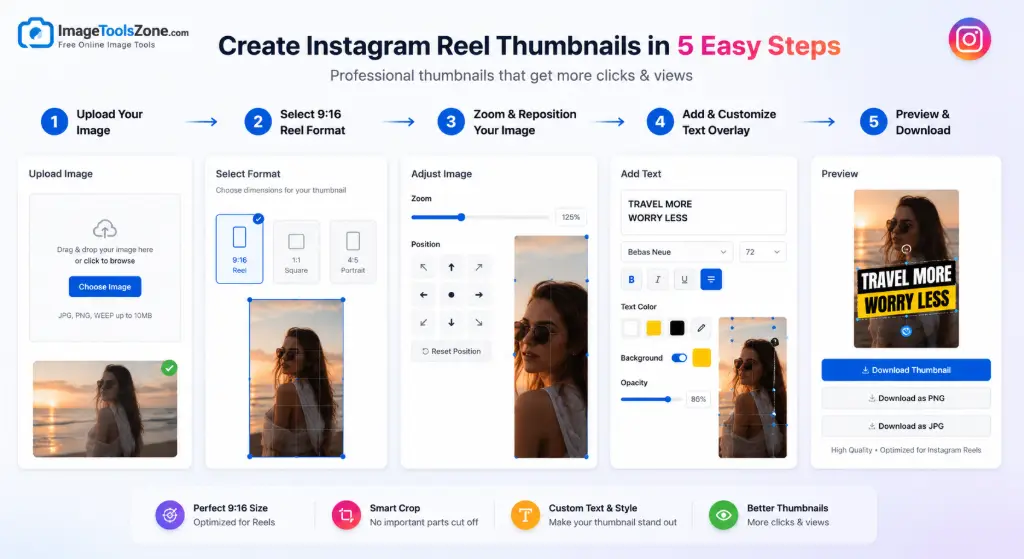
Forget complicated tutorials and steep learning curves. Creating a stunning Reel thumbnail shouldn't feel like rocket science. Here's how our streamlined workflow gets you from blank canvas to scroll-stopping cover in under five minutes:
Upload Your Image
Drag and drop your photo or click to browse. We accept JPG, PNG, and WebP formats. Choose an image that represents your Reel's content – whether it's a product shot, a behind-the-scenes moment, or a bold graphic.
Choose the Reel Size
Select the 9:16 aspect ratio (1080 × 1920 pixels). This is Instagram's native Reel format, ensuring your thumbnail looks crisp on every device without awkward cropping or white borders.
Crop & Reposition
Zoom in or out and drag your image to position the most important elements. Our safe area guide shows you where Instagram might crop, so you can keep faces and text exactly where they need to be.
Add Text & Customize
Overlay your headline, tagline, or call-to-action. Pick from dozens of fonts, adjust the size and weight, choose your color, and even add a background shape to make the text pop against any image.
Preview & Download
See exactly how your thumbnail will look before committing. Once you're satisfied, download in JPG for smaller file sizes, PNG for lossless quality, or WebP for modern web optimization.
Ready to Create Your First Reel Cover?
Join thousands of creators who've already upgraded their Instagram game
Make My Reel Thumbnail Free →Instagram Reel Thumbnail Size: What Size Should You Use?
Getting the dimensions right isn't just about looking professional – it's about avoiding the nightmare of pixelated, stretched, or cropped thumbnails that make your content look amateur. Let's break down exactly what you need to know.
The Golden Standard: 1080 × 1920 Pixels
Instagram Reels use a 9:16 aspect ratio, which translates to 1080 pixels wide by 1920 pixels tall. This vertical format dominates mobile screens, and sticking to these exact dimensions ensures your thumbnail displays perfectly across all devices – from the smallest phone to the largest tablet.
Here's why this matters: when you upload a Reel with a custom cover, Instagram displays it in three key places:
- Your Profile Grid: Shows a 1:1 square crop from the center
- The Reels Tab: Displays the full 9:16 vertical image
- Explore & Feed: Shows varying crops depending on device
Understanding Safe Zones
Not all parts of your 1080 × 1920 canvas are created equal. Instagram overlays interface elements like your username, caption preview, and action buttons (like, comment, share) on the bottom portion of your Reel. The top also gets covered by the Reels header.
This means your most critical elements – faces, product shots, text overlays – should sit in the center-safe zone, roughly between 20% from the top and 30% from the bottom. Think of it like framing a photograph: you want the subject clear and unobstructed.
Exact Dimensions
1080 × 1920 pixels (9:16 ratio) for perfect Instagram compatibility
Safe Area
Keep key elements centered to avoid UI overlap and cropping
Mobile First
Optimized for vertical viewing on smartphones and tablets
What Happens If You Use the Wrong Size?
Upload a horizontal image or the wrong aspect ratio, and Instagram will automatically crop it – often in the worst possible way. That perfectly framed product shot? Suddenly cut in half. Your face? Cropped out entirely. The text you spent ten minutes positioning? Completely unreadable.
By using our Instagram Reel Thumbnail Maker, you eliminate this guesswork. The canvas is pre-set to 1080 × 1920, and our safe area toggle shows you exactly where to position everything for maximum impact.
How to Make an Instagram Reel Thumbnail
Let's walk through the actual process of creating a Reel thumbnail that converts scrollers into viewers. This isn't just about following steps – it's about understanding the strategy behind each decision.
Step 1: Upload a Photo That Tells a Story
Your thumbnail image should give viewers a clear idea of what your Reel contains. If you're sharing a recipe, use a gorgeous shot of the finished dish. Teaching a dance? Capture the most dynamic pose. Selling a product? Show it in action.
Pro tip: Don't just grab a random frame from your video. Often, the best thumbnail is a separate photo taken specifically for the cover – better lighting, better composition, better everything.
Step 2: Select 9:16 Reel Format
Our tool defaults to the correct Instagram Reel dimensions, but always double-check. You should see "9:16" or "1080 × 1920" displayed. This ensures your thumbnail won't get awkwardly cropped when uploaded.
If you're working with a horizontal image, don't worry – you can zoom and reposition to capture the best part. Sometimes a tight crop on a detail is more powerful than showing the whole scene anyway.
Step 3: Adjust Zoom and Position
This is where the magic happens. Use the zoom slider to get closer to your subject or pull back for context. Then drag the image to position it perfectly within the frame.
Enable the safe area guide (usually a dotted line overlay) to see where Instagram's interface will sit. Keep faces, text, and important details well within this boundary. A good rule of thumb: if it's within the center 60% of the image, you're probably safe.
Step 4: Add Your Headline
Text transforms a pretty image into a compelling reason to watch. Your headline should be:
- Short: 3-7 words maximum
- Clear: Instantly understandable
- Benefit-driven: What will viewers gain?
Examples that work: "5-Minute Pasta Hack," "This Changed My Skin," "Try This Dance Challenge," "Before & After Transformation."
Step 5: Choose a Font and Color
Font choice communicates mood. Bold, thick fonts (like Impact or Bebas Neue) scream confidence and work great for tutorials, challenges, or bold statements. Elegant scripts suit beauty, lifestyle, or luxury content. Clean sans-serifs are versatile and professional.
Color contrast is non-negotiable. White text on a dark image, black text on a light image, or use a colored background box behind your text. If viewers can't read it in half a second, they'll keep scrolling.
Step 6: Add a Background or Shape
Sometimes your image is too busy for text to stand out clearly. That's when shapes save the day. Add a semi-transparent rectangle, circle, or rounded box behind your text. Lower the opacity to 70-80% so the image still shows through, but the text pops.
You can also use shapes creatively – circle crop your product, add arrows pointing to key details, or use lines to separate sections of information.
Step 7: Preview Before Downloading
Always, always preview your work. Zoom out to see the full 9:16 canvas. Does the text look balanced? Is the focal point clear? Does it make sense at a smaller size (like it would appear in someone's feed)?
Our tool shows you exactly how it will look, so there are no surprises when you upload to Instagram.
Step 8: Download in Your Preferred Format
Choose JPG for the smallest file size (great for quick uploads), PNG if you need lossless quality (especially important for text-heavy designs), or WebP for modern optimization. All three formats work perfectly with Instagram.
Why Use an Instagram Reel Thumbnail Maker?
You could just let Instagram auto-select a frame from your video. Plenty of people do. But here's what separates the accounts that grow from the ones that stagnate: intentional design.
Fast Editing
Create a professional Reel cover in minutes, not hours. No need to master complex software like Photoshop or Premiere Pro. Our browser-based tool handles everything instantly.
Mobile Friendly
Edit from your desktop, tablet, or phone. The responsive design adapts to any screen size, so you can create thumbnails wherever inspiration strikes.
Add Custom Text
Overlay headlines, captions, or calls-to-action that make people stop scrolling. Choose from multiple fonts, sizes, and colors to match your brand.
Customize Your Design
Use fonts, colors, shapes, backgrounds, and presets to create thumbnails that reflect your unique style. No two creators need the same look.
Preview Before Downloading
See exactly how your thumbnail will appear before you commit. Make adjustments on the fly until it's perfect.
Browser-Based Processing
Your images never leave your device. Everything processes locally in your browser, ensuring complete privacy and security.
The Real Reason Thumbnails Matter
Instagram's algorithm favors Reels that keep people watching. And the first factor in whether someone watches? The thumbnail. It's the gatekeeper between your content and your potential audience.
A custom thumbnail signals professionalism. It shows you care about your content enough to polish every detail. It gives viewers context so they know exactly what they're clicking on. And perhaps most importantly, it builds brand recognition – when people see your consistent thumbnail style, they know it's you before they even read your username.
Compare that to an auto-selected frame: often blurry, poorly framed, showing you mid-blink or with an awkward expression. That's the digital equivalent of showing up to a photoshoot in sweatpants.
Customize Your Reel Cover With Powerful Editing Tools
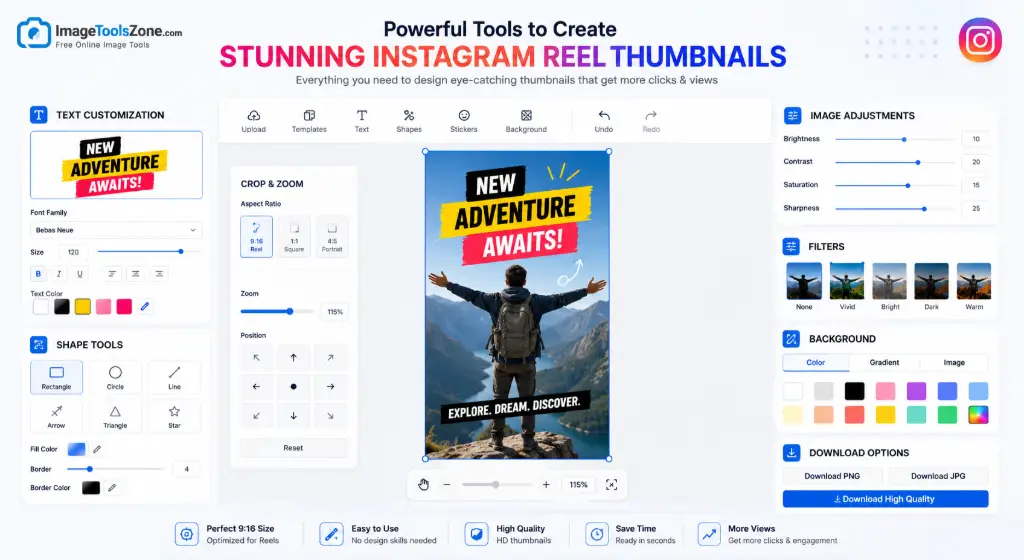
Great thumbnails aren't one-size-fits-all. That's why our Instagram Reel Cover Maker packs professional-grade editing tools into a simple interface. Here's what you can do:
Crop & Resize
Sometimes your image is too wide, too tall, or just not quite framed right. Our crop tool lets you:
- Select the exact 9:16 Reel ratio
- Zoom in to focus on details
- Pan and reposition freely
- Rotate if needed
- Flip horizontally or vertically
Need to crop an image for Instagram Reel specifically? The preset ratio does the math for you. No guessing, no trial and error.
Add Text That Converts
Text is your secret weapon for communicating value instantly. Our text editor includes:
- Multiple font families: From bold and modern to elegant and classic
- Size control: Make it huge for impact or subtle for sophistication
- Weight options: Light, regular, bold, or extra-bold
- Alignment: Left, center, or right positioning
- Color picker: Choose any hex color or use the eyedropper tool
- Text background: Add a colored box behind text for readability
- Spacing controls: Adjust letter spacing and line height
Pro move: Use your brand colors for text to maintain consistency across all your content. If your logo uses #0e98ba (that nice teal blue), use it in your thumbnails too.
Add Shapes for Visual Interest
Shapes aren't just decorative – they're functional design elements. Use them to:
- Create backgrounds for text
- Highlight specific areas of your image
- Add visual separation between elements
- Frame your subject
- Create custom graphics
Available shapes include rectangles, circles, rounded rectangles, and lines. Adjust the color, opacity, and position to create exactly the look you want.
Adjust Image Properties
Sometimes your photo needs a little touch-up before it becomes a thumbnail. Our adjustment tools let you:
- Brightness: Lighten dark images or tone down overexposed shots
- Contrast: Make colors pop or create a softer, muted look
- Rotation: Straighten crooked photos or create dynamic angles
- Flip: Mirror your image if needed
These aren't full photo editing capabilities – that's what our professional image editor is for – but they're perfect for quick thumbnail tweaks.
Instagram Reel Thumbnail Templates & Presets
Starting from a blank canvas can be intimidating. That's why we've created six professionally designed presets that you can customize in seconds. Each one is optimized for different content types and aesthetics:
Bold
High-contrast, attention-grabbing designs perfect for announcements and challenges
Minimal
Clean, simple layouts that let your image shine
YouTube
Familiar YouTube-style thumbnails that drive clicks
Business
Professional designs for brands and entrepreneurs
Fitness
Energetic, motivational layouts for workout content
Food
Appetizing designs that make viewers hungry
How to Use Presets
Using a preset doesn't mean your thumbnail will look like everyone else's. Here's the workflow:
- Choose a preset that matches your content type
- Upload your image – it automatically fits the template
- Replace the text with your own headline
- Adjust colors to match your brand
- Fine-tune positioning and sizing
- Download your customized design
The whole process takes less than two minutes, and you end up with a thumbnail that looks like you hired a professional designer.
Template Inspiration
Not sure which preset to choose? Think about your content:
- Tutorials & How-Tos: Bold or YouTube presets work great – they clearly communicate "learn something"
- Lifestyle & Aesthetic Content: Minimal keeps things clean and sophisticated
- Business & Marketing: Business preset signals professionalism
- Workout & Health: Fitness preset has that high-energy vibe
- Recipes & Cooking: Food preset makes everything look delicious
You can also mix and match elements. Love the Bold preset's text style but want the Minimal preset's color scheme? Go for it. These are starting points, not rules.
How to Design an Eye-Catching Instagram Reel Thumbnail
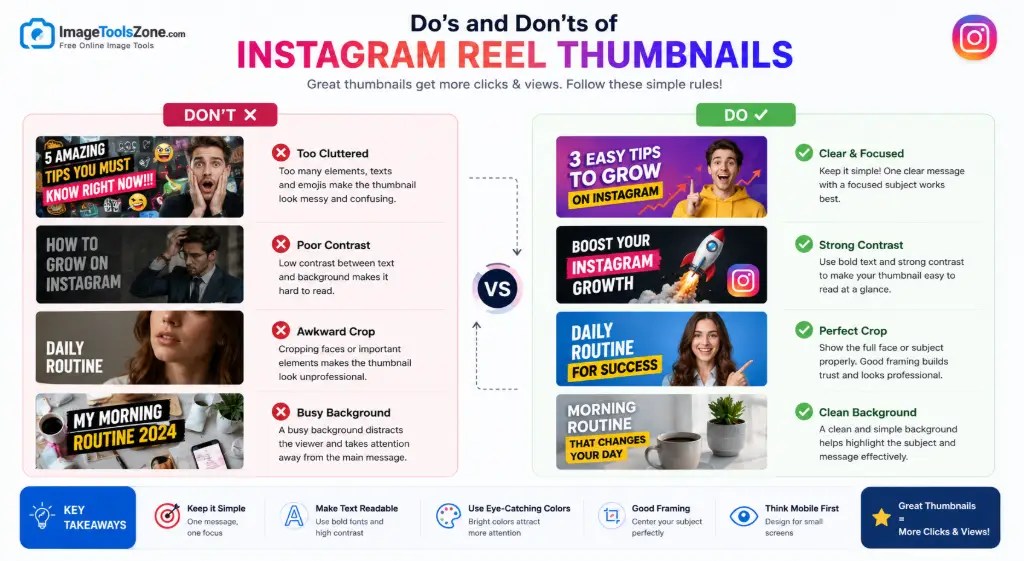
Creating a thumbnail that stops the scroll isn't just about following steps – it's about understanding what makes people pause. Here are the principles that separate viral Reels from forgotten ones:
Use One Clear Visual Message
Your thumbnail should communicate one idea instantly. Not three. Not five. One. If you're showing a before-and-after transformation, make that the focus. If you're sharing a recipe, show the finished dish. Don't try to cram multiple concepts into one frame – it creates confusion, and confused people scroll past.
Keep Headline Text Short
People don't read thumbnails – they scan them. You have about 0.5 seconds to communicate your message. That's why the best thumbnails use 3-7 words maximum. "5-Minute Breakfast Hack" works. "Here's How I Make a Quick and Easy Breakfast in Just Five Minutes Every Morning" doesn't.
Use Strong Contrast
Contrast creates visual hierarchy. It's the difference between your text blending into the background and jumping off the screen. Use:
- Light text on dark images
- Dark text on light images
- Colored text boxes behind white text
- Complementary colors (blue/orange, purple/yellow)
If you can't read your thumbnail when you squint, neither can anyone else.
Choose a Readable Font
Fancy script fonts look beautiful... until they're unreadable at thumbnail size. Stick to fonts that are clear and bold. Sans-serif fonts like Helvetica, Arial, or Impact work well. If you use a decorative font, make it large and use it sparingly – maybe just for one key word.
Make the Main Subject Obvious
What's the most important thing in your Reel? That should be the most important thing in your thumbnail. If it's a product, show it large and clear. If it's you, use a close-up with good lighting. If it's a transformation, show the dramatic difference.
Don't hide your subject in a busy background. Crop tight. Use depth of field to blur distractions. Make it impossible to miss what matters.
Avoid Overcrowding
White space (or negative space) isn't wasted space – it's breathing room for your design. A cluttered thumbnail feels overwhelming and amateur. Give elements room to exist. If you have text, don't cover the entire image with it. If you have multiple elements, space them out.
Keep Important Elements Inside the Safe Area
We mentioned this earlier, but it's worth repeating: Instagram overlays UI elements on your Reel thumbnail. Your username sits at the top. Action buttons sit at the bottom. Caption text overlays the lower third.
Keep faces, products, and text in the center 60% of the image. Our Reel thumbnail maker includes a safe area toggle that shows you exactly where this zone is.
Use Consistent Branding
Your thumbnails are part of your brand identity. Use consistent:
- Colors (your brand palette)
- Fonts (2-3 max)
- Layout style (where you position text, how you frame subjects)
- Tone (playful, professional, edgy, etc.)
When someone sees your thumbnail in their feed, they should recognize it as yours before they even read your username. That's brand recognition, and it builds trust.
Instagram Reel Cover vs. Reel Thumbnail: What's the Difference?
You'll hear people use these terms interchangeably, and honestly? They're mostly talking about the same thing. But let's clear up the confusion:
Reel Thumbnail
This is the static image that represents your Reel before someone clicks to watch it. It appears in:
- Your profile grid (as a square crop)
- The Reels tab (full 9:16 vertical)
- Explore page
- Feed previews
Think of it like a movie poster – it's designed to make people want to watch.
Reel Cover
This is essentially the same thing, just a different name. Some creators prefer "cover" because it sounds more intentional – you're covering your Reel with a specific image rather than letting Instagram auto-select a frame.
Reel Cover Image / Reel Preview Image
More synonyms for the same concept. Instagram's own interface sometimes uses "Cover" when you're uploading, which is why that term has stuck.
Why the Confusion?
Different platforms use different terminology. YouTube calls them "thumbnails." Instagram uses "cover." TikTok just shows you a frame from the video. But they all serve the same purpose: attracting viewers.
For SEO purposes, people search using all these terms: "Instagram Reel thumbnail maker," "Reel cover creator," "custom Reel cover," "Reel preview image tool." That's why our tool optimizes for all of them – so you can find us no matter what you call it.
Best Practices for Instagram Reel Covers
Want your Reels to perform better? Follow these best practices every single time:
Use a High-Quality Image
Blurry, pixelated thumbnails scream amateur. Always start with the highest resolution image possible. If you're taking a photo specifically for the cover, use good lighting and a steady hand (or tripod).
Choose a Strong Focal Point
Every thumbnail needs a clear center of attention. Whether it's a face, a product, or text, make it obvious what viewers should look at first.
Keep Text Readable
If someone can't read your text in under a second, they won't try. Use large, bold fonts with strong contrast. Test it by viewing your thumbnail at 25% size – if it's still readable, you're good.
Use Contrasting Colors
Colors that pop against each other create visual interest. Try complementary color schemes (opposite on the color wheel) or use a bright accent color against a neutral background.
Avoid Excessive Text
More than 7 words and you're losing people. Be ruthless with your editing. Every word should earn its place.
Keep Key Elements Within the Safe Area
Remember: Instagram's UI will cover parts of your thumbnail. Keep important content in the center 60% to avoid it getting hidden.
Maintain Consistent Branding
Use the same fonts, colors, and layout style across all your thumbnails. Consistency builds recognition and trust.
Preview Before Downloading
Always check your work at full size and reduced size. Make sure everything looks balanced and professional before you commit.
Ready to Create Yours?
Put these best practices into action right now
Create Instagram Reel Thumbnail →Who Can Use This Instagram Reel Thumbnail Maker?
Short answer: anyone who posts Reels. But let's get specific about how different creators benefit:
Content Creators
Build a recognizable brand with consistent, professional thumbnails that make your content stand out in crowded feeds.
Instagram Influencers
Maintain your aesthetic while creating scroll-stopping covers that attract brand partnerships and grow your following.
Small Businesses
Showcase products professionally without hiring a designer. Create thumbnails that convert viewers into customers.
Personal Brands
Establish authority and consistency across your content with branded thumbnails that reinforce your message.
Bloggers
Drive traffic to your blog with thumbnails that tease your content and compel people to click through.
Coaches
Position yourself as an expert with professional thumbnails that communicate value and build trust.
Fitness Creators
Show transformations, workouts, and tips with energetic thumbnails that motivate people to watch.
Food Creators
Make your recipes irresistible with appetizing thumbnails that showcase your dishes beautifully.
Social Media Managers
Create thumbnails for multiple clients quickly and efficiently, maintaining each brand's unique style.
Digital Marketers
Optimize Reels for maximum engagement with data-driven thumbnail designs that convert.
Download Your Instagram Reel Thumbnail in JPG, PNG or WebP
Flexibility matters. That's why our Instagram reel thumbnail maker free tool lets you download in three different formats, each with its own advantages:
JPG (Joint Photographic Experts Group)
Best for: Photographs and images with lots of colors
File size: Smaller, faster to upload
Quality: Slight compression (usually unnoticeable)
Use when: You want quick uploads and your thumbnail is photo-heavy
PNG (Portable Network Graphics)
Best for: Images with text, logos, or sharp edges
File size: Larger than JPG
Quality: Lossless – no quality degradation
Use when: Your thumbnail has lots of text or you need perfect clarity
WebP (Web Picture Format)
Best for: Modern web optimization
File size: Smaller than both JPG and PNG
Quality: Excellent compression with minimal quality loss
Use when: You want the best balance of quality and file size
All three formats work perfectly with Instagram. The platform will handle them without issues. Choose based on your specific needs – if you're unsure, PNG is always a safe bet for thumbnails with text.
Is the Instagram Reel Thumbnail Maker Free?
Yes, absolutely. Our Instagram Reel Thumbnail Maker is completely free to use. Here's what that means:
- Free access: No paywalls, no premium tiers, no hidden fees
- No account requirement: Don't waste time signing up. Just visit the tool and start creating.
- Browser-based editing: No software to download or install
- Multiple export formats: Download in JPG, PNG, or WebP at no cost
- No complicated software: Everything happens in your browser with an intuitive interface
- Unlimited use: Create as many thumbnails as you need
- No watermarks: Your thumbnails are yours, clean and professional
We believe that professional-quality design tools should be accessible to everyone, not just those with big budgets. Whether you're a solo creator just starting out or an established brand, you deserve tools that help you look your best.
Instagram Reel Thumbnail Maker for Mobile
Creating content on the go? Our tool is fully responsive, which means it works beautifully on your phone or tablet. Here's how mobile editing works:
Upload from Phone
Tap to browse or use your camera roll to select an image. The mobile interface is optimized for touch, making it easy to navigate even on smaller screens.
Touch-Drag Image
Use your finger to pan and position your image. Pinch to zoom in and out. The touch controls are smooth and responsive, giving you precise control over your composition.
Adjust Text
Type directly into text fields using your phone's keyboard. Tap to select fonts, colors, and sizes. The mobile interface adapts to show all options without cluttering the screen.
Preview
See your thumbnail exactly as it will appear. The preview works perfectly on mobile, so you can make confident decisions before downloading.
Download
Save your finished thumbnail directly to your phone's camera roll. Then upload it to Instagram immediately – no need to transfer files between devices.
The mobile experience isn't a stripped-down version – it's the full tool, optimized for touch. Create professional thumbnails from your couch, your coffee shop, or anywhere inspiration strikes.
Instagram Reel Thumbnail Maker vs. Traditional Photo Editing Software
Why use a specialized tool instead of Photoshop or Canva? Let's compare:
| Feature | Reel Thumbnail Maker | Traditional Editing Software |
|---|---|---|
| Upload & Start | ✓ Instant | ✓ Yes, but requires setup |
| Reel-Focused Workflow | ✓ Built for 9:16 Reels | Often manual setup required |
| 9:16 Canvas | ✓ Pre-set | Manual configuration |
| Add Reel Text | ✓ Optimized for thumbnails | ✓ Yes, but generic tools |
| Presets | ✓ 6 Reel-specific templates | Depends on software |
| Browser-Based | ✓ No installation | Often requires download |
| Quick Download | ✓ One-click export | ✓ Yes, but more steps |
| Beginner Friendly | ✓ Designed for simplicity | Steep learning curve |
| Cost | ✓ Free | Often expensive subscriptions |
| Safe Area Guide | ✓ Built-in | Manual setup |
The bottom line? Traditional software is powerful, but it's overkill for creating Reel thumbnails. You don't need layers, masks, and advanced compositing when you just want to add text to an image and download it. Our tool strips away the complexity and gives you exactly what you need – nothing more, nothing less.
Frequently Asked Questions
An Instagram Reel Thumbnail Maker is an online tool that lets you create custom cover images for your Instagram Reels. Instead of letting Instagram automatically select a random frame from your video, you can upload any image, crop it to the perfect 9:16 ratio (1080 × 1920 pixels), add text overlays, and design a professional-looking thumbnail that attracts more viewers. These tools are specifically optimized for Instagram's Reels format, making it easy to create eye-catching covers without needing advanced design skills or expensive software.
The ideal Instagram Reel thumbnail size is 1080 pixels wide by 1920 pixels tall, which creates a 9:16 aspect ratio. This vertical format is optimized for mobile viewing and matches Instagram's native Reels dimensions. Using this exact size ensures your thumbnail displays perfectly without cropping, stretching, or quality loss. It's also important to keep important elements (like faces, text, or products) within the center 60% of the image, as Instagram overlays interface elements on the top and bottom portions of your Reel.
Creating an Instagram Reel cover is simple with the right tools: 1) Upload your chosen image to an Instagram Reel Thumbnail Maker, 2) Select the 9:16 aspect ratio (1080 × 1920 pixels), 3) Crop and reposition your image to highlight the most important elements, 4) Add text overlays if desired, choosing fonts and colors that match your brand, 5) Adjust brightness, contrast, or add shapes for visual interest, 6) Preview your design to ensure everything looks balanced, and 7) Download in your preferred format (JPG, PNG, or WebP). Then upload it as your Reel cover when posting to Instagram.
Yes! Adding text to your Instagram Reel thumbnail is one of the most effective ways to communicate what your video is about and attract viewers. Most Reel thumbnail makers allow you to add customizable text overlays where you can choose from various fonts, adjust the size and weight, select colors, and even add background shapes behind the text for better readability. Keep your text short (3-7 words), use high contrast colors, and position it within the safe area to avoid Instagram's UI elements covering it.
Absolutely! Modern Instagram Reel Thumbnail Makers are fully responsive and work perfectly on mobile devices. You can upload images directly from your phone's camera roll, use touch controls to zoom and reposition your image, type text using your mobile keyboard, adjust colors and fonts, and download your finished thumbnail – all from your smartphone or tablet. The mobile interface is optimized for touch, making it easy to create professional thumbnails on the go without needing a computer.
Yes, JPG is one of the most common download formats for Reel thumbnails. JPG files are ideal for photographic images because they offer good quality with smaller file sizes, making them quick to upload to Instagram. Most thumbnail makers, including our tool, allow you to download in JPG format along with PNG and WebP options. JPG works perfectly for thumbnails with photos, though if your design has lots of text or sharp edges, you might prefer PNG for lossless quality.
Yes! PNG is an excellent choice for Reel thumbnails, especially if your design includes text, logos, or graphics with sharp edges. PNG format provides lossless compression, meaning your thumbnail maintains perfect quality without any degradation. While PNG files are typically larger than JPG files, they're ideal for thumbnails where clarity and crispness are important. Instagram fully supports PNG uploads, so you can use this format without any issues.
Definitely! Using a custom image for your Reel cover gives you complete creative control over how your content appears. Instead of being stuck with whatever frame Instagram auto-selects from your video (which is often blurry or unflattering), you can upload any image – whether it's a professionally shot photo, a graphic you designed, a screenshot, or even an image created specifically for the thumbnail. This allows you to create a more polished, intentional look that better represents your content and brand.
The best aspect ratio for Instagram Reels is 9:16, which translates to 1080 pixels wide by 1920 pixels tall. This vertical format is optimized for mobile viewing, as most people hold their phones vertically when scrolling through Instagram. Using the 9:16 ratio ensures your Reel and its thumbnail fill the entire screen without black bars or awkward cropping. While Instagram does accept other aspect ratios (like 4:5 or 1:1), 9:16 provides the best viewing experience and maximum visibility in the Reels tab.
To create an eye-catching Reel thumbnail: 1) Use a high-quality, well-lit image with a clear focal point, 2) Add short, compelling text (3-7 words) that communicates value, 3) Use strong color contrast to make text readable, 4) Choose bold, easy-to-read fonts, 5) Keep important elements in the center safe area to avoid UI overlap, 6) Avoid cluttering the design – use white space effectively, 7) Maintain consistent branding with your colors and fonts, 8) Show emotion or action that creates curiosity, and 9) Preview at different sizes to ensure it looks good both large and small. The goal is to make people stop scrolling and want to watch.
Yes, our Instagram Reel Thumbnail Maker is completely free to use with no hidden costs or premium tiers. You can create unlimited thumbnails, access all editing features (including text overlays, shapes, cropping, and adjustments), download in multiple formats (JPG, PNG, WebP), and use the tool as often as you need – all without paying a cent or creating an account. We believe professional design tools should be accessible to everyone, whether you're just starting out or running an established brand.
Not at all! Our Instagram Reel Thumbnail Maker is designed specifically for people with no design experience. The interface is intuitive and user-friendly, with drag-and-drop functionality, pre-set templates, and simple controls. You don't need to know anything about design principles, color theory, or typography – the tool guides you through the process with clear options and real-time previews. If you can use Instagram, you can create professional-looking Reel thumbnails. Plus, our presets give you a head start with professionally designed layouts that you can customize in minutes.
More Free Image Tools
Once you've created your perfect Reel thumbnail, you might need other image editing tools to complete your content creation workflow. Here are some related free tools that complement your Reel creation process:
Resize Image for Instagram Post
Optimize your images for Instagram posts with the perfect dimensions
Free Image Cropper Online
Crop and resize images to any dimension quickly and easily
Image Compressor
Reduce file size while maintaining quality for faster uploads
Background Remover
Remove unwanted backgrounds from images instantly
Image Converter
Convert between JPG, PNG, WebP, and other formats without losing quality
Image Enhancer
Improve image quality, brightness, and clarity with one click
Professional Image Editor
Advanced editing tools without watermarks or subscriptions
Circle Crop Image
Crop images into perfect circles for profile pictures and more
Create Your Instagram Reel Thumbnail Today
Upload your image, customize your Reel cover, and download your finished thumbnail in seconds. No signup required, completely free, and ready to make your content stand out.
Create Reel Thumbnail Now →