Image Palette Generator Tool for Designers – Extract Stunning Color Schemes Instantly
Color choices make or break a digital design. Whether you are building an e-commerce platform, crafting a mobile app interface, or curating brand guidelines, picking harmonious shades shouldn't feel like guessing. The image palette generator tool for designers gives you the exact tools needed to extract clean, beautiful color schemes directly from any photograph, graphic, or digital preview within seconds.
- What is a Palette Generator?
- How Do I Extract Colors From an Image?
- What Colors Can You Extract?
- Get Dominant Colors From Your Image
- Get HEX Color Codes From an Image
- Create a Color Palette From a Photo
- Create a Brand Color Palette From a Logo
- Extract Colors From a Screenshot
- Who Can Use an Image Palette Generator?
- Image Palette Generator for Web Design
- Image Palette Generator for Branding
- How Does an Image Palette Generator Work?
- How to Choose the Right Number of Colors
- Tips for Getting a Better Color Palette
- Palette Generator vs. Color Picker
- Palette Generator vs. Manual Color Picking
- Common Uses for an Image Color Palette
- Extracting Colors for Different Projects
- Frequently Asked Questions
What is a Palette Generator?
An image palette generator is an essential visual assistant that scans uploaded imagery, evaluates the distribution of light and hue across every pixel, and converts visual art into usable design data. Instead of sampling random pixels one at a time, designers use a color palette generator from image files to automatically retrieve cohesive groups of primary, secondary, and accent shades.
When working on modern UI/UX design or digital illustration, extracting a palette from image uploads helps maintain visual consistency across media. By evaluating pixel weight, brightness, and contrast, a digital color extractor captures the underlying visual identity of any asset, giving you ready-to-use color codes for web development, software interfaces, or print projects.
How Do I Extract Colors From an Image?
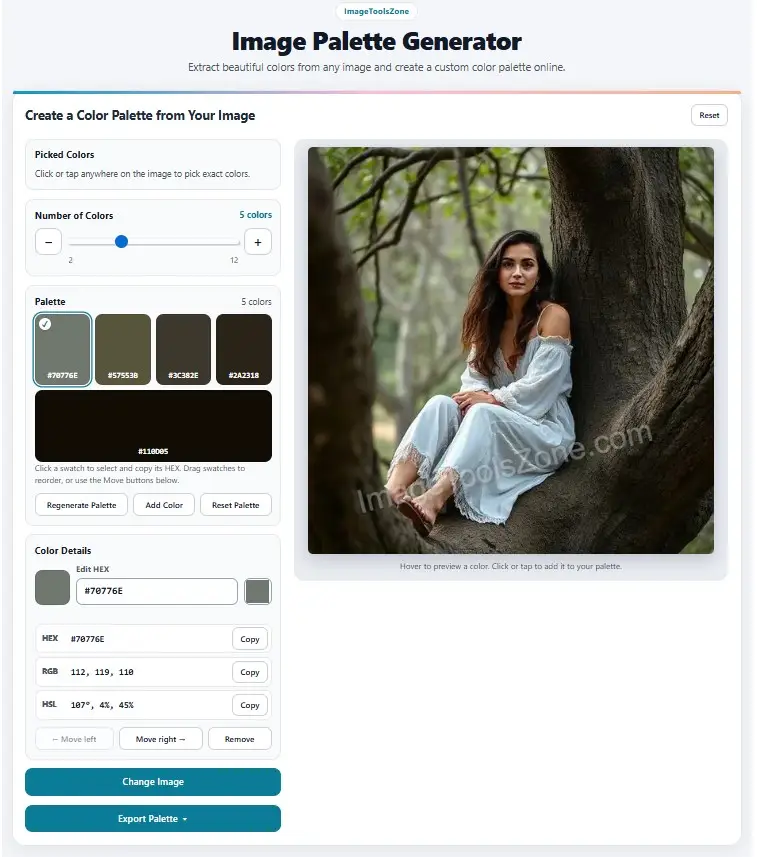
Extracting a color palette generator from photo workflows should be straightforward. You don't need technical knowledge or complex software installations to analyze color profiles. Here is how the step-by-step extraction workflow operates:
- Upload Your Image: Drop your graphic file, photo, or screenshot directly into the online palette tool.
- Let the Tool Analyze the Image: The processing engine groups related pixel clusters, discarding noise to highlight core tones.
- View the Dominant Colors: Review the calculated swatches organized neatly by visual weight and tone.
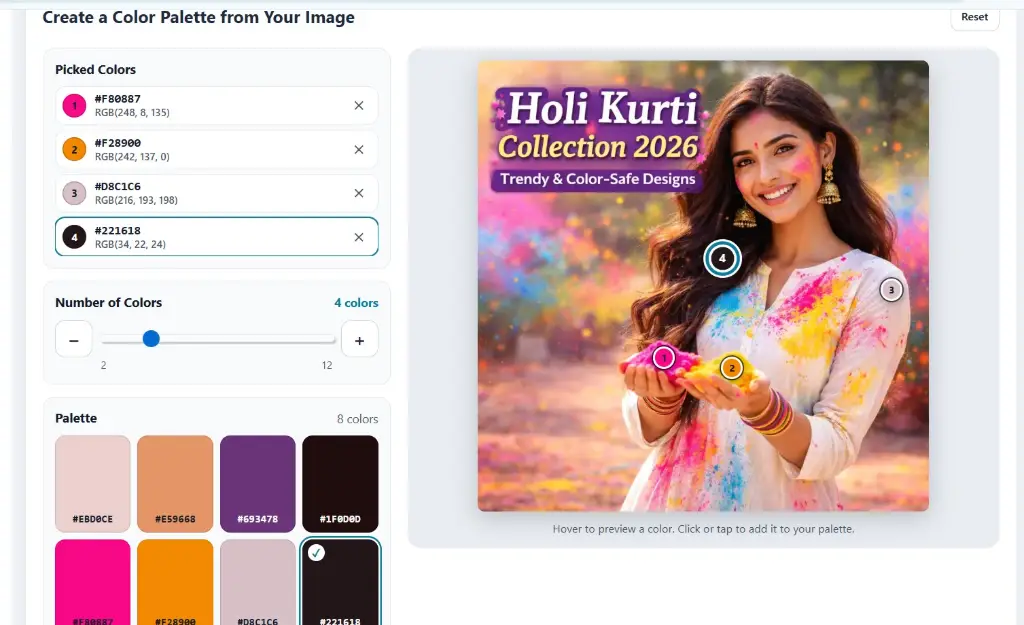
- Select and Copy Color Codes: Click on any color swatch to copy its exact HEX or RGB value directly to your clipboard.
- Use the Palette in Your Design: Paste your copied values into codebases, design canvases, or brand manuals.
What Colors Can You Extract From an Image?
Different image formats serve different creative purposes. An advanced image color palette generator parses a wide range of source files to support diverse design needs:
Photographs & Real-World Shots
Easily extract colors from photo uploads such as travel photography, nature shots, or product photos. Turn natural light and environmental tones into usable color schemes for physical products or digital media.
Logos & Brand Identity
Run an extract colors from logo search when auditing competitor branding or rebuilding legacy corporate assets. Retrieve exact brand shades instantly without needing source vector files.
Screenshots & Web Interfaces
Perform an extract colors from screenshot pass on dashboard layouts, app interfaces, or landing page captures to evaluate visual hierarchy and competitor color strategies.
Illustrations, Artwork & Mood Boards
Isolate key shades from digital paintings, vector art, or mood board assemblies. Collect supporting mid-tones and highlights to help align creative direction across large design teams.
Get Dominant Colors From Your Image
A high-resolution photograph may contain hundreds of thousands of individual pixel shades, many differing only by subtle compression variations. A dedicated image palette generator groups similar color ranges together, evaluating pixel volume to extract the core colors that define an image's identity.
Understanding how colors function within an extracted group helps you build balanced, accessible designs:
- Dominant Colors: The overall background or base colors that occupy the largest percentage of canvas area.
- Primary Color: The most recognizable focal color, giving the visual its distinct identity.
- Secondary Colors: Supporting tones that add depth, balance, and visual structure alongside the primary color.
- Accent Colors: High-contrast shades used sparingly to draw attention to call-to-action buttons, key data points, or highlights.
- Light and Dark Tones: Border, shadow, and background shades essential for readable typography and UI contrast.
Get HEX Color Codes From an Image
To use colors consistently across digital workflows, visual hues must be converted into reliable technical values. When you use an online tool to get hex colors from image uploads, you receive exact hex string values (like #0e98ba) ready to integrate directly into design systems and codebases.
Having immediate access to exact hex codes streamlines work across popular software platforms and production environments:
Web Development & CSS
Paste values directly into your CSS files, design tokens, or utility classes (like Tailwind CSS) for instant theme alignment.
UI & Vector Software
Input codes directly into Figma, Adobe XD, Sketch, or Illustrator swatches to maintain precision from wireframe to mockups.
Marketing & Content
Apply exact values inside Canva, slide decks, or video tools to ensure social media graphics stay aligned with your brand guidelines.
Using an automated tool to find hex color from image assets eliminates guesswork and manual sampling, saving time while keeping design projects consistent.
Create a Color Palette From a Photo
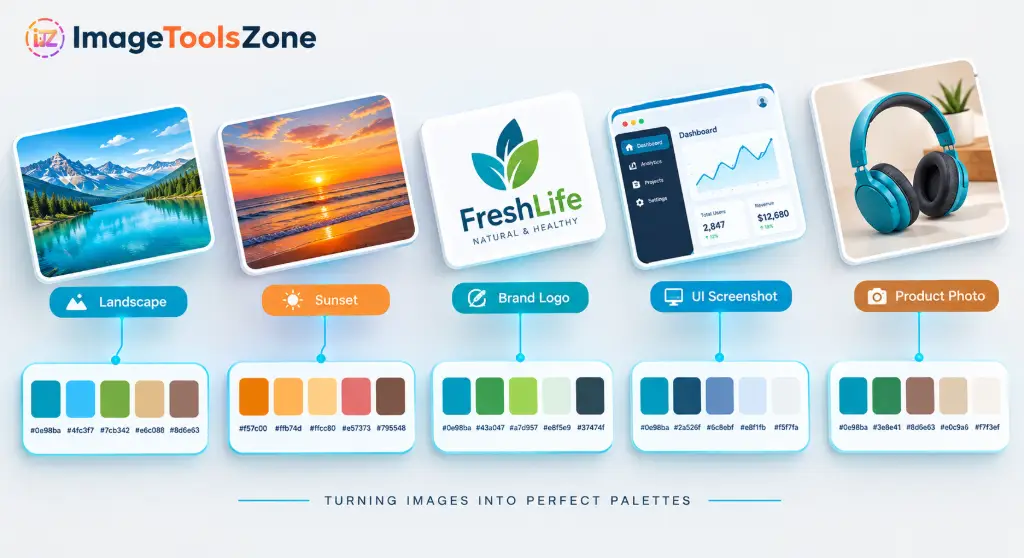
Real-world photography offers endless inspiration for color harmony. By running a color palette from photo extraction, you can convert real-world lighting and natural scenes into ready-to-use digital color schemes:
- Travel Photography: Capture warm Mediterranean terracotta hues, ocean blues, and sandy beige tones for beachwear branding or travel blogs.
- Sunset Landscapes: Extract rich gradients of deep orange, dusty pink, violet, and deep navy for striking visual compositions or event promotions.
- Nature & Forest Views: Isolate rich forest greens, mossy mid-tones, slate gray, and warm wood tones for eco-friendly products and organic brands.
- Interior Architecture: Extract soft cream, warm gray, muted charcoal, and light oak shades for modern real estate layouts and interior design websites.
- Product Photography: Pull focal lighting and material colors directly from studio product shots to match surrounding promotional banners and web themes.
Create a Brand Color Palette From a Logo
Maintaining visual consistency across marketing materials requires strict color accuracy. If you need to rebuild lost style documentation or update digital marketing assets, you can extract brand colors from logo files using a brand color extractor process.
Instead of manually guessing brand colors, upload a PNG or JPEG version of your logo to extract its exact primary and secondary color values. This allows you to quickly re-establish brand guidelines and apply consistent colors across pitch decks, website landing pages, print materials, and digital advertising campaigns.
Extract Colors From a Screenshot
Digital design moves fast, and inspiration often comes from live websites, mobile apps, or design portfolios. Using an extract colors from screenshot workflow helps you study effective interface designs and understand how successful digital products balance color:
Websites & Landing Pages
Capture screenshots of well-designed websites to inspect background values, header contrast ratios, link colors, and call-to-action button treatments.
App Interfaces & Dashboards
Analyze complex data dashboards to see how subtle background colors, muted grid lines, and vivid status indicators work together to present clear information.
Who Can Use an Image Palette Generator?
An intuitive image palette generator tool for designers speeds up creative workflows across multiple industries and disciplines:
🎨 Graphic Designers
Extract color schemes from mood board references to quickly build consistent color palettes for client branding, packaging, and editorial layouts.
💻 Web Developers
Retrieve clean HEX values from design mocks to set up CSS variables, theme settings, and UI components without manual color sampling.
📱 UI/UX Designers
Sample real-world interface screenshots to construct balanced light and dark mode design systems with strong, accessible contrast ratios.
📸 Photographers
Turn photo series into matching color swatches for social media carousels, photo book layouts, and portfolio presentations.
🏷️ Brand Designers
Extract precise color values from existing brand assets to build clear style guides and maintain consistency across all marketing touchpoints.
📢 Social Media Creators
Build consistent, eye-catching color themes for video thumbnails, Instagram feeds, and promotional banners to strengthen brand recognition.
Image Palette Generator for Web Design
Building a modern website requires more than just picking attractive colors; it requires a functional color system. An extracted palette gives you a solid foundation for structuring your key interface elements:
| UI Role | Recommended Palette Type | Design & Usability Purpose |
|---|---|---|
| Primary Brand Color | Dominant Tone | Establishes main brand identity across headers, key banners, and primary hero sections. |
| Secondary Accent | Supporting Mid-tone | Used for subheadings, active navigation states, border lines, and secondary cards. |
| Action / CTA | High-Contrast Vibrancy | Draws immediate user focus to primary conversion buttons, signup forms, and alerts. |
| Background & Surface | Ultra-Light / Deep Neutral | Provides comfortable, readable padding for main content sections and dashboard panels. |
| Text Typography | Dark Neutral / Off-White | Ensures clear body readability and passes standard web accessibility contrast guidelines. |
Keep in mind that while an extracted palette gives you a great starting point, you should always test text readability and color contrast ratios to ensure your site is accessible to every user.
Image Palette Generator for Branding
Strong brands build trust through visual consistency. A single hero photograph, artwork piece, or product concept can inspire a complete brand color language. Using an image color palette generator helps you gather color inspiration from real-world visuals and apply it across your brand touchpoints:
- Digital Touchpoints: Align website themes, mobile app interfaces, and digital ads with your primary brand colors.
- Marketing & Sales Collateral: Create consistent slide decks, pitch decks, whitepapers, and digital brochures.
- Social Media Content: Maintain cohesive colors across video thumbnails, social media posts, and banner graphics.
- Physical Packaging: Match physical product boxes, labels, and promotional merchandise to your digital brand identity.
How Does an Image Palette Generator Work?
Behind the scenes, an image palette generator turns visual pixel data into organized color swatches through a simple multi-stage process:
Source Image → Pixel Parsing → Color Clustering → Dominant Extraction → Usable Palette
1. Pixel Parsing: The tool reads the image file and samples pixel color data across the entire canvas.
2. Color Clustering: Algorithms group thousands of near-identical pixel shades into distinct color clusters.
3. Dominant Extraction: The tool measures the size and prominence of each cluster to identify the dominant tones.
4. Palette Generation: The final output displays clean, distinct swatches complete with exact HEX color codes for easy copying.
How to Choose the Right Number of Colors
Selecting the right number of colors depends on the type of project you are working on. Here is a handy guide for picking the right palette size for your design needs:
| Palette Size | Recommended Use Case | Design Objective |
|---|---|---|
| 3 Colors | Minimalist UI, Simple Logos | Clear, distraction-free visual structure with a primary, secondary, and background tone. |
| 4–5 Colors | Brand Systems, Web Apps | The ideal balance for modern digital design, providing enough variety for UI states and marketing. |
| 6–8 Colors | Complex Graphics, Editorial | Well-suited for rich illustrations, complex marketing layouts, and data visualizations. |
| 9+ Colors | Deep Visual Audits & Artwork | Useful for detailed artwork analysis, mood boards, and comprehensive color study. |
Tips for Getting a Better Color Palette
To extract clean, professional color schemes from your images, keep these simple best practices in mind:
1. Start with Clear, High-Quality Images
Use sharp, well-lit source images. High-resolution files yield far more accurate color clusters than heavily compressed, blurry uploads.
2. Choose Images with a Strong Focal Point
Select images with clear subject separation. Photos with distinct subjects make it easier for the tool to isolate dominant base tones from supporting accents.
3. Use Raw Screenshots for UI Design
When analyzing digital interfaces, capture uncompressed screenshots to pull exact, unaltered hex codes directly from the source UI.
4. Streamline Your Final Selection
You don't need to use every extracted color. Select 3 to 5 core shades to build a clean, focused, and accessible design system.
Image Palette Generator vs. Color Picker
Understanding the difference between an image color picker vs palette generator helps you choose the right tool for your specific task:
| Feature / Capability | Manual Color Picker Tool | Automated Image Palette Generator |
|---|---|---|
| Sampling Method | Manual single-pixel selection | Automated full-image pixel analysis |
| Primary Focus | Isolates one specific pixel coordinate | Extracts cohesive color groups & dominant schemes |
| Speed & Efficiency | Slower for building multi-tone sets | Instant, one-click extraction for entire schemes |
| Design Value | Great for sampling exact single shades | Ideal for creating balanced, overall brand systems |
Image Palette Generator vs. Manual Color Picking
Trying to manually sample colors from a complex photograph can be frustrating and time-consuming. Images contain thousands of slightly different pixel shades created by lighting variations and shadows, making it hard to eyeball the best base colors.
An automated palette generator removes the guesswork by instantly analyzing pixel distribution across the entire image. Instead of wasting time sampling individual pixels, you get a clean, balanced set of dominant colors in seconds, giving you an accurate foundation for your design project.
Common Uses for an Image Color Palette
An image palette generator tool for designers supports a wide variety of daily design and development tasks:
Website & App UI Design
Build accessible light and dark UI themes directly from visual references and brand assets.
Brand Identity Development
Extract consistent brand colors from logos and key visuals to build comprehensive style guides.
Social Media Branding
Keep your Instagram grids, YouTube thumbnails, and banner graphics aligned with cohesive color themes.
Digital Art & Illustration
Study classic artwork and visual references to discover harmonious color schemes for new illustrations.
Slide Presentations
Pull complementary colors directly from lead hero images to design professional corporate slide decks.
E-Commerce & Product Packaging
Match background banners, digital ads, and physical packaging directly to featured product photography.
Extract Colors From an Image for Different Projects
Tailor your color extraction approach based on the specific type of project you are building:
Extract Colors From a Photo
Pull organic, real-world tones from photographs to establish natural color schemes for editorial features, travel platforms, or lifestyle branding projects.
Extract Colors From a Logo
Identify core brand colors from an existing logo file to maintain strict visual consistency across new digital marketing assets and landing pages.
Extract Colors From a Screenshot
Sample competitive web designs and dashboard layouts to study effective contrast ratios, background treatments, and interactive call-to-action colors.
Extract Colors From a Product Image
Isolate studio lighting and material shades directly from product shots to build perfectly matched background cards and promotional banners.
Extract Colors From Artwork
Analyze digital paintings and classic art to study tone distribution and visual balance for creative design projects.
Extract Colors From a Mood Board
Convert aggregated client mood boards into clean, actionable design tokens and hex lists to jumpstart new design sprints.
Explore Additional Free Image Processing Tools
Enhance your visual workflow by pairing your color palette extraction with our suite of free online design and image editing tools:
Ready to Extract Beautiful Color Palettes?
Drop your image into the tool above to generate exact HEX codes and clean color schemes for your design projects instantly.
Frequently Asked Questions
Find answers to common questions about extracting and using color palettes from digital images.
An image palette generator is an online tool that analyzes an uploaded photo or graphic, groups similar pixel colors together, and extracts the dominant color scheme as ready-to-use color codes (such as HEX values).
Simply upload your image file into the generator tool. The system scans the image pixels, identifies the primary and secondary tones, and displays the final swatches along with copyable HEX codes.
Yes. The tool automatically displays standard HEX color codes (e.g., #0e98ba) for every extracted swatch, making it easy to copy and paste them directly into CSS, Figma, or Canva.
Absolutely. You can upload any JPEG or PNG photo—such as landscapes, portraits, or product shots—and extract a natural, harmonious color scheme from the image lighting and subject.
Yes. Uploading a logo file allows you to quickly extract its core brand colors and copy exact HEX values to update brand style guides or marketing assets.
Yes. Uploading a screenshot of a website or app interface lets you pull exact background, text, and button colors to study effective design treatments.
For most web and UI design projects, a palette of 3 to 5 colors is ideal. This gives you enough variety for background, text, and accent elements without overwhelming the user.
A manual color picker samples a single pixel coordinate that you click on. A palette generator analyzes the entire image at once to extract a balanced, multi-color scheme representing the overall graphic.
Yes. Extracted HEX codes can be pasted directly into CSS files or design tools. Just be sure to test contrast ratios between text and background colors to ensure strong readability.
Yes, the tool runs directly in your web browser, allowing you to extract color schemes and copy HEX values without installing extra software.