Video Compressor Online Free: Shrink Large Video Files Without Losing Too Much Quality
Video Compressor Online Free is exactly what you need when a clip refuses to upload, bounces back from an email, or eats half your phone storage. Our browser-based tool lets you pick a preset, tweak a few settings and compare the before and after, so you can reduce video file size without guessing.
Try Video Compressor FreeCompress Videos Online Free Without Losing Too Much Quality
A two-minute phone video can easily weigh 300 MB or more. That is fine until you try to send it. Suddenly the upload bar crawls, an email bounces, or a form tells you the file is too big. Large video files cause trouble because every step, from uploading to downloading on the other side, has to move all that data.
Most platforms set limits for a reason. Email providers usually cap attachments at a few tens of megabytes. Websites and learning portals often restrict uploads to protect their servers. Social apps may accept big files but re-process them heavily, which is why a huge clip can still look soft after posting. A smaller file gets through all of these checkpoints with less waiting and fewer errors.
What compression actually changes
Compression does not magically delete the video. It lowers the amount of data used per second. Three settings do most of the work:
Resolution
The number of pixels in each frame. Dropping from 4K to 1080p, or 1080p to 720p, cuts data sharply.
Bitrate
How much data each second of video gets. A lower video bitrate means a smaller file, with detail lost in busy scenes first.
Quality level
How aggressively the encoder trades detail for size. Small changes here can save a surprising amount of space.
Our free online video compressor wraps these controls in presets, so you do not need to know encoding jargon. If you do like control, you can switch to Custom and adjust each setting yourself. Before you download anything, you can compare the original and compressed videos and check whether the result is good enough for your purpose. That preview step saves a lot of re-doing.
How to Use Our Free Online Video Compressor
The whole process takes a few minutes, and most of that is the compression itself.
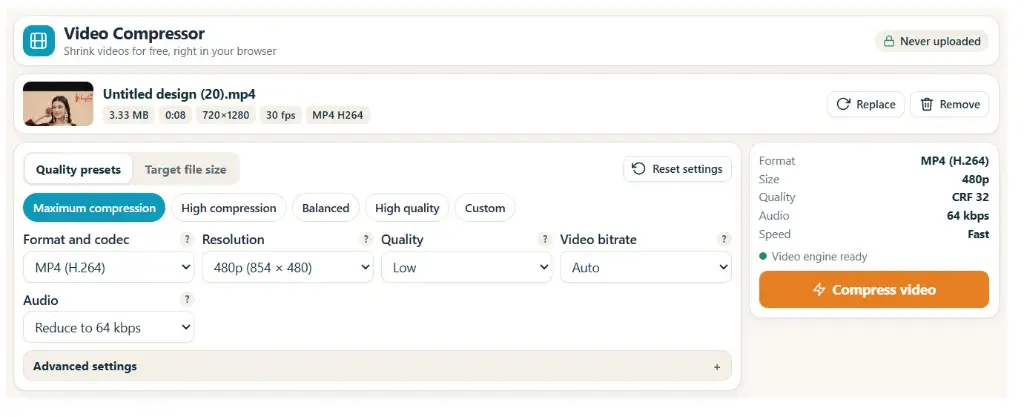
Upload your video
Pick a video from your device. The tool shows the filename, original size, duration, resolution and frame rate, so you know what you are starting with.
Choose a compression preset
Select Maximum Compression, High Compression, Balanced, High Quality or Custom, depending on whether size or sharpness matters more.
Adjust video settings
Set the output format, resolution, quality, video bitrate and audio bitrate. Advanced settings are there if you want to go deeper.
Compress and preview
Click Compress Video, then compare the original with the compressed version and check the size reduction.
Download your compressed video
Happy with it? Download the file. If not, change the settings and run it again for a different balance.
Tip: Start with Balanced. If the preview looks good and the file is still too large, step down to High Compression instead of jumping straight to the lowest option.
Key Features of Our Video Compressor
Here is what you get inside the tool and why each piece is useful in everyday situations.
Compression presets
Pick a ready-made profile instead of fiddling with numbers.
Target file size
Aim for a specific output size when a platform sets a limit.
MP4 and WebM output
Choose MP4 (H.264 or H.265) or WebM (VP9) when the required encoder is available in the loaded FFmpeg build.
Resolution control
Reduce video dimensions when full HD or 4K is more than you need.
Quality control
Balance file size and visual quality in a single slider.
Video bitrate
Adjust how much video data is used per second.
Audio bitrate
Trim audio data when voice-only clarity is enough.
Advanced settings
Fine-tune the output when presets are not quite right.
Before-and-after preview
Compare video quality before you commit to a download.
Space saved statistics
See exactly how much storage you recovered.
Direct download
Save the compressed video straight to your device.
The five compression presets, explained
These presets are the quickest way to get a smaller video. Here is when each one makes sense.
🗜️ Maximum Compression
Prioritizes the smallest possible output file. Good for quick drafts or chat sharing, but expect softer detail.
📉 High Compression
Reduces file size significantly while keeping reasonable quality. A solid pick for email and messaging.
⚖️ Balanced
A practical middle ground between quality and file size. Best starting point for most videos.
💎 High Quality
Puts visual quality ahead of maximum size reduction. Useful for client previews and portfolio clips.
🛠️ Custom
Lets you adjust individual settings such as resolution, bitrate and quality on your own terms.
Real Video Compression Test: Before and After
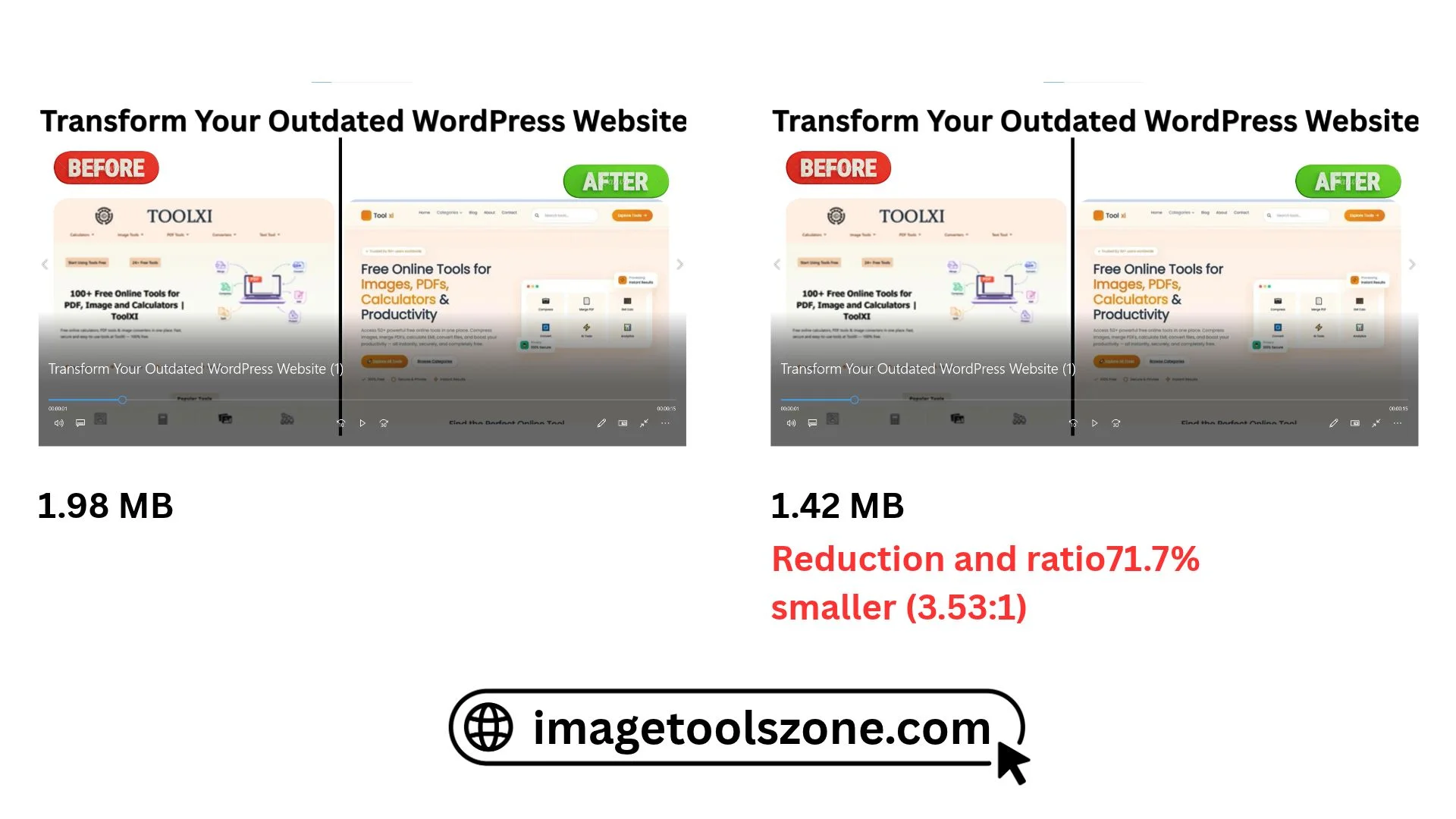
We tested our free online video compressor using a real video file to demonstrate how it reduces video file size. The original video was 1.98 MB, and after compression, its size was reduced to 1.42 MB.
Our Video Compression Test Results
- Original video size: 1.98 MB
- Compressed video size: 1.42 MB
- Space saved: 0.56 MB
- File size reduction: 28.28%
0.56 MB of storage space saved!
What Do These Results Mean?
In this test, our video compressor reduced the original file size by approximately 28.28%, saving 0.56 MB of storage space. This makes the compressed video smaller and easier to store or share.
Keep in mind that compression results may vary depending on the original video's resolution, duration, content, bitrate and selected compression settings.
Try our free Video Compressor to reduce the size of your own video files online.
Supported Video Formats
Choose a video file, adjust its compression settings, and download a smaller version. The tool accepts the input extensions listed below; successful processing also depends on the video and audio codecs inside the file.
Supported Input Formats
Input and Output Compatibility
The tool accepts MP4, MOV, WebM, AVI, MKV, M4V, MPEG, MPG and 3GP input file extensions. An accepted extension does not guarantee that every file will decode: the codecs inside the video and audio streams must be supported by the loaded FFmpeg build.
For output, choose MP4 (H.264), MP4 (H.265) or WebM (VP9), when the corresponding encoder is available. The available choices are detected when the video engine loads.
Video Codec Compatibility
Video compatibility depends on both the file format and the codecs used inside the video. Two files with the same extension may use different video and audio codecs.
If a video cannot be opened or processed, try another compatible video file. Browser decoding support and available device resources can affect processing.
Browser and Device Compatibility
This online video compressor is designed for modern web browsers on desktop, laptop, tablet and mobile devices. Processing speed and compatibility may vary depending on your browser, operating system, device hardware, available memory and video size.
Working with a target file size
When a form says "maximum 25 MB", guessing settings gets old fast. The Target File Size option estimates a video bitrate for a goal such as 10 MB, 25 MB or 50 MB. After encoding, the tool checks the output size and can make up to three encoding attempts. The target is an estimate, not a guarantee: the final size depends on video duration, picture content, audio and available encoding settings. If the result is still over your limit, try a larger target or reduce the resolution or audio bitrate.
Who Can Benefit From Video Compression?
Students and teachers
Compress educational videos, presentations and recorded lessons before sharing or submitting them.
Content creators and influencers
Reduce video sizes before uploading content to social media platforms.
Photographers and videographers
Prepare smaller video files for client previews and easy sharing.
Business owners and online sellers
Shrink product demonstration videos for websites and online stores.
Office workers and professionals
Make video presentations and recordings easier to share with colleagues.
Bloggers and website owners
Prepare smaller videos for website uploads and online publishing.
If you work with images too, you will find similar helpers on the site, such as the image compressor for photos that slow down your pages and the exact-size image resizer for thumbnails and covers.
Practical Ways to Use a Video Compressor
People usually arrive with a specific problem. These are the most common ones.
Compress Videos for WhatsApp
Messaging apps handle smaller files much more smoothly, especially on slow or patchy mobile data. If a clip keeps failing to send or takes forever, compress it first. A 720p version with a moderate bitrate is often plenty for a phone screen, and the recipient will thank you when it downloads quickly.
Reduce Video Size for Email Attachments
Email providers set attachment limits, and a raw phone recording will almost always blow past them. Compressing the video before attaching it keeps you under the cap without splitting the clip into parts. Choose High Compression, or set a target size slightly below your provider's limit to leave room for the email itself.
Compress Videos for Instagram, YouTube and Social Media
Platforms re-encode whatever you upload, so starting with an enormous file does not guarantee a sharper result. Compress to a sensible resolution and keep the aspect ratio the platform expects. Check each platform's current recommendations for length and dimensions before you export, and use Balanced or High Quality so the final post still looks crisp. For vertical clips, the Reel thumbnail maker helps you create a matching cover.
Reduce Video Size for Website Uploads
Large videos fill up hosting storage and slow down page loading, which hurts visitors and search performance alike. A compressed video file can upload faster, take less space and be easier to share on mobile connections. If your page also carries heavy pictures, run them through the image format converter to trim them as well.
Compress Videos to 10MB, 25MB or 50MB
These are the numbers that show up on application forms, helpdesk portals and school submission pages. Open Target File Size, choose a preset goal or enter a custom size, and start compression. The tool estimates a bitrate, checks the encoded file and can retry up to three times. It aims for your chosen size but cannot guarantee an exact result. A short clip at 10 MB can look fine, while a long one squeezed into the same limit may need a lower resolution to stay watchable.
Compress Recorded Lectures and Online Classes
Lectures are mostly slides and a talking head, which compress very well. Teachers can shrink a one-hour recording dramatically with little visible loss, and students can submit recordings without fighting upload caps. Keep audio bitrate reasonable here, because clear speech matters more than sharp pixels.
Advantages and Limitations of Video Compression
✅ Advantages
- Free online compression
- No desktop software installation
- Multiple quality presets
- Custom resolution and bitrate
- Original and compressed preview
- Target file size option
⚠️ Limitations
- Extreme compression can reduce quality
- Large videos may take longer
- Some codecs or formats may not be supported
- Very low resolution can make videos blurry
- Smaller files are not always visually identical
- Exact output size may vary depending on video content
Being honest about quality
No compressor can promise zero quality loss. Making a file smaller means discarding some data, and the goal is to discard what your eyes are least likely to notice. Reducing resolution makes a video less sharp, especially on large screens. A lower audio bitrate can make music sound thin, though speech usually survives well. Speed also varies: it depends on your device, your browser and the length and size of the video, so a long 4K file will take noticeably more patience than a short phone clip.
Online Video Compressor vs. Manual Video Editing
| Comparison | ImageToolsZone Video Compressor | Manual video editing |
|---|---|---|
| Ease of use | Simple compression presets | Requires more knowledge |
| Installation | Browser-based tool | Often requires software |
| Compression settings | Presets and custom controls | Depends on software |
| Preview | Original vs. compressed | Depends on software |
| File size comparison | Automatic statistics | May require manual checking |
| Download | Direct download | Depends on software |
Three ways to shrink a video
Online compression
Convenient for quick jobs. Open the page, choose a preset, download. Ideal when you just need a smaller file today.
Desktop editing software
Better for advanced editing, colour work and professional workflows where compression is one step among many.
Manual bitrate and resolution tweaks
Gives the most control, but you need to understand how bitrate, resolution and codecs interact.
To be fair, our tool is not the answer to everything. If you are cutting scenes, grading colour or delivering a broadcast master, editing software is the right place. For straightforward size reduction with a quick preview, a browser tool is usually faster.
Common Video Compression Mistakes to Avoid
1. Starting with Maximum Compression
It is tempting, but it is also the quickest route to blocky footage. Try Balanced first.
2. Ignoring the preview
Always compare original and compressed versions. Problems are easy to spot before downloading, annoying after sending.
3. Cutting resolution too far
A 360p clip stretched onto a laptop screen looks soft. Drop one step at a time.
4. Slashing audio bitrate on music
Speech tolerates it. Music and interviews with background sound usually do not.
5. Compressing a compressed file repeatedly
Each pass loses detail. Keep your original and compress from it every time.
6. Forgetting to keep the original
Store the source file safely. A compressed copy cannot get its lost detail back.
Need to polish thumbnails or stills for the same video? The image enhancer and the watermark tool are handy companions for your promo images.
Video Compression Settings Explained: Understand Before You Compress
Choosing the right video compression settings can help you reduce file size while keeping your video clear and watchable. Different settings affect the final file size, picture quality and audio. Here is a simple explanation of the main options available in our online video compressor.
1. Video Resolution
Resolution describes the dimensions of a video in pixels. Higher resolutions contain more image detail but generally require more storage space.
Common examples:
- 1080p: Suitable for Full HD videos and larger screens.
- 720p: A practical option for sharing and everyday viewing.
- 480p: Useful when a smaller file is more important than fine detail.
Tip: If your original video is 1080p, reducing it to 720p may decrease its file size, but some visual detail will be lost.
2. Video Bitrate
Video bitrate is the amount of data used to represent each second of video. It has a major effect on file size and visual quality.
- Higher bitrate: Usually preserves more visual detail but creates a larger file.
- Lower bitrate: Creates a smaller file but may introduce blur, blockiness or other compression artefacts.
Tip: Lower the bitrate gradually and check the preview or final result to find a balance between file size and quality.
3. Audio Bitrate
Audio bitrate affects the amount of data used for the video's sound. Reducing it can help save some storage space, particularly in videos with longer audio tracks.
- Higher audio bitrate: Generally retains more sound detail.
- Lower audio bitrate: Can reduce file size, but may affect sound quality.
Tip: Avoid reducing audio quality too much if your video contains speech, music or important sound.
4. Compression Presets
Presets make video compression easier by providing ready-made setting combinations. Instead of adjusting every option individually, you can choose a preset that suits your needs.
- High Quality: Prioritises retaining visual quality.
- Balanced: Aims to balance file size and picture quality.
- Smaller File: Prioritises reducing the output file size.
Available preset names and their exact results depend on the options provided by the compressor.
5. Target File Size
The Target File Size mode lets you choose a preset goal (5, 10, 20, 25, 50 or 100 MB) or enter a custom size in MB or GB. The tool estimates the required video bitrate, checks the encoded output and can retry encoding up to three times.
This is an approximate target, not a guaranteed exact file size. Very small targets may require a lower resolution or bitrate, which can reduce picture quality. The result also depends on video duration, motion, audio and encoder behaviour.
Tip: Choose a realistic target size rather than trying to make every video as small as possible.
6. Output Format
The tool can export MP4 (H.264), MP4 (H.265) or WebM (VP9). Which choices appear depends on whether the loaded FFmpeg build includes the required video encoder.
H.264 MP4 is broadly compatible with many devices and platforms. H.265 MP4 and VP9 WebM may not play in every older device or media player, so check the downloaded file on the device or platform where you plan to use it.
Video Compression Troubleshooting: Fix Common Problems
Sometimes, compressing a large video file can take longer than expected, fail unexpectedly, or produce a file that does not play correctly. These problems may depend on video size, format, browser, available memory, and device performance. Here are some practical solutions to help you troubleshoot common video compression problems.
1. Large Video Takes Too Long to Compress
Large video files may require more processing time, especially when they have high resolutions or bitrates.
How to fix it:
- Close unnecessary browser tabs and applications.
- Choose a lower output resolution if you do not need the original resolution.
- Reduce the video bitrate to create a smaller output file.
- Keep the browser tab open while compression is running.
- Try compressing a shorter video to check whether the tool is working correctly.
2. Video Compression Fails or Gets Stuck
Compression may fail because of an unsupported codec, a damaged video file, insufficient device resources, or an interrupted browser session.
How to fix it:
- Refresh the Video Compressor page and try again.
- Upload the original video again.
- Check whether your video format is supported by the tool.
- Try another video file to check whether the issue is file-specific.
- Update your browser and try again.
3. Browser Runs Out of Memory During Compression
Processing large videos can require significant memory and processing power. Devices with limited available memory may struggle with high-resolution videos.
How to fix it:
- Close unused browser tabs and applications.
- Start with a smaller video file.
- Reduce the output resolution and bitrate.
- Restart your browser if it becomes unresponsive.
- Try an updated desktop browser if your device has limited resources.
4. Downloaded Compressed Video Does Not Play
If your compressed video does not open or play correctly, the download may be incomplete, or your media player may not support its encoding format.
How to fix it:
- Download the compressed video again and check that the download has finished.
- Try opening the file with VLC Media Player or another compatible video player.
- Check that the downloaded file has the expected file extension.
- Test the video in another browser or media player.
- If the problem continues, compress the original video again using a different quality or resolution setting.
Tips for Smoother Video Compression
- Use a stable browser session and avoid closing the page during compression.
- Select an output resolution suitable for your intended use.
- Choose a balanced bitrate to maintain acceptable video quality.
- Keep enough free memory available on your device.
- Preview the compressed video before sharing or deleting the original.
Frequently Asked Questions About Compressing Videos Online
Is this video compressor really free?
Yes. You can use the tool to compress video online free, with no software to install. Just upload, choose settings and download.
Can I reduce video file size without losing quality?
You can keep quality very close for most viewing, especially with the Balanced or High Quality presets, but no compression is completely lossless. The preview helps you judge whether the result is good enough.
How do I compress MP4 videos online?
Upload your MP4, pick a preset, adjust resolution or bitrate if you want, choose an available output codec, then click Compress Video. The output may be MP4 (H.264 or H.265) or WebM (VP9), depending on the encoders available in the loaded FFmpeg build.
How can I compress a video to a specific size like 10MB or 25MB?
Use Target File Size to choose a preset size or enter a custom target. The tool estimates the required bitrate, checks the encoded file and can retry up to three times. The result may still be above or below your target because exact output size cannot be guaranteed.
Which preset should I choose?
Balanced works for most videos. Choose High Compression for email or messaging, High Quality for client previews, and Maximum Compression only when size matters above everything else.
What is the difference between bitrate and resolution?
Resolution is the number of pixels in each frame. Bitrate is how much data is used per second. Lowering either shrinks the file, but they affect sharpness and detail differently.
Will compressing a video make it blurry?
It can if you push resolution or quality too low. Moderate settings usually look fine on phones. Compare the preview before downloading.
Does lowering audio bitrate hurt sound?
For speech, a modest reduction is rarely noticeable. For music, it can make the sound flatter, so be more careful there.
Why is my video taking a long time to compress?
Speed depends on your device, browser and the video's length and resolution. Long or high-resolution files take longer. Closing other heavy tabs can help.
Are my videos uploaded to your server?
Video compression is performed directly in your browser using FFmpeg. We do not intentionally upload your video files to our server for compression.
Can I compress a video for WhatsApp or email?
Yes. Choose High Compression or set a target size under the limit of the app or provider, then preview and download.
Ready to shrink that video?
Pick a preset, preview the result and download a lighter file in minutes.
Try Video Compressor Free