Image Format Converter
Convert JPG, PNG, WebP, GIF, BMP and other image formats online for free. Upload your images, choose an output format, adjust optional settings, and download your converted images.
{name} for the original filename.Converted Images
filename
Image Format Converter – Convert JPG, PNG, WebP & More Online
Looking to convert image format without quality loss? You are in the right place. Our free online image format converter lets you change JPG to PNG, PNG to JPG, WebP to JPG, and many other supported formats instantly. Whether you are preparing photos for a website, optimizing graphics for social media, or archiving digital assets, this photo converter online gives you full control over quality, dimensions, and download options. Simply upload your file, choose your target format, and get a crisp, professional result in seconds.
📋 On This Page
- Can You Convert an Image Format Without Losing Quality?
- Convert Between Popular Image Formats
- JPG vs PNG vs WebP: Which Image Format Should You Use?
- Which Image Format Should I Convert To?
- How to Convert an Image to Another Format Online
- Common Image Format Conversions
- Why Convert an Image Format?
- How to Keep Image Quality When Changing Formats
- Does Changing Image Format Reduce Quality?
- Image Format Conversion vs Image Compression
- Are My Images Uploaded When I Convert Them?
- Frequently Asked Questions
- More Free Image Tools
Can You Convert an Image Format Without Losing Quality?
Yes, but it depends entirely on the source and destination formats. Understanding how digital images store data is the key to a successful photo convert process.
- PNG to PNG (or re-encoding): This can be completely lossless. The pixel data remains exactly the same.
- PNG to JPG: This is not truly lossless. JPEG uses lossy compression, meaning it permanently discards some visual data to shrink the file size.
- JPG to PNG: This does not restore quality that was already lost when the image was originally saved as a JPG. It simply wraps the existing compressed data in a lossless container.
- WebP: This modern format supports both lossy and lossless compression, giving you the flexibility to choose based on your needs.
Remember, simply renaming a file extension (like changing photo.jpg to photo.png) does not actually convert the image data. You need a dedicated image format converter to properly re-encode the file.
Convert Between Popular Image Formats
Our photo format converter handles all the major transitions you will encounter in daily digital workflows. Here is what you need to know about the most common requests.
JPG to PNG Converter
Use this when you need to add transparency to an existing photograph or preserve sharp edges around text and logos. While the JPG base is already compressed, converting it to a png to jpg or vice versa ensures compatibility with design software that requires alpha channels.
PNG to JPG Converter
Perfect for reducing file size for web uploads or email attachments. Keep in mind that JPG does not support transparency. Any transparent areas in your original PNG will automatically fill with a solid white or black background during the convert png to jpg process.
JPG to WebP Converter
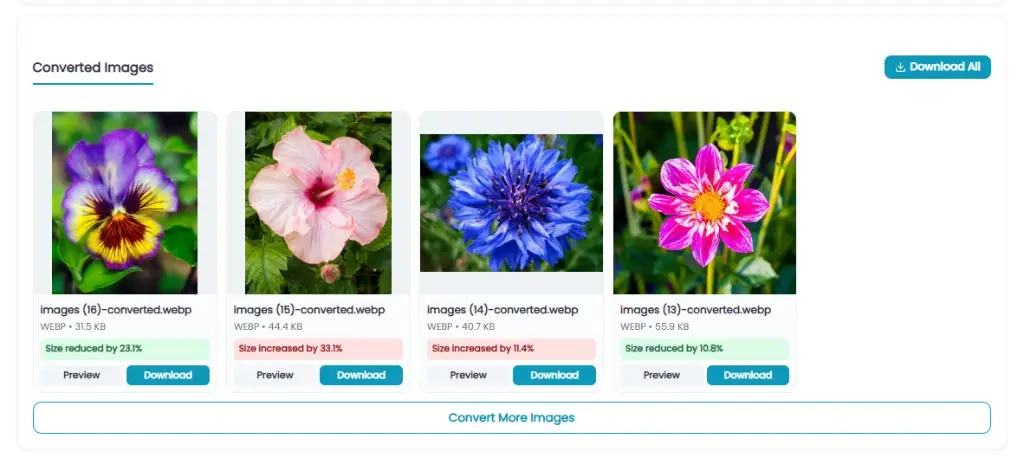
WebP is the gold standard for modern web performance. When you convert jpg to webp, you can often reduce the file size by 25-35% while maintaining visual fidelity identical to the original JPEG, making your website load significantly faster.
PNG to WebP Converter
Ideal for website graphics. You get the transparency of a PNG with the superior compression of WebP. This is the smartest choice for UI elements, icons, and logos on modern websites.
WebP to JPG Converter
Some older software, email clients, or printing services still struggle with WebP files. Use this tool to convert webp to jpg instantly, ensuring universal compatibility across all devices and platforms.
WebP to PNG Converter
If you need to edit a WebP image in a program that does not support the format, converting it to PNG gives you a lossless, high-quality working file with full transparency intact.
JPG vs PNG vs WebP: Which Image Format Should You Use?
Choosing the right format saves time and prevents frustrating quality issues later. Here is a quick breakdown to guide your decision.
| Format | Best For | Transparency | Typical Advantage |
|---|---|---|---|
| JPG / JPEG | Photographs, complex gradients | ❌ No | Smallest file size for photos, universal support |
| PNG | Logos, screenshots, graphics with text | ✅ Yes | Lossless quality, crisp edges |
| WebP | Websites, modern web images, apps | ✅ Yes | Excellent quality-to-size balance, supports animation |
| GIF | Simple animations, memes | Limited (1-bit) | Universal animation support, though outdated for static images |
| BMP | Legacy Windows applications | ❌ / Limited | Uncompressed, simple bitmap storage (very large files) |
Which Image Format Should I Convert To?
Choose JPG when:
- You are converting standard photographs.
- You need absolute, broad compatibility across all devices.
- You want a relatively small file for quick sharing.
Choose PNG when:
- You need a transparent background.
- Your image contains sharp text, logos, or line art.
- You want guaranteed lossless output for archiving.
Choose WebP when:
- You are preparing images for a modern website.
- You want to improve page load speeds (Core Web Vitals).
- You need a smart balance between visual quality and file size.
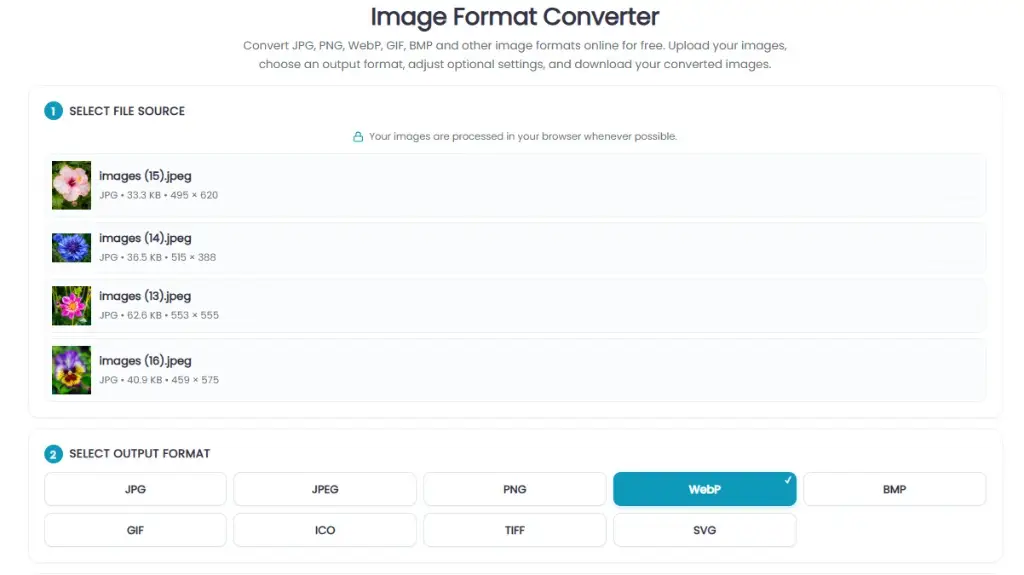
How to Convert an Image to Another Format Online
Changing your file type takes just a few seconds. Follow this simple 4-step process:
- Upload your image: Select one or multiple images from your device. Our tool accepts all major formats.
- Choose the output format: Select JPG, PNG, WebP, or another supported format from the dropdown menu.
- Adjust optional settings: Tweak the quality percentage, dimensions, or other available options to match your exact needs.
- Convert and download: Click the convert button and instantly download the newly formatted image to your device.
Common Image Format Conversions
Why Convert an Image Format?
Different platforms and workflows demand different file types. Here is why professionals regularly use a photo converter online:
For Websites
Convert heavy PNGs or BMPs to WebP or JPG to ensure your web pages load instantly, improving both user experience and SEO rankings.
For Social Media
Platforms have specific preferences. For profile pictures, you might need to circle crop your image and save it as a high-quality JPG to meet upload requirements.
For Email
Email clients often block or struggle with large attachments. Converting to a compressed JPG ensures your message arrives quickly and displays correctly.
For Documents
When compiling reports, you may need to convert images to PDF or ensure your embedded images are in a universally readable format like JPG.
For E-commerce
Marketplaces like Amazon or Shopify require specific formats and dimensions. You can resize images to exact sizes and convert them to meet strict marketplace guidelines.
For Design & Editing
Before applying artistic effects like an black and white conversion or using a background remover, you often need to convert the source file into an editable, lossless format like PNG.
How to Keep Image Quality When Changing Formats
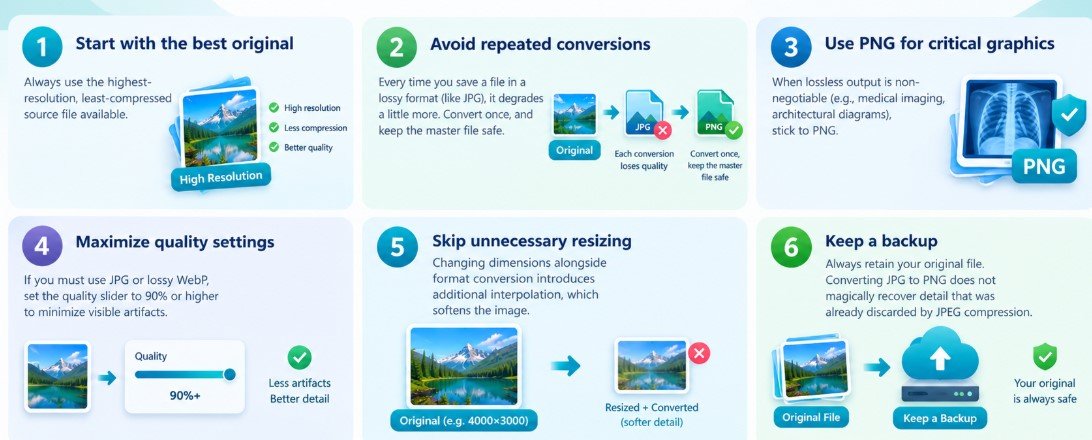
If your goal is to convert image format without quality loss, follow these practical rules:
- Start with the best original: Always use the highest-resolution, least-compressed source file available.
- Avoid repeated conversions: Every time you save a file in a lossy format (like JPG), it degrades a little more. Convert once, and keep the master file safe.
- Use PNG for critical graphics: When lossless output is non-negotiable (e.g., medical imaging, architectural diagrams), stick to PNG.
- Maximize quality settings: If you must use JPG or lossy WebP, set the quality slider to 90% or higher to minimize visible artifacts.
- Skip unnecessary resizing: Changing dimensions alongside format conversion introduces additional interpolation, which softens the image.
- Keep a backup: Always retain your original file. Converting JPG to PNG does not magically recover detail that was already discarded by JPEG compression.
Does Changing Image Format Reduce Quality?
It depends entirely on the source and destination formats. Moving from a lossless format (PNG) to another lossless format (PNG) preserves every single pixel. However, moving to a lossy format (JPG) will discard data. Furthermore, simply renaming a file extension from .jpg to .png in your operating system does not convert the actual image data; it just confuses your computer about how to read the file. Always use a proper image format converter.
Image Format Conversion vs Image Compression
People often confuse these two processes, but they serve different purposes:
- Format Conversion changes the fundamental way the image is encoded and structured (e.g., turning a PNG into a WebP).
- Image Compression reduces the file size of an image, often by adjusting encoding settings or removing invisible data, without necessarily changing the file extension.
Often, you need to do both. If your converted file is still too large for your website, you can easily run it through our dedicated image compressor to shrink the file size further while maintaining excellent visual clarity.
Are My Images Uploaded When I Convert Them?
Privacy matters. Our tool is designed to process files directly in your browser whenever possible. This means your photos and graphics do not need to be uploaded to a remote, external server for the conversion to happen. Your files stay on your device, giving you peace of mind while you work.
Frequently Asked Questions About Image Format Conversion
What is an image format converter?
An image format converter is a digital tool that changes the file type of an image (like JPG, PNG, or WebP) by re-encoding its data, making it compatible with different software, platforms, or use cases.
How can I convert JPG to PNG online?
Simply upload your JPG file to our converter, select "PNG" as your target output format, and click convert. The tool will process the file and provide a download link instantly.
How can I convert PNG to JPG?
Upload your PNG, choose "JPG" as the output, and adjust the quality slider if needed. Keep in mind that any transparent areas in the PNG will be filled with a solid background color.
Can I convert JPG to WebP?
Yes. Converting JPG to WebP is highly recommended for website owners, as it significantly reduces file size while maintaining high visual quality, improving page load speeds.
Can I convert WebP to JPG?
Absolutely. If you have a WebP image that your email client or older software cannot open, converting it to JPG ensures universal compatibility.
Can I convert PNG to WebP?
Yes. This is one of the most efficient conversions for web graphics, as it retains the transparency of the PNG while applying the superior compression of the WebP format.
Does converting an image reduce quality?
Only if you convert to a lossy format (like JPG) or repeatedly save an already compressed file. Converting between lossless formats (like PNG to PNG) preserves all original quality.
Which image format has the best quality?
PNG and lossless WebP offer the best quality because they do not discard pixel data during the saving process. TIFF and BMP are also lossless but produce impractically large files.
Which image format is best for websites?
WebP is currently the best format for websites. It offers an excellent balance of high visual quality and small file size, and is supported by all modern web browsers.
Is PNG better than JPG?
It depends on the use case. PNG is better for graphics, logos, and images requiring transparency. JPG is better for photographs where small file size is more important than absolute pixel perfection.
Is WebP better than JPG?
For web usage, yes. WebP provides better compression and supports transparency, making it a more versatile and efficient choice than JPG for modern digital applications.
Can I convert multiple images at once?
Yes, our tool supports batch processing, allowing you to upload and convert several images simultaneously to save you time.
Can I convert images on my phone?
Yes, our online photo converter is fully responsive and works perfectly on mobile browsers, tablets, and desktop computers without needing to install any apps.
Can I convert an image without installing software?
Yes, this is a completely browser-based tool. You do not need to download or install any software to convert your images.
Can I convert an image without uploading it?
Our tool processes files locally in your browser whenever possible, meaning your images do not need to be sent to a remote server, keeping your data secure and private.
More Free Image Tools
Building a complete digital workflow requires more than just format conversion. Explore our suite of free, browser-based tools designed to handle every aspect of your image editing needs:
Image Compressor
Shrink file sizes dramatically without visible quality loss, perfect for web optimization.
Image DPI Changer
Adjust the dots per inch for high-quality printing or screen-optimized digital display.
Image Splitter
Divide a single large image into a grid of smaller, perfectly aligned tiles.
Image Palette Generator
Extract dominant colors from any photo to build consistent, beautiful design themes.
Add Watermark to Image
Protect your intellectual property by overlaying custom text or logo watermarks.
Image to PDF Converter
Bundle multiple images into a single, professional PDF document for easy sharing.
Convert Your Image to the Format You Need
Choose an image, select your preferred output format, adjust the available settings, and download the converted file. No complicated software is required. Get crisp, professional results in seconds.
Convert Image Format Now