✂️ ImageToolsZone Auto Crop Object Pro
Color‑aware cropping • Precise background removal • For e‑commerce perfection
🖼️✨
Drop product image or click
PNG, JPG, WEBP (max 15MB)
📷 Original Image click to pick BG color
🎯 Auto‑Cropped Object (Transparent BG)
Higher = removes more similar background colors
0=none, 3=soften edges
🎨 Custom BG Color:
💡 How to get perfect crop: Adjust Color Tolerance | Click "Pick Background Color" on original image to sample unwanted area | Use Edge Smoothing for fine edges.
Auto Crop Object for Ecommerce: The Complete Guide to Perfect Product Images
Introduction
Let’s be honest – if you’re selling products online, you’ve probably lost count of how many hours you’ve spent wrestling with product photos. You know the struggle: that stubborn background that won’t quite disappear, the edges that look jagged after cropping, or worse, spending 20 minutes on a single image when you have 200 more to go.
Here’s the thing: great product images aren’t optional in ecommerce. They’re everything. But manually editing photos? That’s a fast track to burnout.
That’s exactly why we created the Auto Crop Object Pro tool at ImageToolsZone.COM. It’s not just another image editor – it’s your secret weapon for creating marketplace-ready product images in seconds, not hours.
What Is Auto Crop Object for Ecommerce?
Think of it as your intelligent photo editing assistant that actually understands what it’s doing. Unlike basic cropping tools that just cut rectangles, this tool uses color-aware technology to detect your product, isolate it from the background, and deliver a perfectly cropped image with a transparent or custom background.
The best part? You control the precision. Whether you’re selling jewelry that needs ultra-fine edge detection or bulkier items like home decor, the tool adapts to your needs.
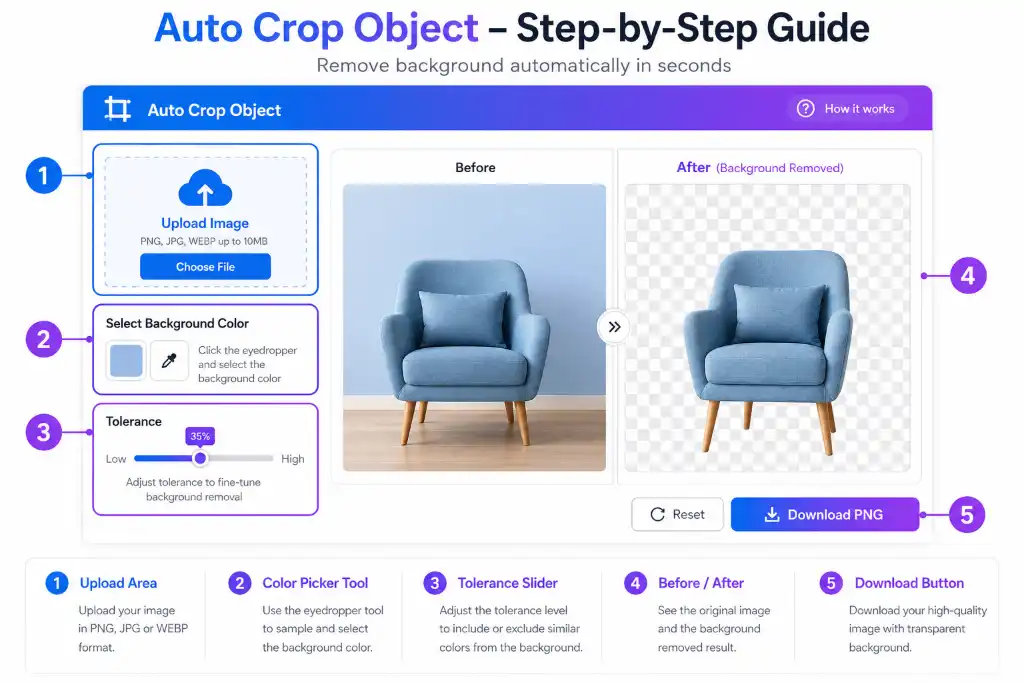
How to Use Auto Crop Object Tool (Step-by-Step)
Step 1: Upload Your Product Image
Drag and drop your image or click to browse. The tool accepts PNG, JPG, and WEBP files up to 15MB – which covers pretty much any product photo you’ll throw at it.
Pro tip: You don’t need perfect lighting or a professional setup. The tool works with photos taken on your phone, in your warehouse, or even in less-than-ideal conditions.
Step 2: Pick the Background Color (Optional but Smart)
Here’s where it gets clever. Click on the “Pick Background Color from Image” button and sample the area you want removed. This tells the AI exactly what to target.
Not sure? No problem. The Auto Detect feature analyzes your image and identifies the background automatically. But manual picking gives you extra precision for tricky images.
Step 3: Adjust Color Tolerance
This is your control knob for precision. The Color Tolerance slider (measured in RGB distance) determines how aggressive the tool is in removing similar colors.
- Lower values (20-30): More conservative, keeps more detail but might leave some background
- Medium values (35-45): Sweet spot for most products
- Higher values (50+): Removes more background colors, great for complex backgrounds
The default is 38, which works perfectly for 80% of images. But when you’re dealing with reflective products or multi-colored backgrounds, tweaking this setting is your secret weapon.
Step 4: Fine-Tune with Edge Smoothing
Got fine details like hair strands, jewelry chains, or fabric textures? The Edge Smoothing (Dilation) setting softens the edges for a more natural look.
- 0: No smoothing (sharp, precise edges)
- 1-2: Light smoothing (recommended for most products)
- 3: Maximum softening (great for fuzzy or textured items)
Step 5: Choose Your Background
Want a transparent background for flexibility? Done. Need pure white for Amazon? Easy. Want a custom color to match your brand? You got it.
The Custom BG Color option lets you:
- Keep it transparent (PNG format)
- Auto-detect and replace with white
- Pick any color using the color picker
Step 6: Download and Share
Hit “Download PNG” to get your perfectly cropped image with transparent background. Need to share it with your team or VA? Use the “Share to WhatsApp” button to send it instantly.
Key Features That Make This Tool Different
Color-Aware Cropping Technology
Most cropping tools are dumb – they just detect edges. This tool is smart. It analyzes color values across the entire image to understand what’s your product and what’s background.
This matters because:
- Transparent products (glass bottles, acrylic items) don’t confuse it
- Similar colors (white product on white background) get separated accurately
- Shadows and reflections are handled intelligently
Precision Background Color Picker
Instead of guessing, you tell the tool exactly what to remove. Click anywhere on the background, and it samples that exact color value. This is game-changing for:
- Products photographed on colored backdrops
- Images with gradient backgrounds
- Items with shadows you want to keep or remove
Adjustable Color Tolerance Control
This isn’t a one-size-fits-all solution. The RGB distance slider gives you granular control:
Real-world example: Sarah sells handmade candles. Her products are photographed on a cream-colored table. At tolerance 25, some table color remains. At 38 (default), it’s mostly clean. At 50, everything except the candle disappears – perfect for her Amazon listings.
Edge Smoothing for Professional Results
Jagged edges scream “amateur.” The dilation feature softens boundaries for a polished look:
- Jewelry sellers: Use level 1-2 for clean metal edges
- Clothing/fabric: Use level 2-3 for natural fabric texture
- Hard products (electronics, toys): Use level 0-1 for sharp, precise edges
Multiple Output Options
Download as transparent PNG for maximum flexibility, or apply a custom background color instantly. No need for additional editing software.
Where to Use Auto Crop Object for Ecommerce
Amazon Product Listings
Amazon has strict image requirements:
- Pure white background (RGB 255, 255, 255)
- Product must fill 85% of frame
- No additional objects or text
The tool’s auto-detect and white background features ensure your images pass Amazon’s automated checks on the first try. No more rejected listings.
Shopify Stores
Shopify doesn’t mandate white backgrounds, but consistency matters. Use the tool to:
- Create uniform product images across your catalog
- Maintain brand consistency with custom background colors
- Speed up bulk product uploads
eBay and Etsy
Both platforms benefit from clean, professional images. The transparent background option is perfect for:
- Creating lifestyle composites
- Adding products to custom backgrounds
- Maintaining consistency across varied product lines
Social Media Marketing
Instagram, Facebook, Pinterest – they all favor clean, professional product images. The tool helps you:
- Create eye-catching product shots for ads
- Maintain consistent branding
- Quickly generate content for flash sales or promotions
Wholesale and B2B Catalogs
Professional buyers expect professional images. Use the tool to:
- Standardize images from multiple suppliers
- Create clean PDF catalogs
- Prepare images for distributor portals
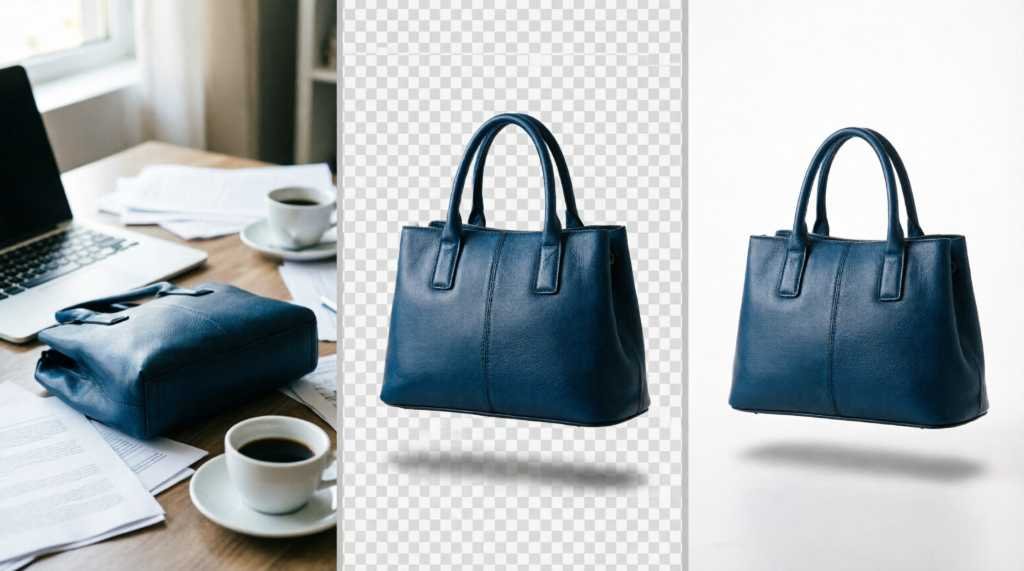
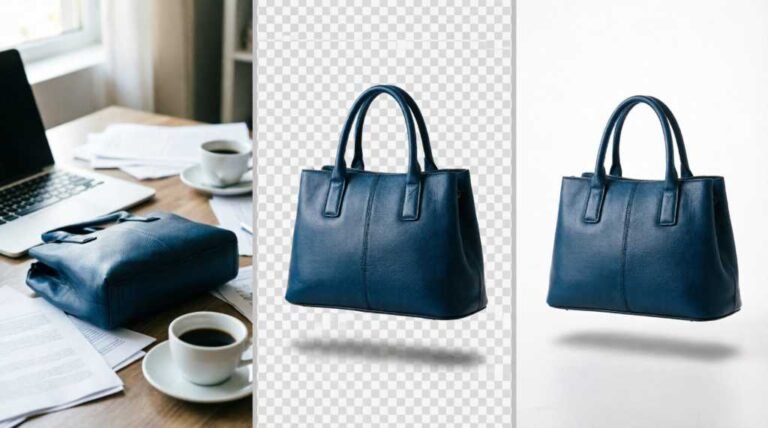
[IMAGE PROMPT 2: Create a split-screen comparison showing the same product (a blue handbag) in three different versions: 1) Original photo with messy background, 2) Auto-cropped with transparent background, 3) Auto-cropped with pure white background for Amazon – professional ecommerce photography showcase]
Advantages of Auto Crop Object Tool
Save Hours of Manual Editing
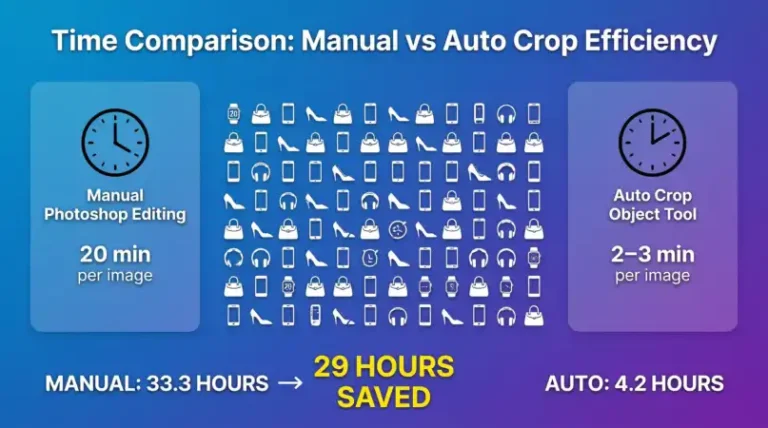
Let’s do the math:
- Manual editing: 15-20 minutes per image in Photoshop
- Auto Crop Object: 2-3 minutes per image (including upload and adjustments)
For a catalog of 100 products:
- Manual: 25-33 hours
- Automated: 3-5 hours
- Time saved: 20-28 hours
That’s nearly a full work week. What could you do with those 20 hours? Source new products? Optimize listings? Actually take a weekend off?
No Design Skills Required
You don’t need to know what a “pen tool” or “layer mask” is. If you can click a mouse, you can use this tool. The interface is intuitive, the controls are simple, and the results are professional.
Consistency Across Your Catalog
When every product image has the same clean background, proper centering, and professional finish, your entire store looks more trustworthy. Shoppers perceive your brand as more professional, which translates to higher conversion rates.
Cost-Effective Alternative to Outsourcing
Hiring a photo editor costs:
- Freelancer: $5-15 per image
- Agency: $15-50 per image
- In-house designer: $40-60/hour
For 100 images:
- Freelancer: $500-1,500
- Agency: $1,500-5,000
- Auto Crop Object: Fraction of the cost
Work Directly in Your Browser
No software to download. No updates to install. No compatibility issues. Just open ImageToolsZone.COM and start editing. Works on Windows, Mac, Linux, even tablets.
Perfect for Bulk Processing
While this tool processes images individually for maximum quality, the workflow is fast enough to handle large catalogs efficiently. Process 50 images in the time it would take to manually edit 5.
Maintain Original Quality
Unlike some tools that compress or degrade images, Auto Crop Object preserves the original resolution and quality. Your images stay sharp, detailed, and professional.
Automatically Crop Product Photos to White Background for Amazon Shopify
Why White Backgrounds Matter
Amazon requires pure white backgrounds (RGB 255, 255, 255) for main product images. But it’s not just about compliance – white backgrounds:
- Increase visibility in search results
- Look professional in zoomed views
- Create consistency across your catalog
- Reduce distractions so customers focus on the product
- Improve conversion rates by 14-20%
The White Background Workflow
Here’s how to get perfect white backgrounds every time:
- Upload your image
- Use the color picker to sample the existing background
- Set Color Tolerance to 38-45
- Choose “Auto Detect” or manually select white (#FFFFFF)
- Download
The tool automatically removes the old background and replaces it with pure white that meets Amazon’s strict requirements.
Pro tip: If your product has white elements (like white text on packaging), lower the tolerance to 30-35 to avoid accidentally removing product details.
Batch Auto-Crop Ecommerce Images with AI Object Recognition
Processing Large Catalogs Efficiently
While the tool processes images individually for maximum quality, you can streamline your workflow:
The Batch Strategy:
- Organize images in folders by product category
- Process 10-15 images at a time
- Use the same settings for similar products
- Download and organize in matching folders
AI-Powered Object Detection
The tool doesn’t just look for edges – it understands what it’s seeing:
- Product recognition: Identifies the main object vs. background
- Detail preservation: Keeps fine textures, reflections, and transparency
- Shadow handling: Intelligently decides whether to keep or remove shadows
- Edge refinement: Smooths jagged edges while preserving detail
Real-World Batch Example
Marcus sells phone cases. He has 247 products across 12 categories. His workflow:
- Monday: Upload 25 images, process with tolerance 38, download
- Tuesday: Repeat for next 25
- Continue through the week
Total time: About 6-8 hours for all 247 products. Manual editing would have taken 60+ hours.
[IMAGE PROMPT 3: Create an infographic showing time comparison: Manual Photoshop editing (clock showing 20 min per image) vs Auto Crop Object Tool (clock showing 2-3 min per image), with visual representation of 100 products and total hours saved – modern business infographic style with blue/purple gradient]
AI-Powered Product Image Centering for Marketplace Listings
Why Centering Matters
When products are perfectly centered:
- They look more professional
- They appear larger in search results
- They create visual harmony across your store
- Customers can see details more clearly
How the Tool Centers Automatically
The color-aware cropping doesn’t just remove background – it intelligently centers your product:
- Detects the product boundaries
- Calculates the center point
- Applies consistent padding on all sides
- Ensures the product fills the optimal percentage of the frame
Marketplace-Specific Centering
Amazon: Product should fill 85% of frame Shopify: Flexible, but 70-80% looks best eBay: 75-85% recommended Etsy: 60-80% works well
The tool’s adjustable tolerance and edge smoothing let you fine-tune the centering for each platform’s requirements.
Content-Aware Object Detection for Bulk Ecommerce Photo Editing
What Is Content-Aware Detection?
Traditional tools just look for contrast. Content-aware detection understands context:
- Color relationships: Knows that a slight color variation might be part of the product, not background
- Texture analysis: Distinguishes between product texture and background patterns
- Edge intelligence: Recognizes when an edge is part of the product vs. background artifact
Handling Challenging Products
Transparent items (glass, acrylic): The tool detects subtle light refractions and color shifts to isolate the actual product.
Reflective surfaces (jewelry, electronics): Analyzes highlights and shadows to determine product boundaries.
Textured products (fabric, wood, stone): Preserves natural texture while removing background.
Complex shapes (jewelry with chains, products with protruding parts): Maintains fine details without cutting off important elements.
Quality Control at Scale
When processing large catalogs, consistency is crucial. The tool ensures:
- Same color tolerance applied across similar products
- Consistent edge smoothing
- Uniform background color
- Professional results every time
Tips for Getting Perfect Crops Every Time
When shooting product photos:
- Leave some space around the product (don’t fill the entire frame)
- Use a contrasting background if possible
- Keep the product relatively centered
- Take multiple angles
This gives the tool more data to work with and better results.
Use the Color Picker for Tricky Images
When auto-detect isn’t perfect:
- Click “Pick Background Color”
- Sample multiple areas of the background
- Adjust tolerance up or down
- Preview before downloading
This extra 10 seconds can make the difference between good and perfect.
Save Your Settings
Found the perfect tolerance and smoothing settings for your product type? Use the same settings for similar products to maintain consistency across your catalog.
Frequently Asked Questions
1. What file formats does the Auto Crop Object tool support?
The tool accepts PNG, JPG, and WEBP files up to 15MB. This covers virtually all product photography formats. You can download your cropped images as PNG with transparent background or apply a custom background color.
2. Can I use this tool for products with transparent or glass components?
Absolutely! The color-aware technology is specifically designed to handle transparent and reflective materials. The tool detects subtle color variations and light refractions to isolate glass bottles, acrylic products, jewelry with gemstones, and other challenging items.
3. How do I get the best results for jewelry or fine details?
For jewelry and products with fine details:
- Use Color Tolerance between 30-40
- Set Edge Smoothing to 1 or 2
- Use the color picker to sample the exact background
- If needed, process the same image twice with slightly different settings and choose the best result
4. Will this work for clothing and fabric products?
Yes! For clothing, use Edge Smoothing level 2-3 to maintain natural fabric texture. The tool handles wrinkles, folds, and fabric patterns intelligently. For clothing on models, it will crop around the entire figure. For flat lays, it isolates the garment perfectly.
5. Can I create white background images for Amazon?
Definitely. This is one of the most common use cases. Simply:
- Upload your image
- Use the color picker or auto-detect
- Choose white (#FFFFFF) as your background color
- Download
The result meets Amazon’s strict RGB 255, 255, 255 requirement.
6. What if the tool removes part of my product?
If the tool is too aggressive:
- Lower the Color Tolerance (try 25-30)
- Use the color picker to be more specific about what to remove
- Make sure you’re sampling the actual background, not parts of the product
If it’s not removing enough:
- Increase Color Tolerance (try 45-50)
- Sample multiple background areas
7. Does the tool reduce image quality?
No. The tool maintains the original resolution and quality of your image. There’s no compression or degradation. You get a professionally cropped image at the same quality level as your original upload.
8. Can I use this on mobile devices?
Yes! The tool works in any modern web browser on desktop, tablet, or mobile. The interface is responsive and touch-friendly, so you can edit product images on the go.
9. How is this different from Photoshop’s magic wand tool?
Three key differences:
- Simplicity: No learning curve – upload, adjust, download
- Speed: 2-3 minutes vs. 15-20 minutes per image
- Consistency: Same results every time, no fatigue or human error
Plus, you don’t need a $20/month Photoshop subscription.
10. What if I have hundreds of images to process?
While the tool processes images individually for maximum quality, the workflow is fast enough for large catalogs:
- Process in batches of 10-20 images
- Use the same settings for similar products
- Total time: About 3-5 hours for 100 images
For very large catalogs (500+ images), consider processing a few batches per day or contact us about custom solutions.
11. Can I integrate this with my existing workflow?
Absolutely. The tool is designed to fit seamlessly into your workflow:
- Upload from your computer or cloud storage
- Download and organize in your existing folder structure
- Works with any ecommerce platform (Shopify, WooCommerce, Amazon, eBay, etc.)
- No software installation required
12. Is there a limit to how many images I can process?
No daily or monthly limits. Process as many images as you need. The tool is designed for ecommerce sellers who need to edit large catalogs regularly.
13. What if my product has shadows I want to keep?
The tool gives you control:
- Use lower Color Tolerance (25-35) to preserve subtle shadows
- Use the color picker to sample only the background, not the shadow
- Adjust Edge Smoothing to maintain natural shadow edges
You decide what stays and what goes.
14. Can I use the cropped images commercially?
Yes! Once you download your cropped images, they’re yours to use however you need – Amazon listings, Shopify store, social media ads, wholesale catalogs, anywhere. No restrictions, no watermarks, no attribution required.
15. What makes this tool better than free online background removers?
Three things:
- Control: Adjustable tolerance and edge smoothing give you precision
- Quality: Maintains original resolution without compression
- Flexibility: Choose transparent or custom background colors
- Privacy: Images are processed securely and not stored
Free tools often compress images, add watermarks, or have limited features. This tool is built specifically for professional ecommerce sellers.
Ready to Transform Your Product Images?
Look, I get it. You didn’t start an ecommerce business to become a photo editing expert. You started it because you have great products and want to share them with the world.
But here’s the reality: in ecommerce, your images are your first impression. They’re the difference between a browser becoming a buyer or clicking away to your competitor. And spending hours manually editing photos? That’s time you’re not spending on growing your business.
The Auto Crop Object Pro tool at ImageToolsZone.COM isn’t about replacing creativity or professional photography. It’s about removing the tedious, time-consuming work that stands between you and a professional-looking store.
Here’s what you get:
- Save 15-18 hours per 100 products
- Professional results without design skills
- Marketplace compliance on the first try
- Consistent quality across your entire catalog
- Zero learning curve – start editing in seconds
And the best part? You can try it right now. Upload your first image. See the difference. Watch your messy product photos transform into professional, marketplace-ready images in seconds.
Stop letting image editing slow you down.
Visit ImageToolsZone.COM and start creating product images that actually convert. Your future self (and your customers) will thank you.