Pinterest Pin Maker – Create Eye-Catching Pins Online Free
Stop wrestling with complicated design software just to make a simple Pinterest graphic. The Pinterest Pin Maker from ImageToolsZone lets you build scroll-stopping vertical pins right inside your browser — no downloads, no sign-ups, no Canva account required. Whether you drive a food blog, run a small Etsy shop, or just want to share your latest DIY project, this Pinterest Pin Design Tool gives you everything you need in one clean workspace.
📋 On This Page
- What Is a Pinterest Pin Maker?
- How to Create a Pinterest Pin — Step by Step
- Pinterest Pin Size and Dimensions
- Why Use a Vertical Pinterest Pin?
- How to Create Pinterest Pins That Are Easy to Read
- Who Can Use This Pinterest Pin Maker?
- Features of Our Pinterest Pin Maker
- Create Pinterest Pins for Different Types of Content
- Pinterest Pin Design Tips for Better Clicks
- Frequently Asked Questions
- Related Image Tools
What Is a Pinterest Pin Maker?
Think of a Pinterest Pin Maker as your shortcut between a raw idea and a polished, click-worthy graphic. Instead of opening Photoshop, fumbling through layers, or signing up for yet another design platform, you land on a single page, drop in your image, type a headline, pick your colors, and export. That's the entire workflow.
Pinterest itself describes the platform as a visual discovery engine — people come here looking for ideas, not advertisements. That means your pin needs to feel useful, relevant, and visually clear within the first second someone scrolls past it. A solid Pinterest post maker handles the heavy lifting so you can focus on the message rather than the mechanics.
With the ImageToolsZone Pinterest Pin Generator, you build each pin directly in your browser. No templates locked behind paywalls. No watermarks. Just a straightforward canvas where your content takes shape.
How to Create a Pinterest Pin — Step by Step
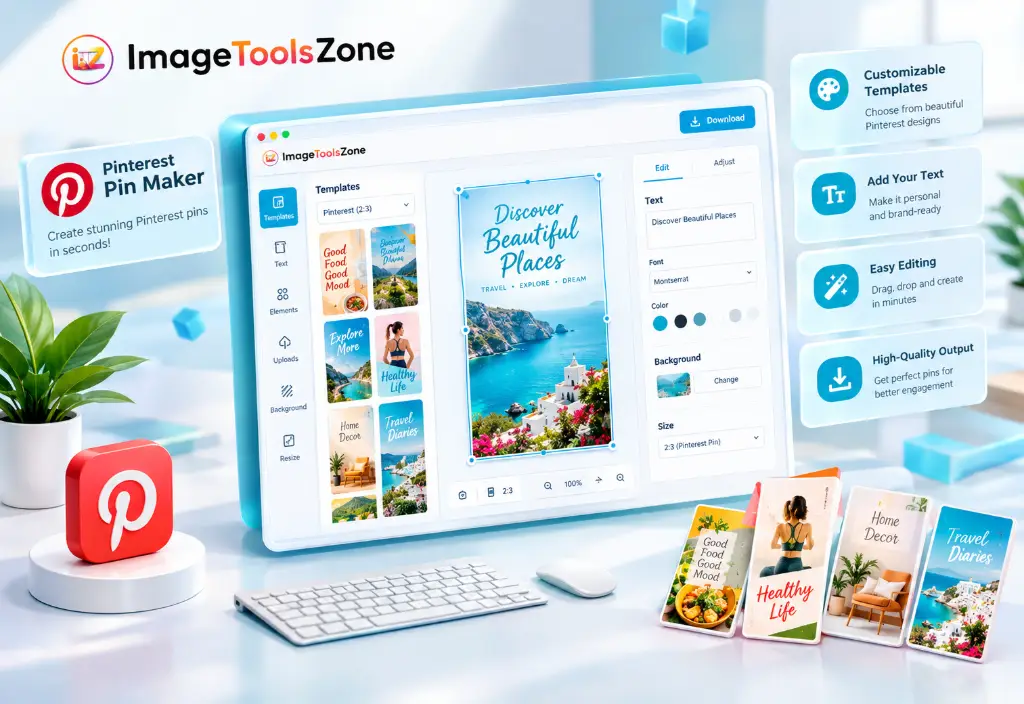
Creating a Pinterest Pin doesn't have to feel like a design project. With the ImageToolsZone Pinterest Pin Maker, you move from blank canvas to finished graphic in a handful of clicks. Here's exactly how it works.
Choose a Template
Start with a Pinterest Pin layout that matches your content type. Pick a design suited for blog posts, tutorials, product showcases, recipes, quotes, how-to guides, or seasonal promotions. The right starting point saves you ten minutes of tweaking later.
Add Your Title
Enter a short, clear title that tells viewers exactly what they'll get. For example: "How to Compress an Image to 50KB", "Easy Summer Recipe Ideas", or "10 Home Office Organization Tips." Keep it scannable — people decide in a split second whether to save or scroll past.
Add a Subtitle
Use the subtitle to reinforce your title with a supporting detail. If your title reads "Compress Image to 50KB," your subtitle could say "Reduce file size online without complicated software." Together, they communicate value fast.
Upload a Background Image
Pick a high-quality image that matches your topic. Make sure key visual elements don't disappear behind your text. If you need to clean up a photo first, the free background remover tool can isolate your subject in seconds.
Customize Colors and Fonts
Adjust text size, font style, and color palette until everything feels balanced. Pinterest recommends clear messaging paired with strong visual creative, and readability on mobile matters more than ever since most users browse on their phones.
Download Your Pin
Once you're happy with the layout, hit download. Your finished Pinterest Pin is ready to upload to your boards, schedule through your content calendar, or share across other platforms.
Pinterest Pin Size and Dimensions
Getting the dimensions right matters more than most creators realize. Upload something too wide and it looks tiny in the feed. Go too tall and Pinterest crops it. The sweet spot is a 2:3 aspect ratio, which translates to 1000 × 1500 pixels for standard image pins.
| Specification | Recommended Value |
|---|---|
| Width | 1000 pixels |
| Height | 1500 pixels |
| Aspect Ratio | 2:3 |
| Orientation | Vertical |
| Common Formats | JPG / PNG |
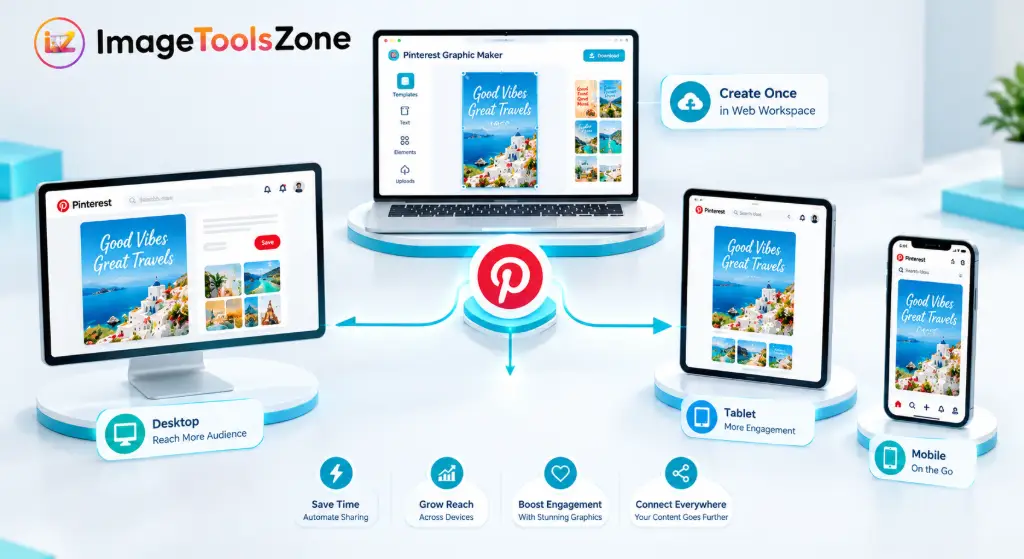
A vertical 2:3 design works especially well because Pinterest runs heavily on mobile devices. If your image doesn't match these proportions, you can quickly fix it using the resize image tool to hit exact pixel dimensions without distortion.
Why Use a Vertical Pinterest Pin?
Vertical pins dominate the feed for a practical reason — they occupy more screen real estate on mobile, which means more attention. That extra height gives you room to layer multiple elements without cramming everything together:
That said, more space doesn't mean more clutter. Your core message should stay immediately readable. If a viewer has to squint or tilt their phone, you've already lost them.
How to Create Pinterest Pins That Are Easy to Read
A beautiful pin means nothing if people can't understand it in under two seconds. These design principles keep your message crystal clear.
Keep the Main Message Short
Distill your idea to its essence. Instead of a full sentence, go with the punchiest version possible.
Use Readable Fonts
Skip ornate scripts for headlines. Clean sans-serif or simple serif fonts stay legible even on small screens.
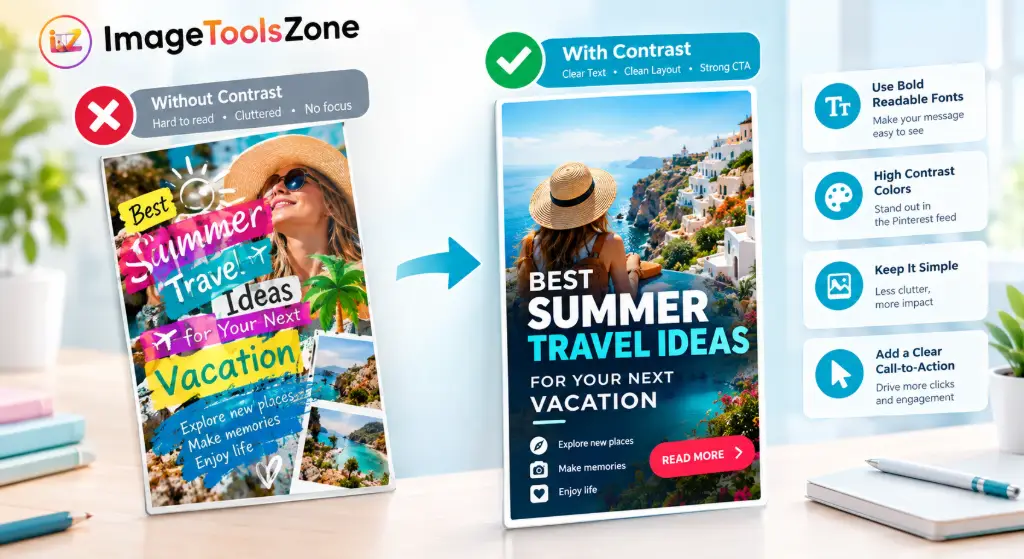
Create Strong Contrast
Dark text on a dark photo disappears. Use overlays or contrasting colors to make every word pop.
Mind the Edges
Leave breathing room around headlines, logos, and CTAs. Pinterest provides safe-zone guidance for this exact reason.
Stay Consistent
Use the same fonts, colors, and logo placement across pins so followers recognize your content instantly.
Quick Do's and Don'ts
Who Can Use This Pinterest Pin Maker?
This Pinterest Pin Maker Without Canva works for anyone who needs Pinterest-ready graphics but doesn't want to learn a full design suite. Here's who gets the most value from it.
Bloggers
Turn article titles into scroll-stopping pins that drive traffic back to your posts, tutorials, and guides.
Small Businesses
Promote products, services, and seasonal offers with branded pins that match your visual identity.
Website Owners
Create graphics that link visitors straight from Pinterest boards to your most important pages.
Online Stores
Showcase product collections and featured items with clean, commerce-friendly pin layouts.
Content Creators
Design visuals for tutorials, how-to guides, video promos, and idea boards that grow your audience.
Students & Educators
Build study guides, visual checklists, and educational resource pins that students actually save.
Features of Our Pinterest Pin Maker
The ImageToolsZone Pinterest Pin Generator keeps things deliberately simple. No feature bloat, no confusing menus — just the tools you actually need to build a pin.
100% Free Online
Create Pinterest pins directly in your browser. No downloads, no sign-ups, no hidden fees.
Customizable Templates
Start from pre-built layouts designed for the 2:3 vertical format Pinterest recommends.
Title & Subtitle Text
Add your headline and supporting message with adjustable font sizes and color options.
Background Image Upload
Drop in any photo and position it behind your text for a polished, layered look.
Color & Font Controls
Fine-tune text colors, sizes, and styles until your pin feels visually balanced.
One-Click Download
Export your finished pin as a high-quality image, ready to upload to Pinterest immediately.
If you want to polish your background image before dropping it into the pin maker, the image enhancer sharpens details and improves clarity in a single click. You can also grab matching colors for your text using the hex color picker to keep your branding consistent.
Create Pinterest Pins for Different Types of Content
One of the biggest advantages of a flexible Pinterest Pin Design Tool is that it adapts to whatever you're promoting. Here's how different content types translate into pin formats.
Blog Post Pins
Turn an article title into a visual graphic. Example: "10 Easy Ways to Compress Images Online."
Tutorial Pins
Introduce a step-by-step guide. Example: "How to Remove an Image Background in 3 Steps."
Product Pins
Highlight a product or offer with a clean headline and supporting product photo.
Recipe Pins
Feature the recipe name over an appetizing food photo. These consistently rank among the most saved pins.
Educational Pins
Share study tips, checklists, and visual learning resources that students bookmark for later.
Quote Pins
Pair an inspiring quote with a textured background and clean typography for high shareability.
For recipe pins specifically, you might want to crop your food photo into a unique shape first using the circle crop image tool to create a featured dish highlight that stands out from standard rectangular pins.
Pinterest Pin Design Tips for Better Clicks
Your pin is often the very first impression someone gets of your content before they ever visit your website. A few intentional choices can dramatically improve click-through rates.
1. Start With One Clear Idea
Don't try to communicate five different messages in a single pin. Pick one core concept and build everything around it. Clarity beats cleverness every time.
2. Make the Headline Noticeable
Your primary message should be one of the first things a viewer's eye lands on. Use larger font sizes, bold weights, and high-contrast colors to achieve this.
3. Use Relevant Imagery
Your background image should support the topic, not distract from it. A pin about home organization needs a clean, tidy visual — not a random landscape photo.
4. Add a Clear Call to Action
Depending on your content, include phrases like:
5. Link the Pin to Relevant Content
Pinterest lets pins link directly to your website, making them one of the most effective ways to move people from discovery to your actual content. Always double-check that your destination URL matches what the pin promises.
Frequently Asked Questions
Is the Pinterest Pin Maker completely free?
What size should a Pinterest Pin be?
Can I create Pinterest Pins online without installing software?
Can I upload my own background image?
Can I add custom text to a Pinterest Pin?
What should I put on a Pinterest Pin for maximum engagement?
Can I use Pinterest Pins to promote my blog?
What makes a Pinterest Pin easy to read on mobile?
Do I need graphic design experience to use this tool?
Can I use this Pinterest Pin Maker instead of Canva?
Related Image Tools
Before you drop an image into your pin, you might want to prep it first. These tools pair naturally with the Pinterest Pin Maker workflow.
Create Your Pinterest Pin Online — Right Now
Add your title, subtitle, background image, colors, and fonts. Download your finished pin in seconds. It's free, fast, and lives entirely in your browser.
Create Your Pinterest Pin Today →