Crop Image Into Any Shape Online Free: Easy Guide Without Photoshop
Transform your photos into circles, hearts, stars, or completely custom shapes in seconds. No expensive software, no complicated tutorials—just simple, free online tools that work right in your browser.
Try Custom Shape Crop Tool FreeCrop image into any shape online free—that's exactly what you're looking for, right? You've got a photo that needs to fit into a circle for your profile picture, or maybe you want to create a heart-shaped image for a Valentine's card. Perhaps you're designing a website and need product photos in unique, eye-catching shapes. Whatever your reason, you've landed in the right place.
Here's the thing: you don't need Photoshop. You don't need to spend hours watching tutorials. And you definitely don't need to pay for expensive software. In this comprehensive guide, I'll walk you through everything you need to know about cropping images into custom shapes using free online tools.

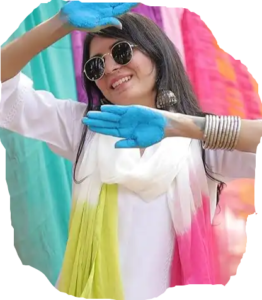
Visual representation of custom shape cropping interface with multiple shape options
What Does "Crop Image Into Any Shape" Mean?
Let's break this down because understanding the basics makes everything easier. When we talk about crop image into custom shape online, we're referring to the process of cutting out a portion of your image in a non-rectangular form.
Traditional cropping tools only let you create rectangles or squares. But what if you need more? Here's what custom shape cropping includes:
Standard Rectangular Crop
The basic crop everyone knows—perfect for standard photos and documents.
Circle Crop
Ideal for profile pictures, badges, and circular design elements.
Custom Shape Crop
Hearts, stars, polygons—any shape you can imagine for creative projects.
Irregular/Freehand Crop
Draw your own unique shape for complete creative control.
How to Crop Image Into Any Shape Online Free: Step-by-Step Guide
Ready to get started? Here's your complete walkthrough for using a free online shape crop tool. I'll make this so simple that you'll be cropping like a pro in under five minutes.
Upload Your Image
Start by selecting the photo you want to transform. Most online tools, including our custom shape crop tool, support all major formats—JPG, PNG, WebP, you name it. Just drag and drop or click to browse. The best part? No registration required, no watermarks, and your privacy is protected.
Choose Your Shape
This is where the magic happens. You'll see options for circles, hearts, stars, ovals, polygons, and even freehand drawing tools. Want to crop picture into any shape you can dream up? The freehand option lets you draw the exact outline you need. Feeling creative? Try the polygon tool for geometric precision.
Position and Adjust
Once you've selected your shape, position it over the part of the image you want to keep. You can resize, rotate, and move the shape around until it's perfect. Most tools show you a real-time preview, so you know exactly how your final image will look. This is crucial when you're trying to crop image into irregular shape online—you need that visual feedback.
Fine-Tune the Edges
Some tools offer edge feathering or smoothing options. This creates a softer transition between your shape and the background (or transparency). It's especially useful if you're creating graphics for websites or social media where harsh edges can look unprofessional.
Download Your Creation
Hit that download button and choose your format. For shapes with transparent backgrounds, always select PNG. Need it smaller? Many tools include built-in compression—check out our image compressor if you need additional file size reduction.
💡 Pro Tip
Always work with the highest quality original image possible. Even the best custom shape image cropper can't add detail that isn't there. If you start with a blurry or pixelated photo, your cropped result will show those flaws even more.
Why Use a Custom Shape Crop Tool?
You might be wondering: "Can't I just use Photoshop or another professional editor?" Sure, you could. But here's why thousands of people choose online crop image without Photoshop solutions instead:
🚀 No Learning Curve
Photoshop is powerful, but it's also complicated. You need to learn about layers, masks, selection tools, and export settings. With an online custom shape cropper, you're done in minutes, not hours.
Completely Free
Adobe Creative Cloud costs $20-60 per month. Online tools? Free. That's a no-brainer for occasional users or anyone on a budget.
🌐 Works Anywhere
Use it on your work computer, home laptop, tablet, or phone. No installation, no updates, no compatibility issues. Just open your browser and go.
⚡ Lightning Fast
Upload, crop, download—done in under 60 seconds. Perfect for quick social media posts, last-minute presentations, or urgent e-commerce listings.
What Shapes Can You Crop an Image Into?
The possibilities are genuinely endless, but let's talk about the most popular options and when to use each one:
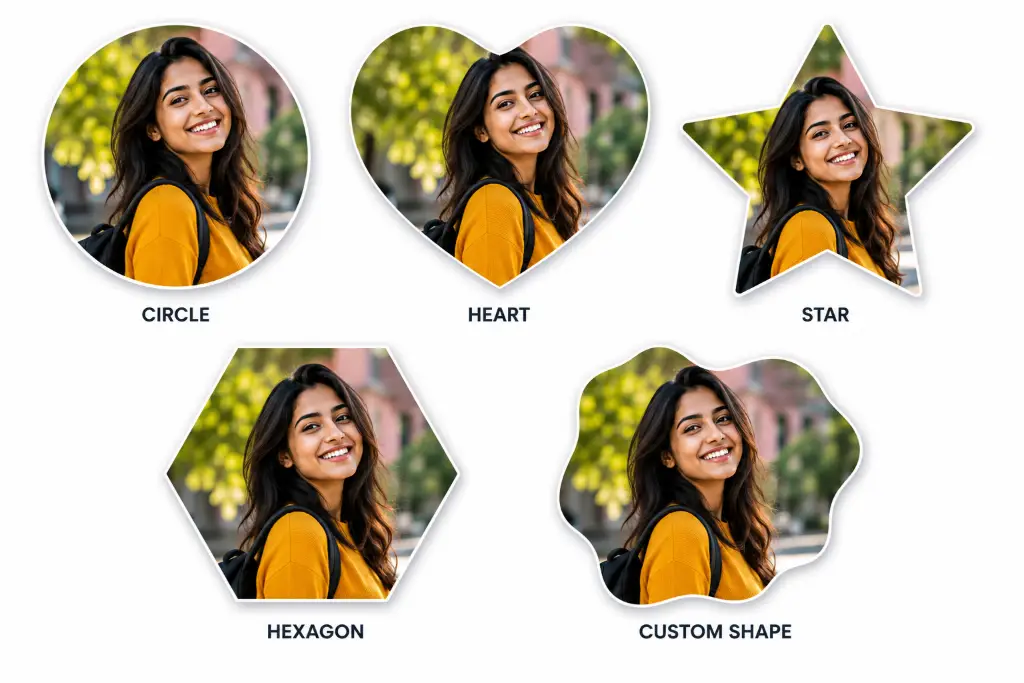
Examples of the same image cropped into various custom shapes
How to Crop an Image Into an Irregular Shape
Now we're getting into the fun stuff. Freehand crop image online tools give you complete creative control. Here's when irregular cropping shines:
When to Use Irregular Shapes:
- Product Photography: Cut out a shoe, bag, or gadget following its exact outline for e-commerce listings
- Stickers and Decals: Create custom stickers with unique outlines
- Collages: Combine multiple images with organic, flowing shapes
- Artistic Projects: Follow the natural contours of your subject
Here's the process for crop image into irregular shape online:
- Open the custom shape crop tool
- Select the freehand or lasso tool option
- Zoom in on your image for precision
- Click and drag to draw your custom outline
- Close the shape by connecting back to your starting point
- Adjust the selection if needed
- Apply and download
🎯 Precision Tip
When doing freehand cropping, zoom in as much as possible. Small movements matter when you're tracing intricate details. Take your time—it's better to spend an extra minute getting it right than to redo it later.
Crop Image Into Any Shape Without Photoshop
Let's be real: Photoshop is overkill for simple shape cropping. Here's a comparison:
| Feature | Photoshop | Online Custom Shape Tool |
|---|---|---|
| Cost | $20-60/month | Free |
| Learning Curve | Steep (weeks to master) | Easy (minutes to learn) |
| Installation | Required (2-3 GB) | None (browser-based) |
| Speed for Simple Tasks | 5-10 minutes | Under 1 minute |
| Device Compatibility | Desktop only | Any device with browser |
| File Privacy | Local processing | Secure cloud processing |
The verdict? If you need to crop picture into any shape quickly and don't already have Photoshop, an online tool is the smart choice. Save Photoshop for complex editing tasks that actually require its advanced features.
How to Crop a Picture Into a Custom Shape on Mobile
Here's something important: most people don't realize they can do this right from their phone. Whether you're on Android or iPhone, the process is nearly identical:
Open Your Mobile Browser
Chrome, Safari, Firefox—doesn't matter. Navigate to your preferred online crop tool. Our custom shape crop tool is fully responsive and works beautifully on mobile.
Upload from Your Gallery
Tap the upload button and select the photo from your camera roll. Mobile-optimized tools will automatically compress the upload to save data while maintaining quality.
Use Touch Controls
Pinch to zoom, drag to position, tap to select shapes. Modern tools are designed with touch interfaces in mind. It's actually easier than using a mouse sometimes!
Save to Your Device
Download directly to your phone. The image saves to your gallery, ready to share on social media or use in mobile apps.
📱 Mobile Advantage
Crop photos immediately after taking them. No need to transfer to a computer first. This is perfect for social media managers, e-commerce sellers, and content creators who work on the go.
Best Uses for Custom-Shaped Images
Wondering where to use these custom-shaped creations? Let me give you some practical applications:
Social Media Profile Pictures
Stand out with a circular crop that fits perfectly on all platforms. LinkedIn, Instagram, Twitter, Facebook—they all display profile pictures in circles. Get it right the first time instead of hoping the platform crops it correctly.
E-commerce Product Photos
Online stores love clean, consistent product images. Crop your products into uniform shapes for a professional catalog look. Use our auto crop tool for ecommerce to batch process multiple products.
YouTube Thumbnails
Create eye-catching thumbnails with custom shapes that draw attention. Circles and stars work particularly well for highlighting key elements.
Blog Graphics and Headers
Break up text-heavy blog posts with creatively shaped images. They add visual interest and make your content more shareable.
Presentations
PowerPoint and Google Slides look more professional with consistently shaped images. No more awkward rectangles breaking your design flow.
Invitations and Cards
Wedding invitations, birthday cards, holiday greetings—custom shapes add that personal touch that makes people feel special.
Website Design Elements
Team member photos, testimonials, product showcases—all benefit from custom cropping. Pair with our background remover for stunning results.
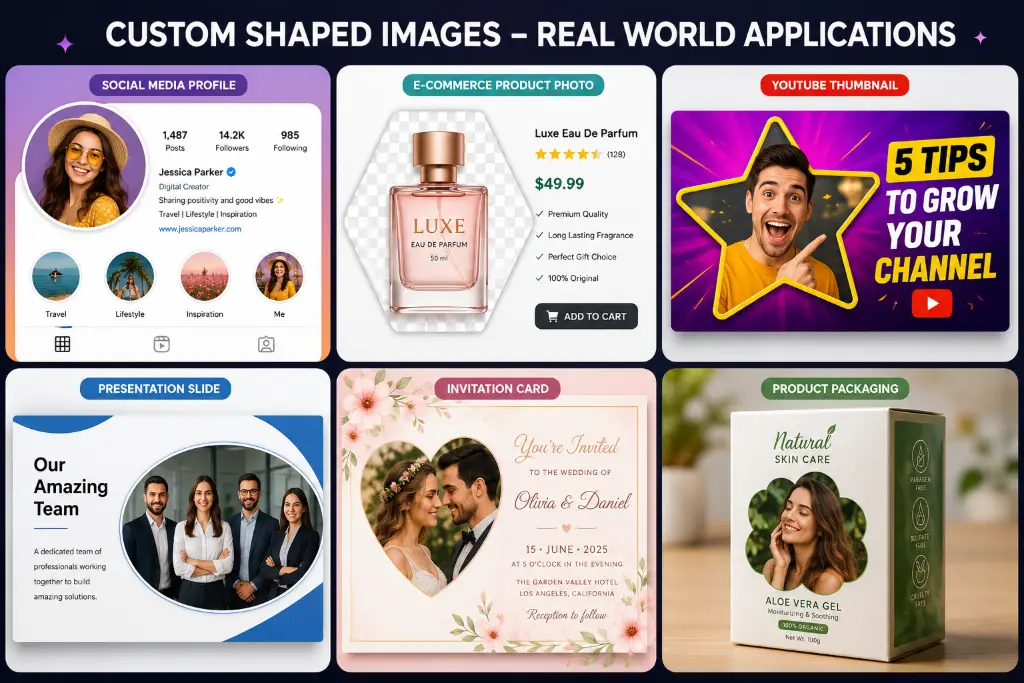
Real-world applications of custom-shaped images across different platforms
Custom Shape Crop vs Regular Crop: What's the Difference?
This is a question I get asked a lot. Let me clarify:
Regular cropping means cutting your image into a rectangle or square. It's like using scissors to trim a photo—you're just making it smaller but keeping the rectangular shape.
Custom shape cropping goes further. You're not just trimming; you're cutting out a specific shape and often making the surrounding area transparent. It's like using a cookie cutter on your image.
| Feature | Regular Crop | Custom Shape Crop |
|---|---|---|
| Rectangle crop | ✅ Yes | ✅ Yes |
| Circle crop | ❌ No | ✅ Yes |
| Heart crop | ❌ No | ✅ Yes |
| Star crop | ❌ No | ✅ Yes |
| Irregular crop | ❌ No | ✅ Yes |
| Freehand crop | ❌ No | ✅ Yes |
| Transparent background | ❌ Rarely | ✅ Yes |
Common Problems When Cropping Images Into Shapes (And How to Fix Them)
Even with the best tools, you might run into issues. Here's what to watch for:
Image Quality Loss
Problem: Your cropped image looks pixelated or blurry.
Solution: Always start with a high-resolution original. If your source image is 500x500 pixels, don't expect a crisp result when cropping to a complex shape. Use our image enhancer before cropping if needed.
✂️ Wrong Crop Area
Problem: You cut out the wrong part of the image.
Solution: Use the preview function liberally. Most tools let you undo and retry. Take your time positioning the shape before finalizing.
🔧 Complicated Tools
Problem: The interface is confusing.
Solution: Stick with user-friendly tools designed for beginners. Our custom shape crop tool is specifically built for simplicity.
📱 Poor Mobile Experience
Problem: The tool doesn't work well on your phone.
Solution: Choose responsive, mobile-optimized tools. Test on your device before committing to a workflow.
🔒 Privacy Concerns
Problem: Worried about uploading sensitive images.
Solution: Use tools that process images locally or delete uploads immediately after processing. Check the privacy policy.
How to Create Transparent Custom-Shaped Images
This is crucial for professional results. Here's what you need to know:
Why Transparency Matters
When you crop an image into a shape, you typically want the area outside that shape to be transparent—not white, not black, but truly invisible. This allows you to place your shaped image over any background without a visible box around it.
The PNG Format is Your Friend
Always download your custom-shaped images as PNG files. JPG doesn't support transparency, so you'll end up with a white (or colored) background that defeats the purpose. PNG preserves those transparent pixels perfectly.
When to Use Transparent Shapes:
- Logos: Place your logo on any colored background
- Website Graphics: Layer images without awkward boxes
- Social Media: Create stickers and overlays
- Presentations: Maintain clean, professional slides
- Product Photos: Show items without background distractions
Need to remove the background before cropping? Try our free background remover tool first, then apply your custom shape.
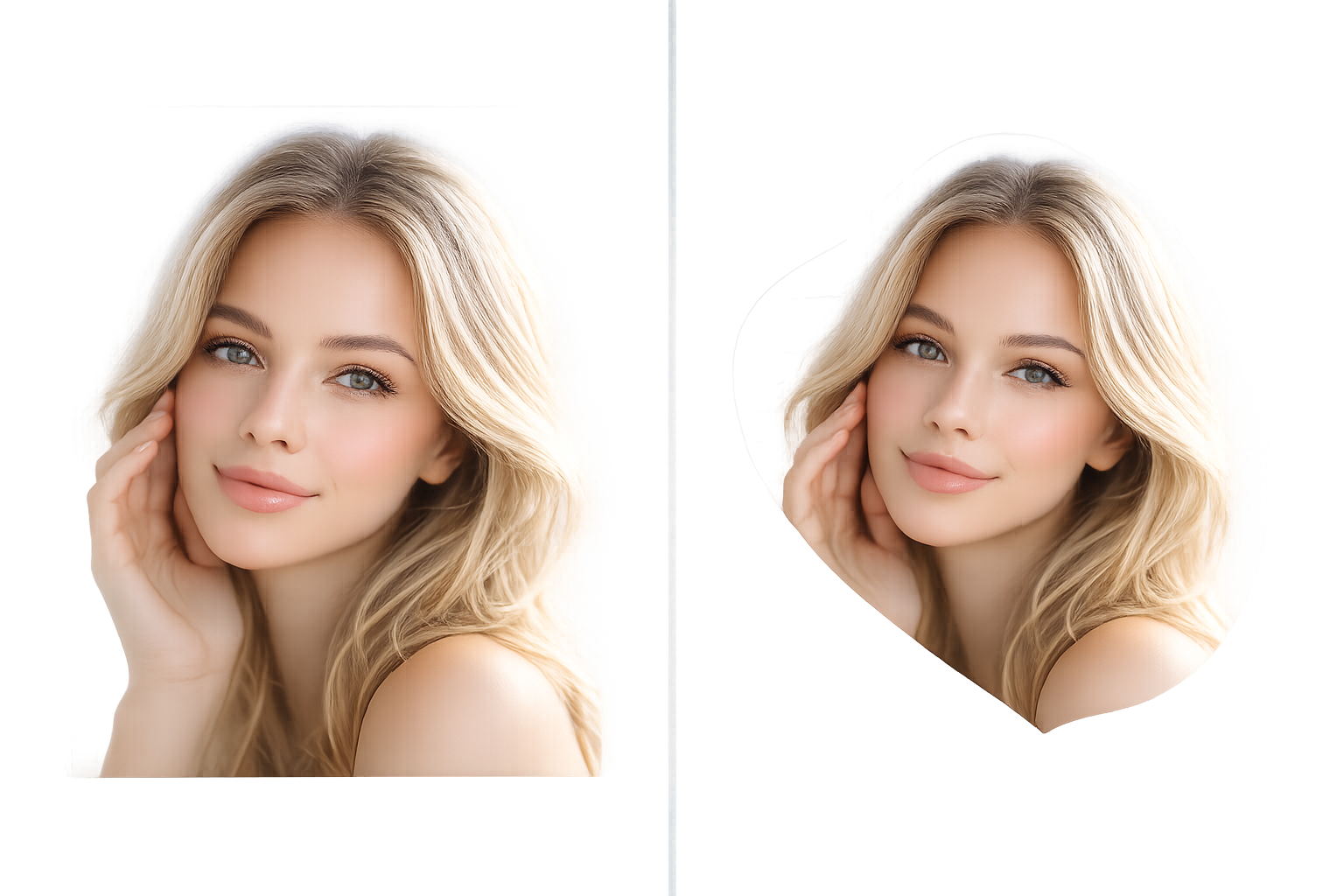
Demonstration of transparent background vs white background in custom shape cropping
Related Tools You Might Need
Once you've mastered custom shape cropping, you might want to explore these complementary tools:
🛠️ Expand Your Editing Toolkit
Frequently Asked Questions
Absolutely! There are several free online tools that let you crop images into circles, hearts, stars, polygons, and even custom freehand shapes without paying a cent. Tools like our custom shape crop tool offer this functionality completely free with no watermarks or registration required.
Simply use an online custom shape crop tool. Upload your image, select your desired shape (or draw a custom one), position it over your photo, and download the result. The entire process takes less than a minute and requires zero design experience.
Yes, as long as you start with a high-quality original image and use a tool that doesn't compress aggressively. Most reputable online tools preserve the original quality. For best results, download in PNG format and avoid multiple re-saves.
Use a dedicated circle crop tool or a general custom shape cropper with circle option. Upload your photo, select the circle shape, adjust the size and position, then download. It's that simple! Try our circle crop image tool for perfect results every time.
Definitely! Many free online tools offer heart-shaped cropping. This is perfect for Valentine's Day cards, wedding invitations, or romantic social media posts. Our heart shape crop tool makes it incredibly easy.
Look for a tool with a "freehand," "lasso," or "draw" option. This lets you manually trace around your subject to create a completely custom outline. Zoom in for precision, trace carefully, and the tool will crop to your exact specifications.
Yes! Modern online crop tools are fully responsive and work perfectly on mobile browsers. Whether you're using an iPhone or Android device, you can upload, crop, and download shaped images right from your phone without installing any apps.
The best tool depends on your specific needs, but look for these features: no watermarks, multiple shape options, freehand drawing capability, PNG download support, and mobile compatibility. Our custom shape crop tool checks all these boxes and is completely free.
Not necessarily. While you're removing parts of the image, saving in PNG format (required for transparency) can actually increase file size compared to JPG. If you need a smaller file, use an image compressor after cropping.
Some advanced tools offer batch processing, but most free online tools handle one image at a time. For bulk work, you might need to process images individually or look for premium tools with batch capabilities.
Many free tools, including ours, don't require registration. You can upload, crop, and download immediately. However, some tools might ask for an email if you want to save your work in the cloud or access premium features.
Most tools accept JPG, PNG, WebP, and sometimes GIF or BMP. JPG and PNG are the most universally supported. For best results with custom shapes, start with PNG if possible, as it already supports transparency.
Some tools include basic effects like shadows, borders, or filters. For more advanced editing, you might need to use a separate tool. Check out our professional image editor for additional effects and enhancements.
Reputable tools use secure connections (HTTPS) and delete your images after processing. Always check the privacy policy. For highly sensitive images, consider using offline software, though this sacrifices convenience.
Yes! Star-shaped cropping is popular for awards, ratings, celebrations, and children's projects. Many tools offer 5-point and 6-point star options. Try our star shape crop tool for quick, professional results.
Look for "feathering," "anti-aliasing," or "edge smoothing" options in your crop tool. These features soften the transition between your shape and the transparent background, preventing jagged or pixelated edges.
Absolutely! Polygon cropping is perfect for modern, geometric designs. You can typically choose the number of sides (triangle, hexagon, octagon, etc.). Our polygon crop tool makes this easy with adjustable side counts.
Cropping permanently removes the areas outside your shape. Masking hides those areas but keeps them in the file (non-destructive). Online crop tools typically use cropping, which is permanent but creates smaller, simpler files.
Ready to Start Cropping?
Don't let complicated software hold you back. Transform your images into stunning custom shapes in seconds—completely free.
Try Custom Shape Crop Tool NowFinal Thoughts
There you have it—everything you need to know about how to crop image into any shape online free. Whether you're creating social media content, designing marketing materials, or just having fun with photos, custom shape cropping opens up a world of creative possibilities.
Remember: you don't need expensive software or advanced skills. The right online tools make it simple, fast, and free. Start with basic shapes like circles and hearts, then experiment with freehand cropping as you gain confidence.
The best part? You can do all of this right now, from any device, without spending a dime. So go ahead—crop that image into the perfect shape and watch your visuals transform from ordinary to extraordinary.
Happy cropping! 🎨