Convert Images to PDF Online Free – Turn Multiple Images into One PDF
Need to convert images to PDF online free? You are in the right place. Our image to PDF converter lets you quickly combine multiple photos, screenshots, or scanned documents into a single, organized PDF file. Whether you are a student submitting an assignment, a professional organizing receipts, or just someone trying to share a photo collection, this tool makes the process effortless.
Forget about downloading bulky software or signing up for complicated accounts. You can convert images to PDF directly in your browser. We support all major formats, including JPG, PNG, and WebP. Simply upload your files, arrange them in your preferred order, adjust the page settings, and download your newly created PDF in seconds. It is fast, secure, and completely free.
📋 On This Page
- Convert Multiple Images to One PDF
- Convert JPG to PDF Online Free
- Convert PNG to PDF Online Free
- Turn Photos into a PDF
- Reorder Images Before Creating Your PDF
- Rotate & Flip Images Before PDF Conversion
- Choose PDF Page Size & Orientation
- Preview Your PDF Before Downloading
- What Can You Use an Image to PDF Converter For?
- Why Use ImageToolsZone?
- How to Convert Images to PDF Online
- Supported Image Formats
- Image to PDF vs. JPG to PDF
- Create a PDF from Images for Different Needs
- Having Trouble Creating Your PDF?
- Frequently Asked Questions
- More Free Image Tools
Convert Multiple Images to One PDF
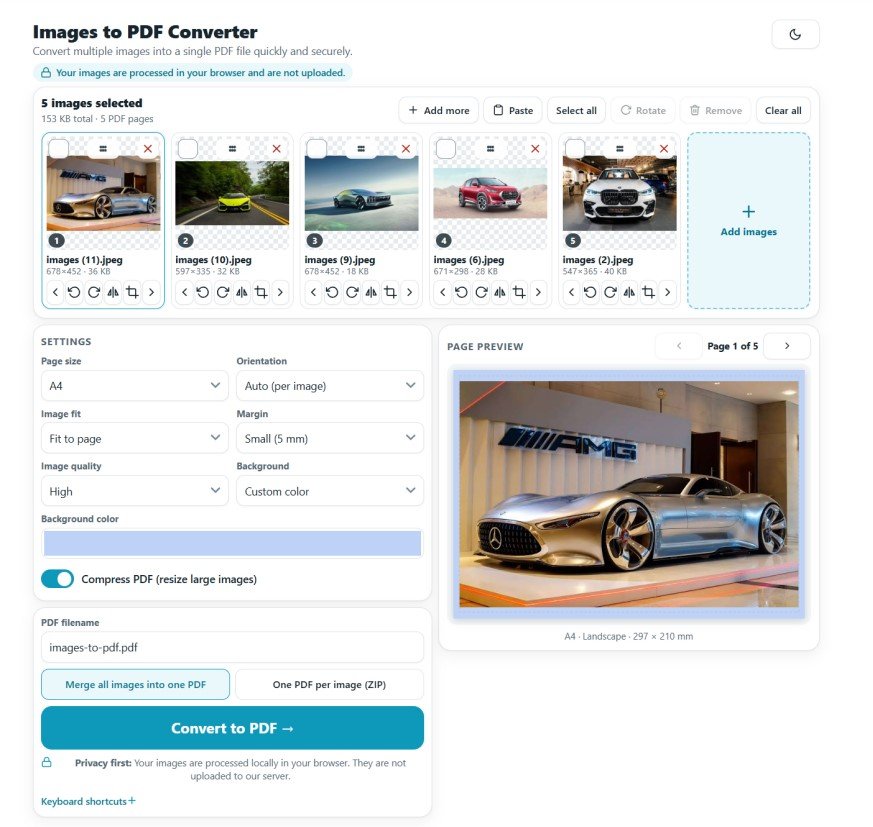
Managing dozens of loose image files can be a nightmare. Email attachments get blocked, and sharing links can be confusing. Our tool allows you to combine images into one PDF effortlessly. When you use our images to PDF converter, every image you upload automatically becomes a dedicated page in your final document.
You maintain full control over the final output. You can add multiple images at once, drag and drop them to arrange the pages in your desired order, and generate one clean, professional PDF. This is the easiest way to create PDF from images without losing quality or wasting time.
Convert JPG to PDF Online Free
JPG and JPEG are the most common image formats in the world, but they are not always the best for sharing formal documents. When you need to convert JPG to PDF online, our tool handles it instantly. You can upload multiple JPG files, and the converter will place one image per page.
Using a dedicated JPG to PDF converter ensures your photos maintain their clarity while gaining the universal compatibility of a PDF. You can easily reorder your JPG pages, remove any accidental duplicates, and download the final document ready for printing or emailing.
Convert PNG to PDF Online Free
PNG files are fantastic for graphics, screenshots, and images requiring transparent backgrounds. However, many official portals and email systems prefer PDFs. Our platform lets you convert PNG to PDF online while preserving the sharp edges and vibrant colors of your original files.
Whether you are compiling a portfolio of digital art, combining scanned pages of a textbook, or organizing UI/UX screenshots, this image to PDF free tool ensures your PNGs translate perfectly into a standardized document format.
Turn Photos into a PDF
Sometimes, you just need to turn photos into PDF format for practical reasons. Maybe you took pictures of a whiteboard after a meeting, or you want to create a digital scrapbook of a recent trip. Instead of sending ten separate picture files, you can convert photos to PDF and share a single, tidy link or attachment.
This photo to image converter free workflow is perfect for organizing scanned physical photos, creating digital archives, or submitting visual evidence for insurance claims. It keeps everything neatly packaged in one file.
Reorder Images Before Creating Your PDF
Sequence matters. A contract signed on page three should not appear before the terms on page one. Our interface makes it incredibly simple to reorder images before converting to PDF.
After uploading, your images appear as visual thumbnails. Simply click and drag them into the correct sequence. You can visually verify the page order, remove any blurry or unnecessary shots, and ensure the narrative of your document flows logically before you hit the convert button.
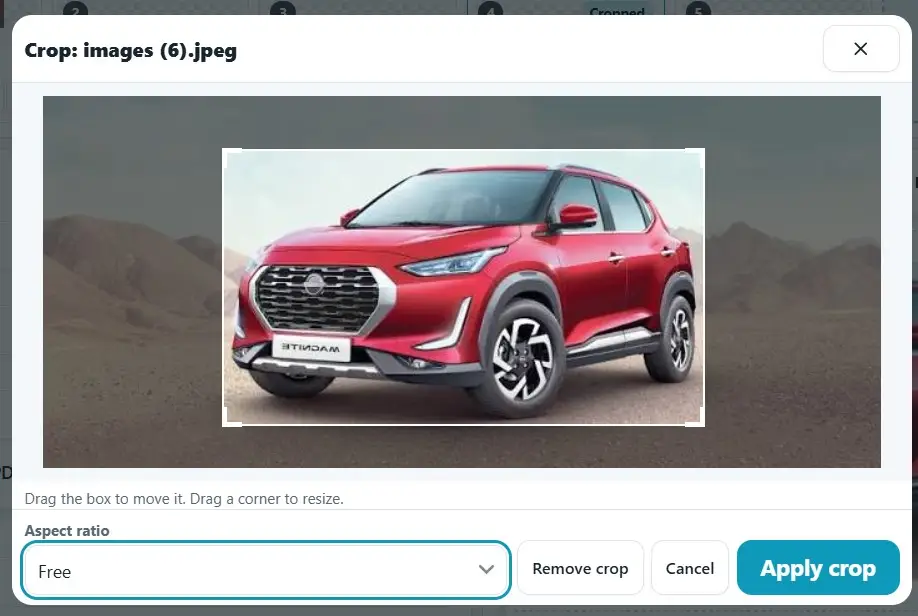
Rotate Flip & Crop Images Before Creating a PDF
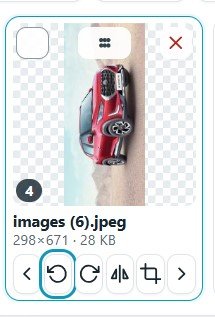
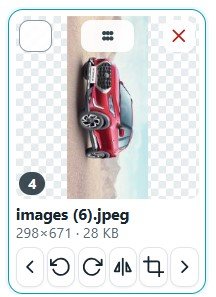
We have all been there: you scan a document or take a photo, and it ends up sideways or upside down. Instead of fixing the image in a separate editor, you can rotate images before creating PDF pages right here.
Select any image thumbnail and use the rotate or flip controls to fix its orientation. This ensures that every page in your final PDF is right-side up and easy to read, saving you from the embarrassment of sending a sideways document to a client or professor.
Rotate
Cropprd
Flip
Choose the Right PDF Page Size and Orientation
Not all documents are created equal. Our tool gives you the flexibility to match your PDF to your specific needs:
Standard A4 or Letter
Perfect for official documents, resumes, and standard printing.
Landscape Orientation
Ideal for wide images, charts, or panoramic photos.
Portrait Orientation
The default for standard vertical documents and phone screenshots.
Fit-to-Image
Crops the PDF page to match your image dimensions exactly.
Preview and Check Your PDF Before Downloading
Confidence is key. Before you finalize your document, our tool provides a live preview. You can check the image order, verify that rotations were applied correctly, and ensure no unwanted images slipped into the batch. Confirming the page sequence takes just a second and guarantees your final create PDF action is flawless.
What Can You Use an Image to PDF Converter For?
Documents & Forms
Convert scanned pages into a single PDF or combine photos of filled-out forms for easy submission.
Students
Combine multiple assignment pages or convert handwritten notes into one neat PDF for your professor.
Business
Merge receipts, invoices, and whiteboard photos into professional client documents or expense reports.
Photos
Turn a vacation photo dump into a single, shareable PDF album or digital scrapbook.
Applications
Combine required identity documents, like a passport and a utility bill, into one file for online applications.
Screenshots
Convert a series of mobile screenshots into a shareable PDF for bug reports or tutorials.
Why Convert Images to PDF with ImageToolsZone?
We built this tool to be the most straightforward image to PDF online solution available. Here is what sets us apart:
- 100% Free: No hidden fees, watermarks, or premium paywalls.
- Batch Processing: Handle multiple images simultaneously.
- Full Control: Reorder, rotate, and remove images before conversion.
- Customization: Choose your exact page size and orientation.
- Zero Installation: Runs entirely in your browser. Your files never leave your device, ensuring maximum privacy.
How to Convert Images to PDF Online
Getting your document ready takes just four simple steps:
- Add your images: Click the upload button or drag and drop your JPG, PNG, or WebP files into the tool.
- Reorder or remove: Drag the thumbnails into your preferred sequence and delete any mistakes.
- Rotate and configure: Fix sideways images and select your desired page size, margin, and orientation.
- Preview and create: Check the live preview, click "Convert," and download your new PDF instantly.
Supported Image Formats
Our images to PDF converter is built to handle the most popular web and camera formats seamlessly:
Standard photos
Graphics & screenshots
Modern web images
Whether you need a JPG to PDF conversion, a PNG to PDF merge, or a WebP to PDF transition, the quality remains intact.
What's the Difference Between Image to PDF and JPG to PDF?
It is a common question. "Image to PDF" is the broader category. It means the tool can accept virtually any picture format (PNG, WebP, GIF, BMP) and turn it into a document. "JPG to PDF" is a specific subset of that process, referring strictly to converting JPEG files. Our tool handles both seamlessly under the same roof, so you do not need to worry about the technical distinction.
Create a PDF from Images for Different Needs
📤 Document Submission
Government portals and universities often reject loose images. Packaging them as a PDF ensures your submission is accepted on the first try.
🏫 School Assignments
Teachers prefer single files. Combine your handwritten math problems or art scans into one tidy PDF for easy grading.
💼 Business Records
Keep your expense reports organized by merging all your receipt photos into a single monthly PDF document.
🖨️ Professional Printing
Print shops require PDFs to maintain layout and resolution. Convert your images to PDF to ensure they print exactly as you see them.
Having Trouble Creating Your PDF?
Here are quick solutions to common hiccups:
Why are my PDF pages in the wrong order?
Simply drag and drop the image thumbnails in the upload area to rearrange them before clicking convert.
Why is an image sideways?
Use the built-in rotate button on the image thumbnail to fix the orientation before generating the PDF.
Why does the image not fit the page?
Check your page size settings. Switch from A4 to "Fit-to-Image" or adjust the orientation to Landscape if your photo is wide.
Can I remove an image before creating the PDF?
Yes. Click the "X" or delete icon on any thumbnail to remove it from the batch instantly.
Frequently Asked Questions
What is an image to PDF converter?
Can I convert multiple images to one PDF?
Can I convert JPG to PDF?
Can I convert PNG to PDF?
Can I reorder images before creating a PDF?
Can I rotate images before converting them?
Can I choose the PDF page size?
Can I choose portrait or landscape orientation?
Can I preview the pages before downloading?
Is the image-to-PDF converter free?
More Free Image Tools
Once you have your PDF, you might need to tweak your images further. Explore our suite of free, browser-based utilities:
Image Compressor
Shrink file sizes without noticeable quality loss before converting.
Background Remover
Isolate subjects by removing distracting backgrounds instantly.
Image Resizer
Scale your photos to exact pixel dimensions or specific file sizes.
Format Converter
Switch between PNG, JPG, and WebP without degrading quality.
Rotate & Flip Tool
Quickly fix image orientation before adding them to your document.
Add Image to PDF
Inject new images into an existing PDF document seamlessly.
Image Splitter
Divide large images or infographics into smaller, manageable pieces.
Ready to Organize Your Files?
Stop juggling messy image attachments. Combine, arrange, and convert your files in seconds.
Use the Image to PDF Converter Now