Convert Image to QR Code Online Free: Create a Scannable QR Code in Seconds
Ever wondered how to turn your favorite photo into a scannable QR code? You're in the right place! Converting an image to a QR code has never been easier. Whether you're a photographer wanting to share your portfolio, a business owner promoting products, or just someone who loves tech hacks, this guide will walk you through everything you need to know.
An image QR code isn't your typical black-and-white square. It's a smart way to connect physical and digital worlds. When someone scans it with their phone, they instantly access your image—no typing URLs, no searching through folders. Just point, scan, and view.
The best part? You don't need any coding skills or expensive software. Our free online tool handles everything in your browser. Upload your image, customize your QR code, and download it in seconds. It's that simple.
Create Your Image QR Code Now →📋 On This Page
- What Does It Mean to Convert an Image to a QR Code?
- How to Convert Image to QR Code Online
- Why Convert an Image to a QR Code?
- Can You Convert JPG, PNG, or WEBP to QR Code?
- Image to QR Code vs QR Code from Image
- How to Create Without Software
- 7 Practical Ways to Use Image QR Codes
- How to Make an Image QR Code Scannable
- Why Is My QR Code Not Working?
- Is It Safe to Convert Images Online?
- Image QR Code Generator vs Traditional Sharing
- Frequently Asked Questions
What Does It Mean to Convert an Image to a QR Code?
Let's break this down in simple terms. When we talk about converting an image to a QR code, we're not magically transforming your photo into those funky black-and-white patterns. Instead, we're creating a bridge—a digital shortcut that leads people straight to your image.
Think of a QR code as a super-fast URL shortener. But instead of typing out a long web address, you just scan a code with your phone camera. The QR code contains information (usually a web link) that tells your phone where to go. In this case, it points to where your image is stored online.
How QR Codes Actually Work
QR codes (Quick Response codes) are two-dimensional barcodes that store data in a grid of black squares on a white background. Your smartphone camera reads this pattern and decodes the information inside. Most modern phones can scan QR codes without downloading any special apps—just point your camera and tap the notification.
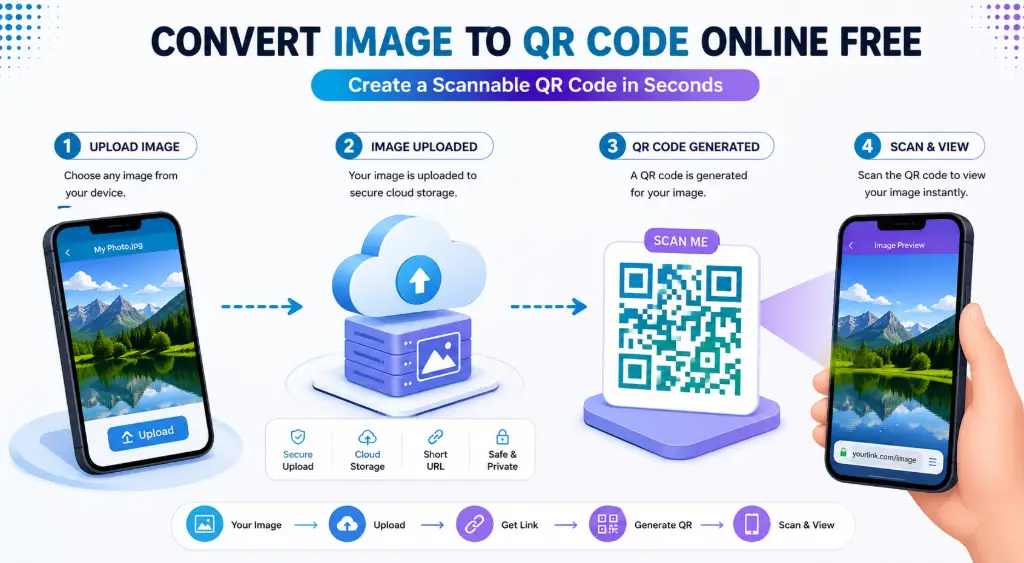
When you convert an image to a QR code, here's what happens behind the scenes:
1. Upload
Your image gets uploaded to a server or cloud storage where it receives a unique web address (URL).
2. Encode
That URL gets converted into a QR code pattern using special encoding algorithms.
3. Scan
When someone scans the code, their phone reads the URL and loads your image automatically.
Important note: The QR code doesn't actually contain your full-resolution image file. That would make the code impossibly complex and unscannable. Instead, it contains a link to where your image lives online. This is a crucial distinction that many guides gloss over.
How to Convert Image to QR Code Online
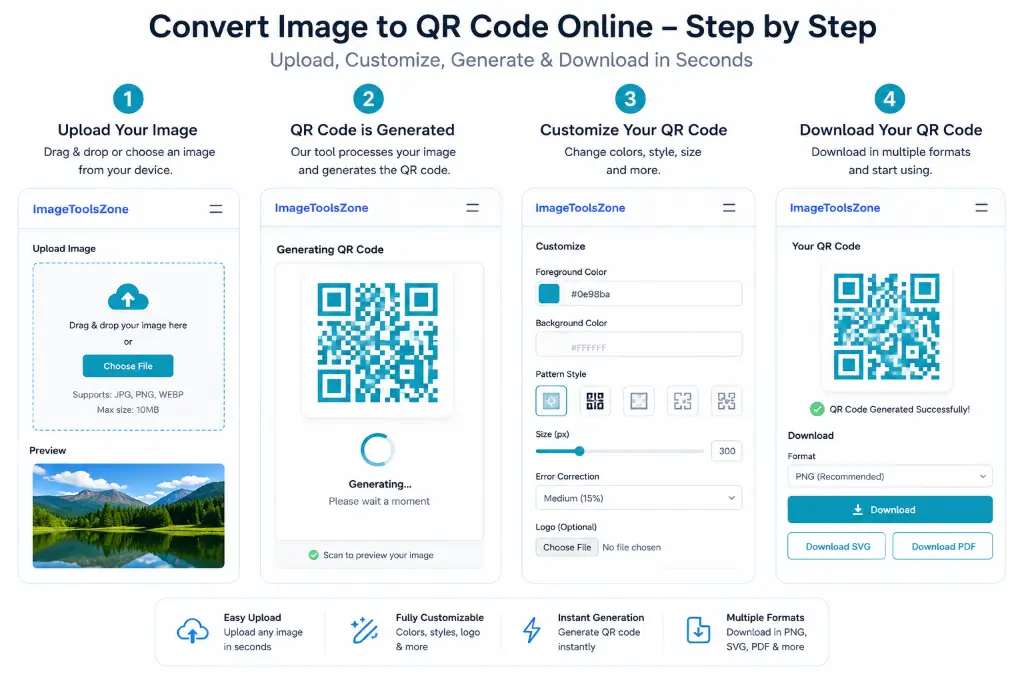
Ready to create your own image QR code? Follow these simple steps. The whole process takes less than two minutes, and you don't need any technical expertise.
Step 1 – Upload Your Image
Start by selecting the image you want to convert. Our tool supports all major formats including JPG, PNG, and WEBP. These are the most common image formats, so whatever photo you have should work perfectly.
Drag and drop your file or click to browse your device. The tool accepts images up to 10MB in size, which is more than enough for high-quality photos. If your image is larger, consider using our image compressor first to reduce the file size without losing quality.
Pro tip: Use clear, well-lit images for the best results. Blurry or dark photos won't look great when people scan the QR code and view them.
Step 2 – Generate the QR Code
Once your image is uploaded, the tool automatically creates a unique URL for it and generates the QR code. This happens instantly—no waiting, no processing delays.
The system uses advanced encoding to ensure your QR code is scannable from various distances and angles. It automatically applies error correction, which means even if part of the code gets damaged or dirty, it will still work.
At this point, you can test the QR code right in your browser. Just hover over it with your phone's camera to make sure it works before downloading.
Step 3 – Customize Your QR Code
This is where things get fun. Our QR code generator offers several customization options:
- Size: Choose from small (300x300px) to extra-large (2000x2000px) depending on your needs
- Colors: Match your brand by changing the foreground and background colors
- Logo: Add your company logo or a small icon in the center
- Border: Adjust the quiet zone (white space around the code) for better scanning
- Style: Choose between classic squares, rounded dots, or modern frames
Don't go overboard with customization though. Too many colors or complex designs can make the code harder to scan. Keep it clean and maintain good contrast.
Step 4 – Download and Share
Happy with your QR code? Click download to save it as a PNG or SVG file. PNG is great for digital use and printing, while SVG is perfect if you need to resize the code without losing quality.
Now you can use your QR code anywhere:
- Print it on business cards or flyers
- Add it to your website or email signature
- Include it in presentations or reports
- Share it on social media
- Stick it on product packaging
The QR code never expires, so you can use it indefinitely. Just make sure the image URL remains accessible (which it will with our hosting).
Why Convert an Image to a QR Code?
You might be thinking, "Can't I just share images the old-fashioned way?" Sure, you can. But QR codes solve real problems that traditional sharing methods create. Let's explore why more people are making the switch.
Share Images Effortlessly
Remember the last time you tried to send high-resolution photos via email? Either the files were too large, or they got compressed into unrecognizable blobs. With QR codes, you skip all that hassle. People scan, view, and download at full quality instantly.
This is especially useful at events. Imagine being at a wedding or conference. Instead of creating a shared folder and sending links to dozens of people, you display one QR code. Everyone scans it and gets instant access to all the photos. Simple, elegant, efficient.
Promote Products Like a Pro
E-commerce sellers, this one's for you. Product photography is crucial, but showing multiple angles in a single image is impossible. Create QR codes that link to image galleries showing your product from every angle, in different colors, or in real-life use scenarios.
Print these codes on packaging, in catalogs, or on in-store displays. Customers can scan and see detailed product images without leaving the physical store. It bridges the gap between offline and online shopping beautifully.
For more product image optimization, check out our auto-crop tool for ecommerce to prepare your product photos before creating QR codes.
Showcase Your Portfolio
Photographers, designers, and artists—QR codes are your secret weapon. Instead of carrying bulky portfolios or sending large files, create QR codes that link to your best work.
Put them on business cards, gallery walls, or exhibition booths. When someone's interested, they scan and instantly see your portfolio in full resolution. It's professional, modern, and memorable.
Enhance Printed Materials
Print isn't dead, but it has limitations. You can only fit so much on a flyer, brochure, or magazine page. QR codes break those physical constraints.
Imagine a restaurant menu with QR codes next to each dish. Customers scan and see high-quality food photos before ordering. Or a real estate flyer with codes linking to virtual tours and interior photos. The possibilities are endless.
Educational Applications
Teachers and educators, QR codes can transform your classroom. Create codes that link to diagrams, historical photos, scientific illustrations, or student projects. Students scan with their phones and access visual learning materials instantly.
It's also great for parent-teacher conferences. Display student work with QR codes so parents can see digital portfolios, progress photos, or video presentations.
💡 Real-World Success Story
A small bakery in Portland started adding QR codes to their pastry boxes. When customers scanned the code, they saw professional photos of how each pastry was made, ingredient sources, and pairing suggestions. Result? 40% increase in social media engagement and repeat customers who felt more connected to the brand.
Can You Convert JPG, PNG, or WEBP to QR Code?
Absolutely! Our tool supports all major image formats. Let's break down what each format offers and when to use them.
JPG (JPEG) Images
JPG is the most common image format worldwide. It's perfect for photographs because it handles millions of colors smoothly while keeping file sizes reasonable. If you're converting photos from your camera or phone, they're probably already in JPG format.
Best for: Photographs, realistic images, web graphics with gradients
File size: Moderate (good compression)
Quality: High, though slightly lossy compression
PNG Images
PNG files are fantastic when you need transparency or crisp edges. Unlike JPG, PNG uses lossless compression, meaning your image quality stays perfect no matter how many times you save it.
If you're working with logos, screenshots, graphics with text, or images that need transparent backgrounds, PNG is your go-to format. Our background remover tool can help you create transparent PNGs before generating QR codes.
Best for: Logos, graphics with text, images requiring transparency
File size: Larger than JPG
Quality: Lossless (perfect quality)
WEBP Images
WEBP is the modern challenger. Developed by Google, it offers better compression than both JPG and PNG while maintaining excellent quality. It's becoming the standard for web images.
If you're tech-savvy and want the smallest file sizes with great quality, WEBP is excellent. Just note that very old devices might not support it, though this is increasingly rare in 2024 and beyond.
Best for: Web optimization, modern browsers, smallest file sizes
File size: Smallest of the three
Quality: Excellent (both lossy and lossless options)
Remember, the QR code doesn't store your actual image file. Whether it's a 2MB JPG or a 10MB PNG, the QR code itself remains the same size. It only stores the URL pointing to where your image is hosted. This is why QR codes stay scannable regardless of your image size.
Image Quality Considerations
While file format matters, image quality matters more. A blurry, pixelated photo will look terrible no matter what format you use. Before creating your QR code:
- Use high-resolution images (at least 1000px on the shortest side)
- Ensure proper lighting and focus
- Crop out unnecessary background
- Adjust brightness and contrast if needed
- Consider using our image enhancer for quick improvements
Image to QR Code vs QR Code from Image – What's the Difference?
This is a common point of confusion, so let's clear it up once and for all. These are two completely different processes that serve opposite purposes.
| Image to QR Code | QR Code from Image |
|---|---|
| What it does: Creates a QR code that links to your image | What it does: Extracts/scans a QR code that's already embedded in an image |
| Use case: You want to share your photo easily | Use case: You received an image containing a QR code and want to read it |
| Process: Upload photo → Generate QR code | Process: Upload image with QR code → Decode/extract the data |
| Output: A scannable QR code image | Output: The URL or data contained in the QR code |
| Example: Turning your product photo into a QR code for packaging | Example: Scanning a QR code from a screenshot someone sent you |
In simple terms:
- Image to QR Code = Creation (you're making a new QR code)
- QR Code from Image = Extraction (you're reading an existing QR code)
Our tool focuses on the first option—helping you create QR codes from your images. If you need to extract data from QR codes in images, that's a different tool entirely.
How to Create a QR Code for an Image Without Installing Software
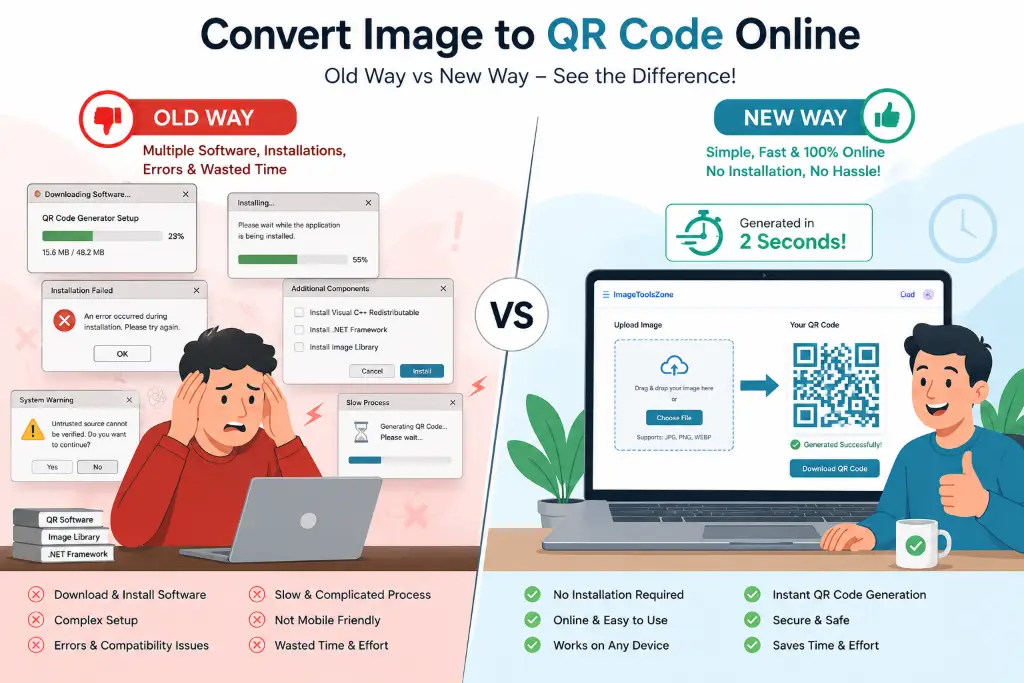
Here's the beauty of modern web tools: you don't need to download anything. No bulky software, no complicated installations, no updates to manage. Everything happens right in your browser.
Why Online Tools Beat Desktop Software
✓ No Installation
Forget downloading 50MB+ software packages. Just open your browser and go.
✓ Works Everywhere
Use it on Windows, Mac, Linux, Chromebook—any device with a browser.
✓ Always Updated
No need to download patches. The tool improves automatically.
✓ Mobile-Friendly
Create QR codes directly from your phone or tablet.
Browser-Based Workflow
Our free QR code generator works entirely in your browser using modern web technologies. When you upload an image, it's processed securely and a unique link is generated. The QR code is created client-side, meaning most of the work happens on your device, not on a remote server.
This approach offers several advantages:
- Speed: No waiting for server processing
- Privacy: Your images aren't stored permanently
- Accessibility: Works even with slow internet connections
- Compatibility: No plugins or extensions needed
Whether you're on a work computer that doesn't allow software installations, using a library computer, or just prefer not to clutter your device with apps, browser-based tools are the perfect solution.
7 Practical Ways to Use Image QR Codes
Now that you know how to create image QR codes, let's explore creative ways to use them. These real-world applications will inspire you to start creating your own.
1. Business Cards That Actually Work
Traditional business cards get thrown away. Smart business cards get scanned. Add a QR code to your card that links to a professional headshot or portfolio. When someone scans it, they instantly see who you are and what you do.
Go further: Create multiple codes for different purposes—one for your photo, one for your portfolio, one for your LinkedIn. Label them clearly on the card.
2. Product Packaging That Tells a Story
Small packaging means limited space. You can't fit detailed product photos on a tiny label. Solution? QR codes.
Handmade jewelry sellers can show close-up details. Food producers can display recipe ideas. Clothing brands can show styling options. The code takes customers to a gallery of high-quality images that wouldn't fit on the package.
3. Restaurant Menus Come Alive
We've all been there—trying to decide what to order from a text-only menu. Restaurants using QR codes next to menu items let customers see actual photos of the dishes.
This isn't just convenient; it increases sales. People order more when they can see the food. Plus, it's hygienic—no more shared physical menus.
4. Event Invitations with Impact
Wedding invitations, birthday parties, corporate events—QR codes make them interactive. Link to:
- Venue photos so guests know what to expect
- Dress code examples
- Parking instructions with images
- Event timeline with visual elements
For weddings specifically, create a code that links to engagement photos or a countdown page. It builds excitement before the big day.
5. Photography Portfolios on the Go
Photographers, imagine meeting a potential client at a coffee shop. Instead of fumbling with your phone to show images, hand them a card with a QR code. They scan and see your best work in a beautifully organized gallery.
You can also use this at exhibitions. Next to each printed photo, place a QR code linking to behind-the-scenes shots, technical details, or purchase options.
Check out our circle crop tool to create unique profile images for your portfolio QR codes.
6. Real Estate Marketing 2.0
Real estate agents, QR codes are your best friend. On "For Sale" signs, include codes that link to:
- Interior photo galleries
- Floor plans
- Virtual tour thumbnails
- Neighborhood images
Potential buyers driving by can instantly see inside without scheduling a showing. It qualifies leads better—people who scan are genuinely interested.
7. Educational Materials Enhanced
Teachers, transform your worksheets and textbooks. Add QR codes next to diagrams that link to:
- 3D models or rotatable images
- Historical photographs
- Scientific illustrations at higher resolution
- Student project examples
It makes learning interactive and gives students access to rich visual content that print materials can't provide.
🔗 Related Tools You Might Need
How to Make an Image QR Code Scannable
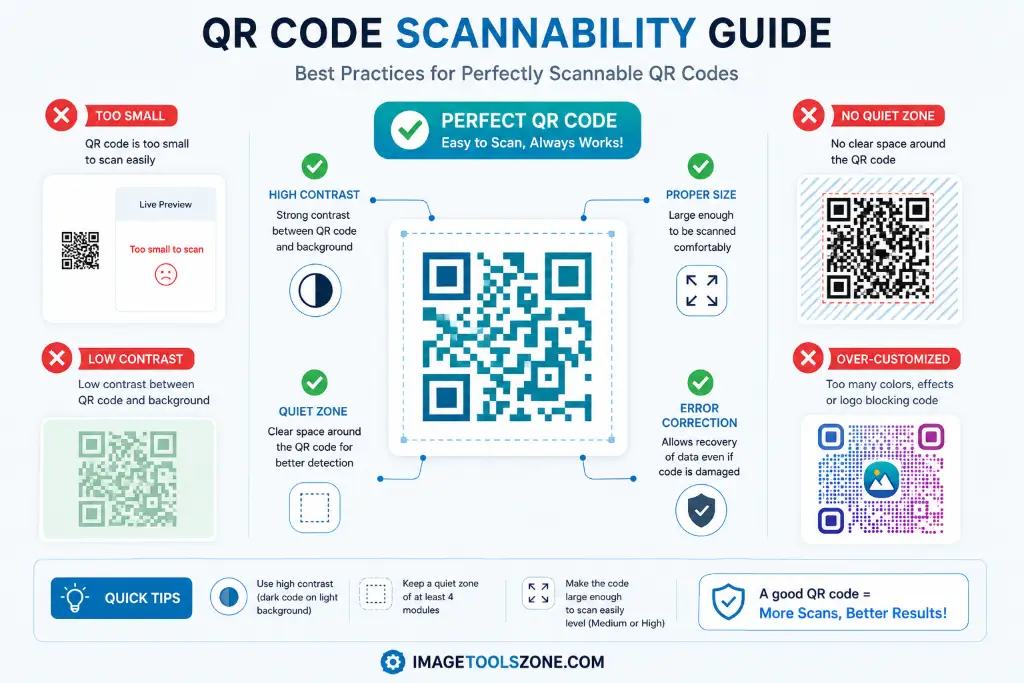
Creating a QR code is one thing. Creating one that actually works every time is another. Follow these best practices to ensure your codes are scannable in any situation.
Size Matters More Than You Think
Too small and phones can't focus on it. Too large and it looks awkward. Here's the sweet spot:
- For digital use: Minimum 300x300 pixels
- For print (business cards): At least 1x1 inch (2.5x2.5 cm)
- For posters/flyers: 2x2 inches or larger
- For billboards: 6x6 inches minimum
Rule of thumb: The scanning distance should be about 10 times the size of the QR code. So a 1-inch code should be scannable from 10 inches away.
Contrast Is King
QR codes need high contrast to be readable. Black on white is the gold standard, but you can use other color combinations if they provide enough contrast.
Good combinations:
- Dark blue on white
- Black on light yellow
- Dark green on white
- Navy on light gray
Avoid these:
- Light gray on white (not enough contrast)
- Red on green (color blindness issues)
- Similar shades of any color
Don't Mess with the Quiet Zone
The "quiet zone" is the white border around your QR code. It's not decorative—it's essential. This empty space helps scanners identify where the code begins and ends.
Never crop this border. Never place text or graphics too close to it. Maintain at least 4 modules (the small squares that make up the code) of white space on all sides.
Test Before You Print
Here's a mistake everyone makes at least once: printing 1,000 brochures only to discover the QR code doesn't scan. Always test your code:
- Scan it with multiple phones (iPhone, Android, different models)
- Test in different lighting conditions (bright sun, dim indoor)
- Try scanning from various angles and distances
- Print a test copy at actual size and scan that
- Ask someone else to try scanning it
Error Correction Levels
QR codes have built-in error correction that allows them to be read even if partially damaged. There are four levels:
- Level L (Low): 7% error correction
- Level M (Medium): 15% error correction
- Level Q (Quartile): 25% error correction
- Level H (High): 30% error correction
For image QR codes that might get printed on surfaces that wear down (like product packaging), use Level H. It makes the code larger but ensures it keeps working even when scratched or dirty.
Avoid Over-Customization
Yes, you can add logos, change colors, and use fancy patterns. But every modification increases the risk of scanning failures. If you add a logo in the center, keep it small (no more than 30% of the code area). If you change colors, maintain high contrast. If you use rounded dots instead of squares, ensure they're still clearly distinguishable.
When in doubt, stick with a classic black-and-white square design. It's boring, but it works every time.
Why Is My Image QR Code Not Working?
So your QR code isn't scanning. Don't panic—this happens to everyone at some point. Let's troubleshoot the most common issues.
Problem 1: The Code Is Too Small
Symptoms: Phone camera can't focus, or it scans but takes forever.
Solution: Increase the size. For print materials, never go below 1x1 inch. For digital use, ensure it's at least 300x300 pixels. When in doubt, make it bigger.
Problem 2: Poor Print Quality
Symptoms: Code looks blurry, pixelated, or the edges aren't sharp.
Solution: Use high-resolution output (SVG or 300 DPI PNG). Don't enlarge a small image—that causes pixelation. Generate the QR code at the exact size you need.
Problem 3: Low Contrast
Symptoms: Code is visible but won't scan, or only scans in perfect lighting.
Solution: Increase contrast between the code and background. Dark colors on light backgrounds work best. Avoid light colors on light backgrounds or dark on dark.
Problem 4: Image URL Is Inaccessible
Symptoms: QR code scans fine, but the image doesn't load.
Solution: This is a hosting issue, not a QR code issue. Make sure:
- The image URL is still active
- The hosting service hasn't deleted the file
- There are no permission restrictions
- The link doesn't require login
Our QR code generator provides permanent hosting for your images, so this won't happen with our tool.
Problem 5: Broken or Expired Link
Symptoms: "Page not found" or "Link expired" error after scanning.
Solution: Some QR code generators create temporary links that expire after 30 days. Always use a service that provides permanent links, or create static QR codes that don't rely on redirect services.
Problem 6: QR Code Is Cropped
Symptoms: Part of the code is cut off in your design.
Solution: Never crop a QR code. Every module (square) is essential for decoding. If you need a smaller code, regenerate it at a smaller size—don't resize or crop an existing one.
Problem 7: Insufficient White Space
Symptoms: Code looks fine but won't scan consistently.
Solution: Add more quiet zone (white border) around the code. Text, graphics, or colored backgrounds touching the code will interfere with scanning.
Problem 8: Scanning from a Damaged Image
Symptoms: You're trying to scan a QR code that's printed on a crumpled, wet, or torn surface.
Solution: Use high error correction (Level H) when generating the code. This allows it to work even with up to 30% damage. Also, consider laminating printed codes or using durable materials.
Problem 9: Poor Lighting When Scanning
Symptoms: Code works in good light but fails in dim conditions.
Solution: This is often a scanner issue, not a code issue. Ensure your code has maximum contrast. For codes that will be scanned in low light (like at evening events), use reflective materials or add subtle lighting.
Before giving up on a QR code, run through this checklist:
- Is the code at least 1x1 inch (for print)?
- Is there clear contrast between code and background?
- Is the quiet zone intact on all sides?
- Is the code printed clearly (not blurry)?
- Does the destination URL still work?
- Have you tested with multiple phones?
Is It Safe to Convert an Image to a QR Code Online?
Security and privacy concerns are valid, especially when uploading images to online tools. Let's address exactly what happens to your files and how to stay safe.
What Happens to Your Uploaded Images?
When you use a reputable online QR code generator like ours, here's the typical workflow:
- Upload: Your image is temporarily uploaded to secure servers via HTTPS encryption
- Processing: The system generates a unique URL and creates the QR code
- Storage: The image is stored temporarily (usually 24-48 hours) or permanently if you choose
- Access: Only people with the QR code or direct link can view the image
Security Features to Look For
🔒 HTTPS Encryption
Ensures your files are encrypted during upload and download.
No Account Required
You shouldn't need to create an account or provide personal information.
⏰ Automatic Deletion
Files should be automatically deleted after a reasonable period.
No Watermarks
Legitimate tools don't add watermarks to your images.
Privacy Best Practices
While most online tools are safe, follow these guidelines to protect yourself:
- Don't upload sensitive images: Avoid uploading personal IDs, financial documents, or confidential business materials
- Check the privacy policy: Reputable tools clearly state how they handle your data
- Use client-side tools when possible: Some generators process images entirely in your browser without uploading
- Delete after use: If the tool offers manual deletion, use it after downloading your QR code
- Avoid public computers: Don't upload private images from library or internet cafe computers
Our Commitment to Security
When you use our free QR code generator, we prioritize your privacy:
- All connections use HTTPS encryption
- We don't require registration or personal information
- Images are stored securely with unique, unguessable URLs
- We don't scan or analyze your image content
- You maintain full ownership of your images
That said, never upload images you wouldn't want potentially accessible via a direct link. While the URLs are random and hard to guess, they're not password-protected.
Image QR Code Generator vs Traditional Image Sharing
Let's compare QR code sharing with traditional methods to see when each approach makes sense.
| Method | Pros | Cons | Best For |
|---|---|---|---|
| Email Attachments | Familiar, direct delivery | File size limits, clogs inboxes, compression | Sharing with specific individuals |
| Cloud Storage Links | High quality, no size limits | Requires account, link management, permissions | Large batches of images |
| Social Media | Easy, wide reach | Compression, privacy concerns, algorithm limits | Casual sharing, marketing |
| Messaging Apps | Instant, convenient | Heavy compression, not professional | Quick personal sharing |
| QR Codes | No size limits, professional, trackable, works offline-to-online | Requires smartphone, internet to view | Print materials, events, business use |
When QR Codes Win
QR codes are superior when:
- You're sharing images in physical spaces (stores, events, print ads)
- You need to maintain image quality
- You want to track how many people view your images
- You're sharing with people who don't have your contact information
- You want a professional, modern impression
When Traditional Methods Win
Stick with email or messaging when:
- Sharing with one or two specific people
- The recipient doesn't have a smartphone
- You need immediate confirmation of receipt
- You're in an area with poor internet connectivity
For more advanced image editing before creating QR codes, try our professional image editor or advanced photo editor.
Frequently Asked Questions
Yes! Our tool is completely free to use. You can convert as many images to QR codes as you need without paying a cent. There are no hidden fees, no watermarks, and no registration required. Simply upload your image, generate the QR code, and download it instantly.
Creating a QR code for a picture is simple: 1) Go to our QR code generator, 2) Upload your image (JPG, PNG, or WEBP), 3) Customize the QR code if desired (colors, size, logo), 4) Click generate, and 5) Download your QR code. The entire process takes less than 60 seconds.
Absolutely! JPG is one of the most common and supported formats for creating QR codes. Whether it's a photo from your camera, a screenshot, or a downloaded image, our tool handles JPG files perfectly. Just make sure the image is clear and high-quality for the best results.
Yes, PNG images work excellently for QR codes. PNG is actually preferable if your image has transparent backgrounds, sharp edges, or text, as it uses lossless compression. This means your image quality stays perfect when people scan the QR code and view it.
No, this is a common misconception. A QR code doesn't contain the actual image file. Instead, it stores a URL (web address) that points to where your image is hosted online. When someone scans the code, their phone reads the URL and loads the image from the internet. This is why QR codes can link to high-resolution images without becoming impossibly complex.
Scanning is easy: 1) Open your phone's camera app (most modern phones have built-in QR scanners), 2) Point the camera at the QR code, 3) Wait for the notification to appear, 4) Tap the notification. The image will load in your browser. If your phone doesn't have a built-in scanner, download a free QR code reader app from your app store.
Yes! Our tool is fully mobile-responsive, meaning you can create QR codes directly from your smartphone or tablet. Just open the website in your mobile browser, upload an image from your phone's gallery, and generate the QR code. You can then save it to your phone or share it instantly.
QR codes generated with our tool don't expire. They're permanent and will work indefinitely. However, the image URL must remain active. We provide permanent hosting for your images, so as long as our service exists, your QR code will continue working. Unlike some services that create temporary links, ours are designed to last.
Definitely! QR codes are designed to work both digitally and in print. For best results: print at high resolution (300 DPI or higher), maintain a minimum size of 1x1 inch, use good quality paper, and ensure high contrast. You can print QR codes on business cards, flyers, posters, product packaging, stickers—virtually any printed material.
There are several common reasons: 1) The code is too small, 2) Low contrast between code and background, 3) Damaged or blurry print, 4) Insufficient white space around the code, 5) Poor lighting when scanning, or 6) The image URL is broken. Check our troubleshooting section above for detailed solutions to each issue.
For the QR code itself: minimum 300x300 pixels for digital use, or 1x1 inch for print. For the image you're linking to: at least 1000 pixels on the shortest side for good quality on mobile devices. Larger images (2000px+) are better for desktop viewing. Our tool automatically optimizes images for fast loading while maintaining quality.
Yes! Our QR code generator allows you to add a logo or icon to the center of your QR code. This is great for branding. Just keep the logo small (no more than 30% of the code area) to ensure the code remains scannable. Use high-contrast logos for best results.
No, there's no limit! You can create as many QR codes as you need. Whether you need one code for a business card or hundreds for a marketing campaign, our free tool handles it all. There are no daily limits, no monthly caps, and no restrictions on commercial use.
With static QR codes (which we provide), the code is permanently linked to the specific image URL. If you need to change the image, you'll need to create a new QR code. However, some premium services offer dynamic QR codes that let you update the destination without changing the code itself. For most users, creating a new code is quick and easy enough.
We offer PNG and SVG formats. Choose PNG for general use—it works everywhere and is perfect for web and print. Choose SVG if you need to resize the QR code infinitely without losing quality (great for large-format printing like billboards or banners). Both formats are high-quality and scannable.
Generally yes, but use caution. QR codes themselves are just encoded URLs—they can't harm your device. However, they can link to malicious websites. Only scan QR codes from trusted sources. Our tool creates safe, direct links to images. If you're creating QR codes for others to scan, make sure your images are appropriate and the hosting is secure.
Basic QR codes don't include tracking. However, our tool provides analytics on image views, which gives you a good indication of scan numbers. For detailed tracking (location, device type, time of scan), you'd need a premium dynamic QR code service. For most users, knowing total views is sufficient.
You need internet to view the image, but not to scan the code itself. The scanning process (reading the pattern) happens offline on your phone. However, once scanned, your phone needs internet access to load the image from the URL stored in the code. Without internet, you'll get an error when trying to view the image.
Ready to Convert Your Images to QR Codes?
Stop struggling with complicated sharing methods. Create professional, scannable QR codes for your images in seconds—completely free.
Create Your Image QR Code Now →No registration required • No watermarks • Instant download
🛠️ More Free Image Tools from ImageToolsZone
- Free Image Cropper
- Oval Shape Crop
- Custom Shape Crop
- Round Image Corners
- Heart Shape Crop
- Polygon Shape Crop
- Star Shape Crop
- Rotate & Flip Images
- Add Image to PDF
- Overlay Images
- Image Splitter
- Oil Painting Effect
- Color Palette Generator
- Image DPI Changer
- Image to Sketch
- View Image Metadata
- Black & White Converter
- Photo to Cartoon
- Remove Watermark