Oval Image Cropper Online Free
Transform your photos into professional oval-shaped images instantly. No signup required, no watermarks, completely free.
📋 On This Page
- What Is an Oval Image Cropper?
- Why Crop an Image Into an Oval Shape?
- How to Crop an Image to Oval Shape Online
- Benefits of Using ImageToolsZone Oval Cropper
- Best Uses of Oval-Shaped Images
- Oval Shape vs Circle Crop
- Common Mistakes When Cropping Images
- Why Use Online Tool Instead of Photoshop?
- Tips for Perfect Oval Profile Pictures
- Related ImageToolsZone Tools
- Frequently Asked Questions
Have you ever needed to create a professional-looking profile picture or wanted to give your photos that elegant oval frame? Whether you're updating your LinkedIn profile, creating business cards, or working on a school project, knowing how to crop image to oval shape can make a huge difference in how your images present.
That's where our Oval Image Cropper Online Free comes in handy. This powerful yet simple tool lets you transform any rectangular or square photo into a perfectly shaped oval in just seconds. No complicated software, no learning curve, and absolutely no cost.
At ImageToolsZone, we understand that everyone needs professional-looking images without the hassle. Our oval image cropper helps users crop images instantly with just a few clicks. Whether you're a business professional, student, social media enthusiast, or just someone who wants their photos to look their best, this tool is designed with you in mind.
In this comprehensive guide, we'll walk you through everything you need to know about oval image cropping, from why it matters to how to do it perfectly every single time.
What Is an Oval Image Cropper?
Let's break this down in simple terms. An oval image cropper is a digital tool that allows you to cut or trim your photos into an oval (egg-like) shape. Unlike traditional cropping that gives you squares or rectangles, an oval cropper creates smooth, curved edges that frame your subject beautifully.
Understanding the Difference
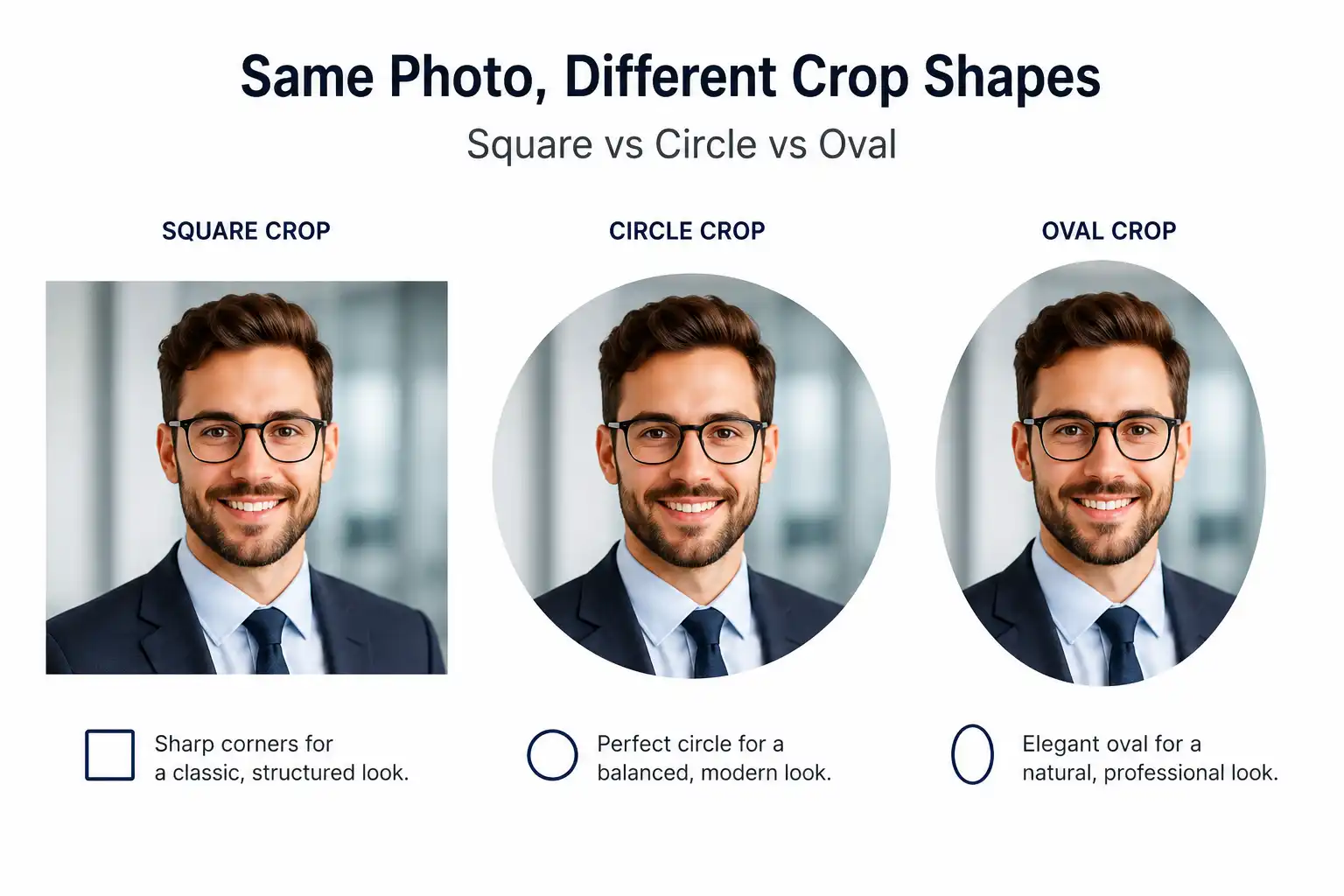
You might be wondering, "What's the difference between square, circle, and oval crops?" Great question! Here's the scoop:
Square Crop
Equal width and height with sharp 90-degree corners. Common for Instagram posts and standard profile pictures.
Circle Crop
Perfectly round with equal dimensions in all directions. Popular for modern social media avatars.
Oval Crop
Elongated circle with wider width than height (or vice versa). Creates a more traditional, professional appearance.
Common Use Cases
People use oval cropping for all sorts of purposes. Here are the most popular ones:
- Profile Pictures: LinkedIn, company websites, and professional networks love oval portraits
- Business Cards: That classic oval photo on business cards never goes out of style
- Website Avatars: Team pages look more cohesive with uniform oval images
- School Projects: Yearbooks, presentations, and student IDs often require oval photos
- Product Catalogs: E-commerce sites use oval crops for consistent product displays
- Marketing Materials: Brochures, flyers, and advertisements
💡 Quick Fact
Oval-shaped images have been the gold standard for professional photography since the Victorian era. They create a softer, more approachable look compared to harsh rectangular frames.
Why Crop an Image Into an Oval Shape?
You might be thinking, "Can't I just use a regular photo?" Well, sure you can, but here's why cropping to an oval shape gives you a serious advantage:
Professional Profile Pictures
First impressions matter—especially in the professional world. When someone visits your LinkedIn profile or company website, an oval-cropped photo immediately signals professionalism. It shows you've put thought into your presentation. Unlike casual square selfies, oval portraits have that polished, "I take my career seriously" vibe.
Think about it: most executive bios, speaker profiles, and corporate directories use oval or circular images. There's a reason for this tradition—it works!

Social Media Branding
Social media isn't just for cat videos anymore. It's a powerful branding tool. Whether you're building a personal brand or promoting your business, consistent oval profile pictures across platforms create instant recognition. Your audience will spot you in their feed faster when you maintain that signature oval shape.
Plus, oval images stand out in a sea of squares and circles. They're different enough to catch the eye but professional enough to maintain credibility.
Website Team Pages
Running a business website? Your "About Us" or "Team" page needs to look cohesive. When you have multiple team members, mixing different photo shapes looks messy and unprofessional. Oval cropping creates uniformity. Everyone's photo follows the same format, making your page look organized and thoughtfully designed.
It's like wearing a uniform—individual personalities shine through, but there's clear unity.
Marketing Materials
From brochures to business cards, marketing collateral benefits hugely from oval images. They're easier to arrange in layouts, create visual interest, and look more elegant than basic rectangles. Graphic designers love working with oval images because they add sophistication without being flashy.
ID Cards and Badges
Schools, offices, and organizations still rely on ID cards. Most ID card templates feature oval photo spaces for good reason—they frame faces nicely and leave room for text and security features. Having your photo pre-cropped to oval saves time and ensures it fits perfectly.
⚠️ Pro Tip
Always use high-resolution images when cropping to oval shape. Low-quality photos become even more noticeable when cropped because you're focusing attention on a smaller area.
How to Crop an Image to Oval Shape Online
Ready to create your perfect oval image? Great! We've made the process stupidly simple. Follow these five easy steps, and you'll have your oval-cropped photo ready in under a minute.
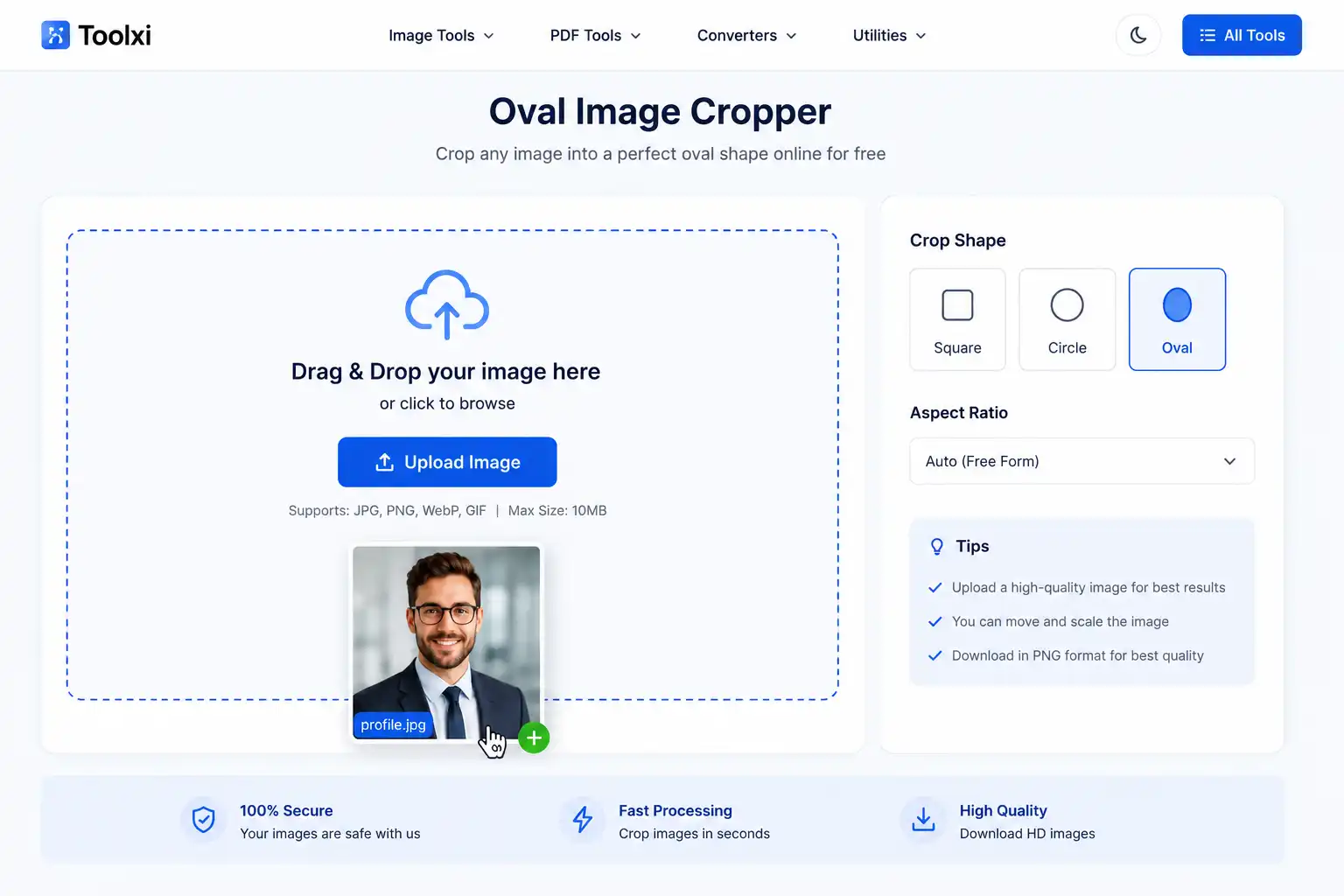
Upload Your Image
Head over to our oval image cropper tool and click the "Upload Image" button. You can select files from your computer, or simply drag and drop your photo right into the upload area. We support all major formats including JPG, PNG, WEBP, and even BMP. The tool accepts images up to 10MB, which is more than enough for high-quality photos.
Select Oval Crop
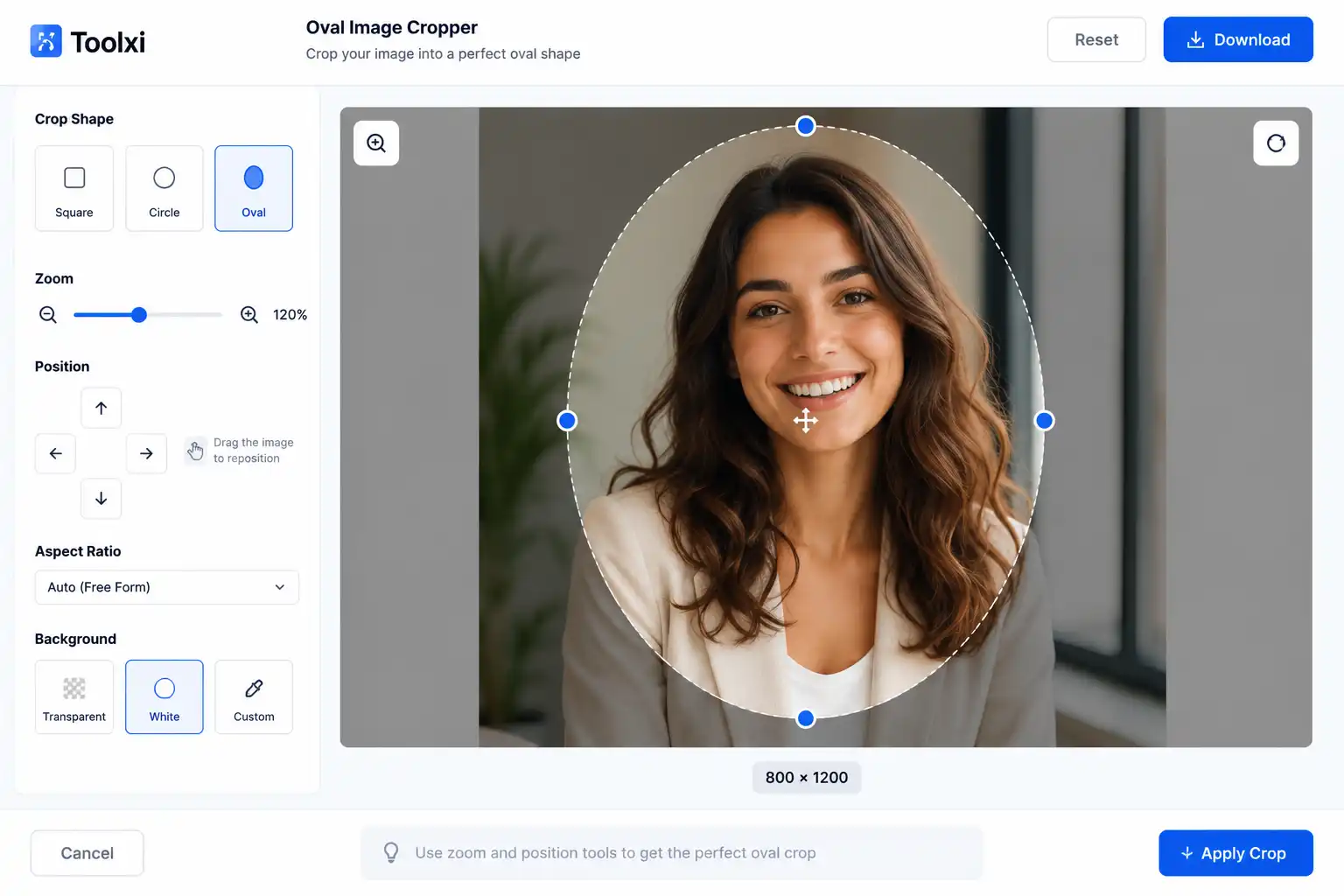
Once your image loads, you'll see cropping options. Choose the "Oval" shape from the available options. You can select between different oval orientations—horizontal (wider) or vertical (taller)—depending on your needs. For profile pictures, vertical ovals usually work best. For group photos or landscapes, horizontal might be better.
Adjust Position
Here's where the magic happens. Click and drag your image within the oval frame to position your subject perfectly. Want to center your face? Easy. Want to include more background? No problem. You can also zoom in or out using the slider to get that perfect composition. The tool shows you a real-time preview so you know exactly how it'll look.
Preview Result
Before downloading, take a moment to preview your image. Check the edges—does the oval look smooth? Is your subject properly centered? Are there any awkward cuts? This is your chance to make adjustments. If everything looks good, great! If not, go back and tweak the position or zoom level.
Download Image
Happy with your oval image? Click the "Download" button. Choose your preferred format (PNG is best for maintaining transparency, JPG for smaller file size) and quality setting. Your image will download instantly to your device. That's it—you're done!
Benefits of Using ImageToolsZone.com Oval Image Cropper
There are tons of image editing tools out there, so why should you choose ours? Let us count the ways:
| Feature | Benefit to You |
|---|---|
| 100% Free | No hidden fees, no premium upgrades, no credit card required. Completely free forever. |
| Online Tool | No software installation needed. Works directly in your browser on any device. |
| Lightning Fast | Process images in seconds, not minutes. Our servers are optimized for speed. |
| Privacy Focused | Your images are never stored on our servers. They're deleted immediately after processing. |
| Mobile Friendly | Works perfectly on smartphones and tablets. Crop images on the go. |
| High Quality Output | No compression artifacts, no quality loss. Your images stay crisp and clear. |
| No Watermarks | Your images are yours. We don't add ugly watermarks or branding. |
| Beginner Friendly | No design experience needed. If you can click a button, you can use this tool. |
🔒 Your Privacy Matters
We take security seriously. Unlike some free tools that store your images, we process everything in real-time and delete files immediately. Your photos never leave your control.
Best Uses of Oval-Shaped Images
Now that you know how to create oval images, where should you use them? Here are the top applications:
LinkedIn Profile Pictures
LinkedIn automatically crops profile pictures to circles, but uploading an oval image ensures your photo looks perfect. The oval shape gives you more control over what's visible and creates a professional appearance that stands out in search results and connection requests.
Recruiters and hiring managers see hundreds of profiles daily. An oval-cropped, professional headshot shows you understand business norms and pay attention to details.
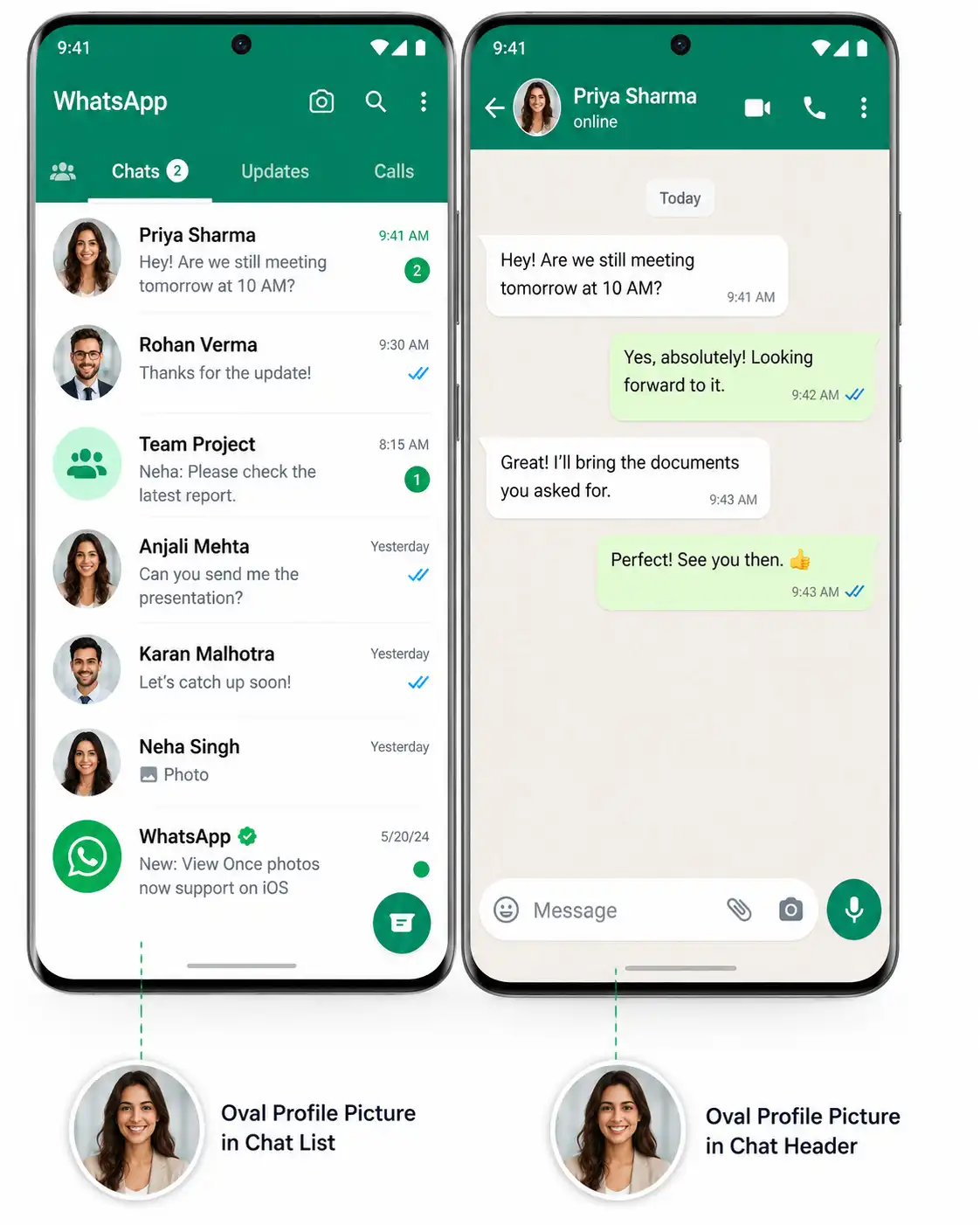
WhatsApp Display Photos
WhatsApp displays profile pictures in circles, but starting with an oval gives you better composition control. You can ensure your face is centered and properly framed, avoiding that awkward "half-face" crop that happens with square images.
School Assignments
Teachers and professors often require student photos for ID cards, yearbooks, and class directories. Oval photos are the standard. Instead of paying for expensive photo booth sessions, students can use our free tool to create perfect oval photos from any decent picture.
Business Presentations
Creating a pitch deck or company presentation? Oval team photos look more polished than rectangles. They create visual consistency and make your slides look professionally designed, even if you're not a designer.
Digital Invitations
Wedding invitations, birthday cards, anniversary announcements—oval photos add that classic, elegant touch. They evoke traditional printed invitations while working perfectly in digital formats.
Team Member Profiles
Company websites, internal directories, Slack profiles, Microsoft Teams—everywhere benefits from uniform oval photos. It creates brand consistency and makes your organization look cohesive and professional.
💼 Corporate Use
Annual reports, investor presentations, press releases
🎓 Academic Use
Thesis submissions, conference bios, research profiles
🎨 Creative Use
Portfolio websites, artist bios, gallery displays
Oval Shape vs Circle Crop: Which Should You Choose?
This is one of the most common questions we get: "Should I use an oval or circle crop?" Both are popular, but they serve different purposes. Let's break it down:
| Oval Crop | Circle Crop |
|---|---|
| Wider viewing area (more horizontal space) | Equal dimensions in all directions |
| Better for traditional portraits | Better for modern social media avatars |
| More professional and formal appearance | More casual and contemporary feel |
| Accommodates shoulders and upper body | Focuses tightly on the face |
| Classic business card standard | Popular on Instagram, Twitter, modern apps |
| Softer, more approachable than rectangles | Bold, modern, minimalist aesthetic |
When to Choose Oval
Go with oval when you need:
- Professional business profiles
- Traditional print materials
- More context in the photo (shoulders, background)
- A softer, classic appearance
- ID cards and official documents
When to Choose Circle
Circle works better for:
- Social media avatars
- Modern, minimalist designs
- Tight headshots
- Mobile-first platforms
- Casual, friendly branding
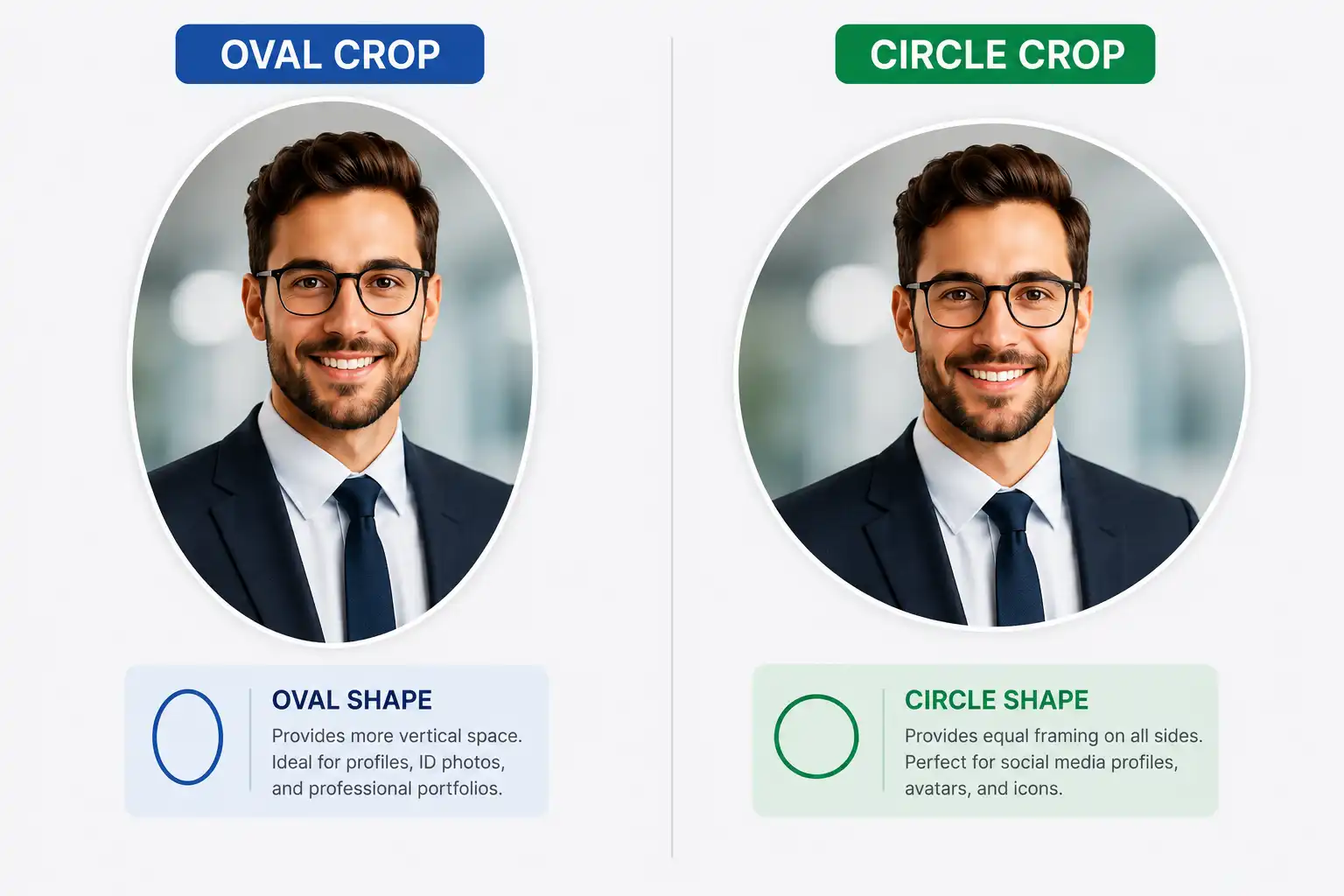
The bottom line: If you're unsure, oval is the safer choice. It's more versatile and works in both traditional and modern contexts. Circle is trendier but can look out of place in formal settings.
Common Mistakes When Cropping Images (And How to Avoid Them)
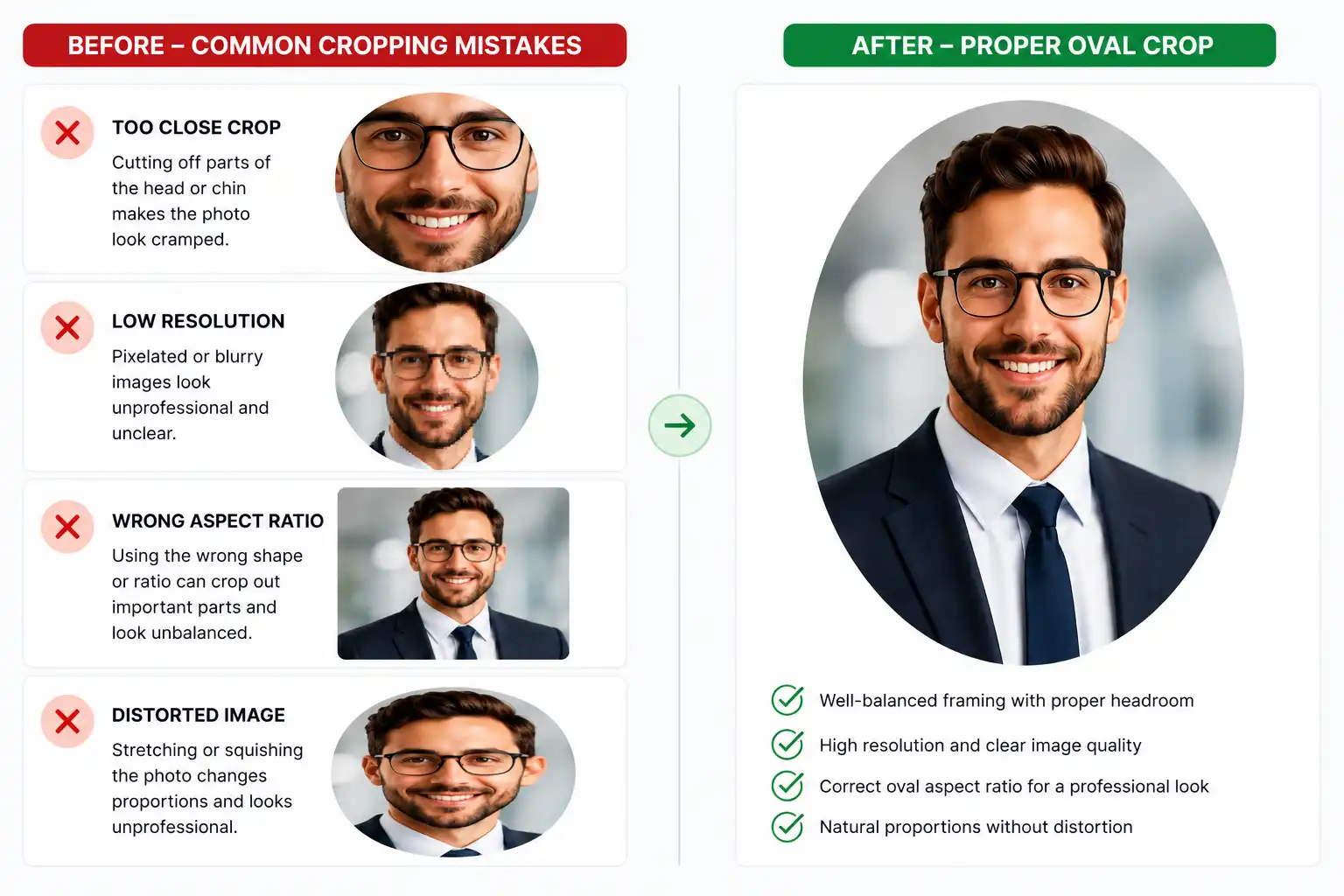
Even with the best tools, mistakes happen. Here are the most common errors we see and how you can avoid them:
Mistake #1: Cropping Too Close
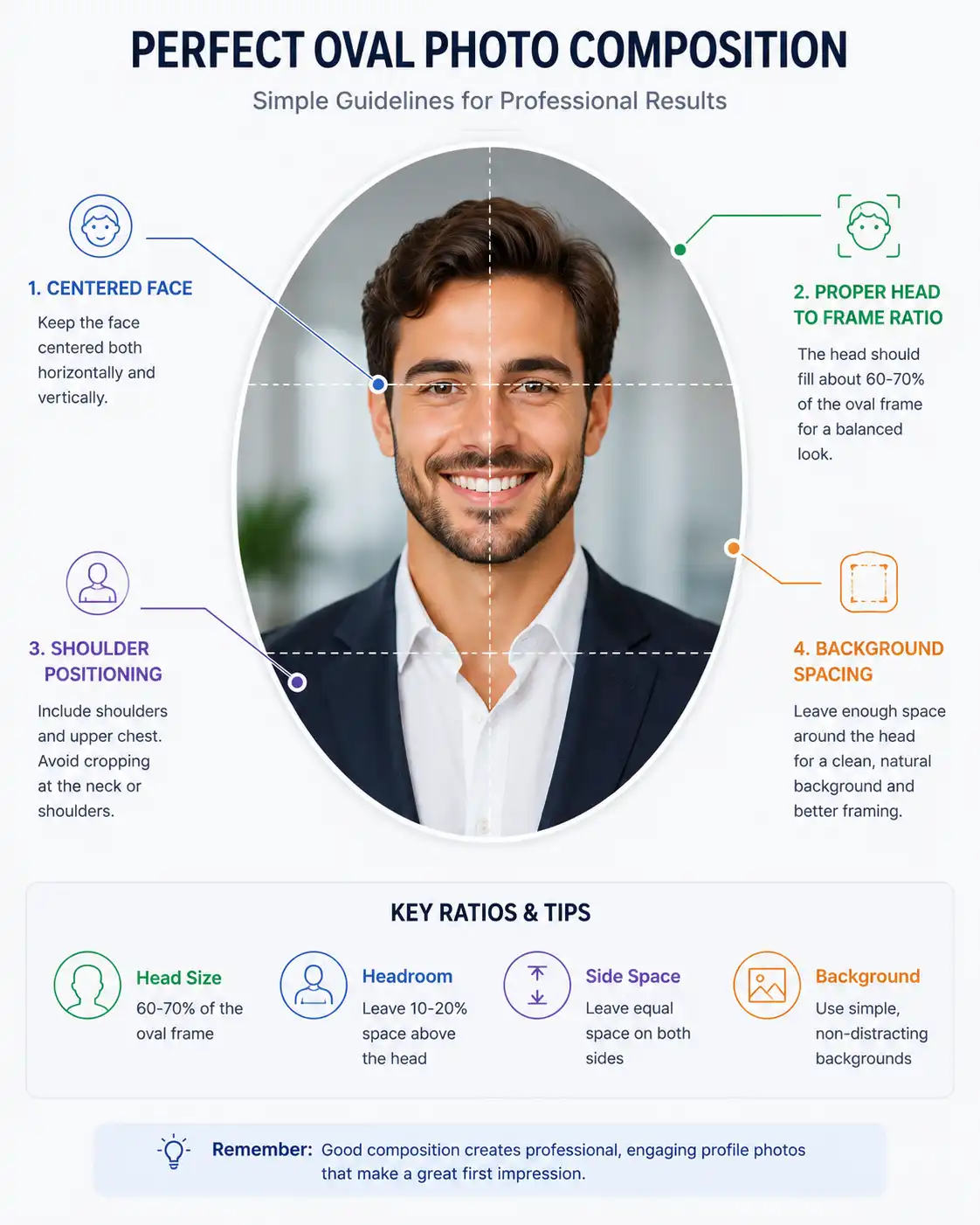
It's tempting to fill the entire oval with your face, but this looks cramped and unprofessional. Leave some breathing room around your head. A good rule of thumb: your head should take up about 60-70% of the oval, leaving space for shoulders and a bit of background.
❌ Don't Do This
Cutting off the top of the head or chin. Always ensure the entire head is visible with a small margin at the top.
Mistake #2: Using Low-Resolution Images
Starting with a blurry or pixelated photo won't magically become clear after cropping. In fact, cropping makes quality issues more obvious because you're focusing on a smaller area. Always start with the highest resolution image possible.
Pro tip: If you need to enhance a low-quality image first, try our image enhancer tool before cropping.
Mistake #3: Ignoring Aspect Ratio
Not all ovals are created equal. Some platforms need specific dimensions. LinkedIn, for example, works best with certain ratios. Always check the requirements of where you'll use the image and adjust accordingly.
Mistake #4: Stretching or Distorting Photos
Never stretch a square or rectangular photo to fit an oval. This distorts faces and looks amateurish. Instead, reposition and zoom to find the best composition within the oval frame.
Mistake #5: Cutting Off Important Elements
Watch out for cutting off glasses, earrings, hair, or other important features. The oval frame should complement your subject, not hide key details. Take time to adjust the position carefully.
Mistake #6: Forgetting About Background
A busy, cluttered background distracts from your face. If possible, use images with simple, clean backgrounds. If your background is messy, consider using our background remover tool first.
Why Use an Online Oval Image Cropper Instead of Photoshop?
We get it—Photoshop is powerful. But here's the thing: it's also overkill for simple tasks like cropping to oval shape. Let's compare:
| ImageToolsZone Oval Cropper | Adobe Photoshop |
|---|---|
| Completely Free | Expensive monthly subscription ($20+/month) |
| No Installation Required | Large software download (2+ GB) |
| Beginner Friendly Works in 30 seconds | Steep Learning Curve Requires tutorials and practice |
| Instant Results Upload, crop, download | Multiple Steps Select tool, create mask, refine, export |
| Works on Any Device Phone, tablet, computer | Limited to Desktop Needs powerful computer |
| No Account Needed | Requires Adobe Account |
| Privacy Focused Files deleted immediately | Local Storage Files stay on your computer |
When Photoshop Makes Sense
Look, we're not saying Photoshop is bad. It's incredible for complex editing, retouching, compositing, and professional design work. If you need to:
- Remove blemishes and retouch skin
- Create complex compositions
- Do advanced color grading
- Work with layers and masks extensively
...then Photoshop is worth it.
When Online Tools Win
But if you just need to crop an image to oval shape? That's like using a sledgehammer to crack a nut. Our free oval image cropper does one thing and does it perfectly—without the complexity, cost, or learning curve.
⚡ Time Saved = Money Earned
Why spend 30 minutes learning Photoshop tools when you can get professional results in 30 seconds? Your time is valuable.
Tips for Creating Perfect Oval Profile Pictures
Want your oval images to look absolutely stunning? Follow these pro tips:
1. Start with High-Resolution Images
This can't be stressed enough. Begin with the best quality photo you have. Aim for at least 1000x1000 pixels. Higher is better. Grainy, pixelated photos will only look worse when cropped.
2. Center Your Subject
Position your face (or main subject) in the center of the oval. Slightly off-center can work for artistic shots, but for professional profiles, centering is safest. Most tools show a grid or guide—use it!
3. Leave Enough Background Space
Don't fill the entire oval. Leave 10-15% space around your head. This prevents the "stuffed in" look and gives your image room to breathe. It also ensures nothing important gets cut off if platforms crop it further.
4. Use Proper Lighting
Good lighting makes or breaks a photo. Natural, soft light from the front works best. Avoid harsh shadows, backlighting, or fluorescent lighting. If needed, use our image enhancer to brighten dark photos.
5. Preview Before Download
Always, always preview your image at full size before downloading. What looks good in the small preview might have issues when viewed larger. Check edges, check quality, check composition.
6. Consider Your Outfit and Background
Solid colors work better than busy patterns. Make sure your background doesn't clash with your clothing. Neutral backgrounds (gray, white, soft blue) are safest for professional use.
7. Maintain Consistent Style
If you're creating multiple oval images (for a team page, for example), use consistent lighting, backgrounds, and positioning. This creates a cohesive, professional look.
8. Save in the Right Format
Use PNG if you need transparency (the area outside the oval will be transparent). Use JPG for smaller file sizes if transparency isn't needed. For web use, consider converting to WebP using our format converter.
💡 Bonus Tip
Take multiple photos and crop several versions. Sometimes the second or third attempt looks better. Having options is better than settling for "good enough."
Frequently Asked Questions
Got questions? We've got answers! Here are the most common questions about our oval image cropper:
Absolutely! Our oval image cropper is 100% free to use. No hidden fees, no premium upgrades, no credit card required. You can crop as many images as you want without paying a dime. We believe professional image editing tools should be accessible to everyone.
No, we don't reduce quality. Our tool maintains the original resolution and quality of your images. When you download your oval-cropped photo, it retains the same clarity and detail as your original. We use advanced algorithms to ensure zero quality loss during the cropping process.
Yes! Our oval image cropper is fully responsive and works perfectly on smartphones and tablets. Whether you're using an iPhone, Android phone, or iPad, you can crop images on the go. The interface automatically adjusts to fit your screen size, making it easy to use on any device.
We support all major image formats including JPG, JPEG, PNG, WEBP, BMP, and GIF. You can upload in one format and download in another if needed. For best results with oval cropping, we recommend PNG (for transparency) or high-quality JPG.
Currently, our tool processes one image at a time to ensure the best quality and user experience. However, the process is so fast (usually under 30 seconds) that cropping multiple images is still quick and easy. Just upload, crop, download, and repeat!
Your privacy and security are our top priorities. We don't store your images on our servers. All processing happens in real-time, and files are automatically deleted immediately after you download them. We don't share, sell, or use your images in any way. What happens in the cropper, stays in the cropper!
Great question! An oval (or ellipse) has different width and height dimensions—it's elongated. A circle has equal width and height, making it perfectly round. Oval crops are more traditional and professional, often used for business cards and formal profiles. Circle crops are more modern and casual, popular on social media platforms.
Definitely! Oval profile pictures work great on LinkedIn, Facebook, Twitter, and other platforms. While some platforms automatically crop to circles, starting with an oval gives you better control over composition. Your image will look professional and properly framed regardless of how the platform displays it.
No account required! You can start cropping images immediately without signing up, logging in, or providing any personal information. We've removed all barriers to make the tool as accessible and convenient as possible.
You can upload images up to 10MB in size. This is more than enough for high-resolution photos from modern cameras and smartphones. If your image is larger, consider using our image compressor first to reduce the file size.
Yes! You can choose between different oval orientations—horizontal (wider) or vertical (taller)—depending on your needs. You can also zoom in and out and reposition your image within the oval frame to get the perfect composition.
If you download as PNG format, yes—the area outside the oval will be transparent. This is perfect for overlaying your oval image on different backgrounds. If you download as JPG, the background will be white. Choose PNG for maximum flexibility.
Yes, you can use our oval image cropper for commercial purposes. Create profile pictures for your business, marketing materials, product catalogs, or any commercial project. The tool is free for both personal and commercial use.
No problem! You can adjust the position, zoom level, and oval orientation as many times as you want before downloading. The preview shows exactly how your image will look, so you can make changes until it's perfect. And since it's free, you can start over as many times as needed.
Our oval image cropper works on all modern browsers including Google Chrome, Mozilla Firefox, Safari, Microsoft Edge, and Opera. As long as your browser is updated to a recent version, you'll have no problems using the tool.
Absolutely! The oval cropper works with any type of image—portraits, group photos, products, pets, landscapes, you name it. Just position your subject within the oval frame and adjust as needed. For product photos, check out our auto-crop tool for ecommerce.
No limits! Crop one image or one thousand—there are no daily restrictions, no quotas, and no caps. Our free oval image cropper is truly unlimited. Use it as much as you need, whenever you need it.
Yes! Before downloading, you can reset the crop, reposition the image, change the zoom level, or switch oval orientations as many times as you want. The tool is designed to be forgiving and flexible, so experiment freely until you get it right.
Ready to Create Perfect Oval Images?
Join thousands of satisfied users who trust ImageToolsZone for their image editing needs. Fast, free, and frustration-free.
Start Cropping Now - It's Free!