How to View Image Metadata Online: Check EXIF, GPS & Photo Details
Discover how to view image metadata online instantly. Check EXIF data, GPS coordinates, camera settings, and hidden photo information free without downloading software.
View Image Metadata Now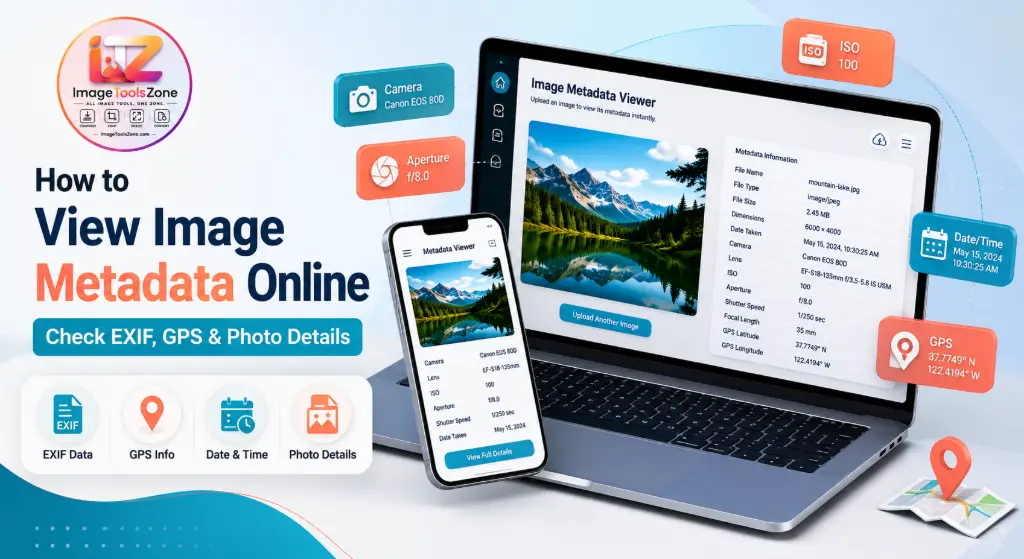
Ever wondered what hidden information travels with your photos? When you snap a picture with your phone or camera, it captures far more than just the visible scene. Every image file contains a wealth of hidden data – from the exact camera settings used to capture the moment, to GPS coordinates showing where you were standing, to the precise date and time the photo was taken.
Learning how to view image metadata online gives you power over your photos. Whether you're a photographer wanting to check your camera settings, a privacy-conscious individual checking if your photos reveal your location, or a web developer verifying image properties, understanding metadata is essential in today's digital world.
In this comprehensive guide, we'll walk you through everything you need to know about viewing image metadata online – no software downloads required. You'll learn how to check EXIF data, find GPS coordinates, verify camera information, and understand what personal information your photos might be sharing without your knowledge.
What Is Image Metadata?
Think of image metadata as a digital fingerprint that travels with every photo you take. It's information about the image – not the image itself – stored within the file. This data gets automatically recorded by your camera or smartphone at the moment of capture, and it stays embedded in the file unless someone deliberately removes it.
Metadata comes in different flavors. The most common type is EXIF (Exchangeable Image File Format), which contains technical camera data like shutter speed, aperture, ISO settings, and often GPS location. There's also IPTC data, which includes copyright information and captions that photographers and journalists add. And XMP metadata tracks editing history from software like Photoshop or Lightroom.
Why does this matter? Because metadata can reveal things you might not want to share. That vacation photo you're posting online might contain the exact GPS coordinates of your hotel. Understanding how to view image metadata online helps you control what information you're sharing with the world.
What Information Can Image Metadata Reveal?
When you learn how to check photo metadata online, you might be surprised by what you find. A single image file can contain dozens of data points. Here's what's typically hiding in your photos:
Camera & Device Info
Camera make and model, lens type, serial numbers, firmware version
Shooting Settings
ISO sensitivity, aperture, shutter speed, focal length, exposure mode
Location Data
GPS coordinates, altitude, direction, sometimes even location names
Date & Time
Exact date and time the photo was taken, modified, and digitized
The privacy implications are significant. GPS coordinates can reveal your home address, workplace, or children's school. Timestamps can show when you're home or away. This is exactly why knowing how to view image metadata online before sharing photos is so crucial.
How to View Image Metadata Online: Step-by-Step Guide
Want to see what's hidden in your photos? Learning how to view image metadata online is easier than you think. You don't need expensive software or technical expertise – just a web browser and your image file. Here's the simplest way to check photo metadata online:
Step 1: Choose a Reliable Online Metadata Viewer
Look for a service that processes images locally in your browser, supports the file formats you use, and displays information in an easy-to-read format. Tools like our image metadata viewer are perfect for this – they're free, fast, and don't require registration.
Step 2: Upload Your Image
Simply drag and drop your photo into the upload area, or click to browse and select your file. Most online viewers support files up to 25MB, which is plenty for high-resolution photos from modern cameras and smartphones.
Step 3: Review the Metadata
Within seconds, you'll see a complete breakdown of all available metadata organized into logical sections. You can view EXIF data, GPS information, file properties, and sometimes IPTC or XMP data.
Ready to Check Your Photos?
Upload any image to instantly view its metadata, EXIF information, camera details, dimensions, and available GPS data.
View Image Metadata FreeHow to View EXIF Data From a Photo
EXIF data is the goldmine of technical information in your photos. If you're wondering how to view EXIF data online, you're in luck – it's one of the most commonly available metadata types.
What EXIF Data Contains
| EXIF Field | What It Shows | Why It Matters |
|---|---|---|
| Camera Model | Canon EOS R6, iPhone 14 Pro | Identifies the exact device used |
| Lens | EF 24-70mm f/2.8, 50mm f/1.8 | Shows which lens captured the image |
| ISO | ISO 100, 400, 3200 | Sensor sensitivity to light |
| Aperture | f/2.8, f/8, f/16 | Lens opening size (depth of field) |
| Shutter Speed | 1/250s, 1/60s, 1s | How long the sensor was exposed |
| Date/Time | 2026-01-15 14:30:45 | Exact capture timestamp |
| GPS | 37.7749° N, 122.4194° W | Location coordinates (if enabled) |
Not all images contain EXIF data. Screenshots, images downloaded from social media, and files that have been processed through certain websites often have their EXIF data stripped. To check if an image has EXIF data, simply upload it to an online metadata viewer.
How to Check Camera Information From an Image
Want to know how to see camera information from a photo? Whether you're trying to identify what camera took a photo, verify the authenticity of an image, or simply curious about the equipment used, camera information is one of the most valuable pieces of metadata.
When you find camera settings from a photo, you'll discover the camera make, model, lens information, and sometimes even the serial number. For photographers, this helps you understand what equipment produces the results you admire. For privacy-conscious individuals, it reveals what expensive equipment you own – information you might not want to broadcast publicly.
How to Check GPS Location Metadata in Photos
This is perhaps the most privacy-critical aspect of metadata. Learning how to check the GPS location in a photo or how to find location metadata in an image can protect you from unintentionally revealing sensitive information.
Why GPS Metadata Matters
Most smartphones automatically embed GPS coordinates in photos by default. This means that innocent-looking photo you're posting from your backyard contains the exact latitude and longitude of your home.
How to Find GPS Coordinates From a Photo
To check if a photo has location data, upload your image to an online metadata checker and look for a section labeled "GPS" or "Location." If GPS data exists, you'll see latitude and longitude coordinates. Some tools also show altitude, direction, and even a map pin showing the exact location.
Check Your Photos for GPS Data
Find out if your location is exposed before sharing photos online.
Scan for GPS DataHow to Find When a Photo Was Taken
Ever received a photo and wondered when it was actually taken? Learning how to see when a photo was taken or how to check when an image was created is incredibly useful for organizing photo libraries or verifying timelines.
Photos contain multiple date/time stamps: Date/Time Original (when the photo was actually taken), Date/Time Digitized (when converted to digital format), and Date/Time Modified (when last edited). Simply upload the photo to a metadata viewer and look for fields labeled "Date Taken" or "DateTime."
How to View Photo Metadata on Android
Need to view photo metadata on Android? You have several options. Most Android phones let you view basic metadata through the Gallery app by tapping the three-dot menu and selecting "Details." However, for complete metadata including EXIF and GPS data, online tools work best. Simply open your mobile browser, navigate to an online metadata viewer, and upload your photo to see all details instantly without installing anything.
How to View Photo Metadata on iPhone
Wondering how to view photo metadata on iPhone? iOS makes it relatively easy to check basic information. Open the photo in the Photos app and swipe up (or tap the "i" info button) to see date, time, location, and camera model. For complete EXIF data, use an online tool in Safari. Upload your photo and see all available metadata instantly without downloading third-party apps.
Why Is My Image Metadata Missing?
Sometimes you upload a photo expecting to see metadata, but find nothing. If you're wondering why is EXIF data missing or why image metadata is not showing, here are the most common reasons:
Social Media Stripping
Facebook, Instagram, and Twitter automatically remove metadata when you upload photos to protect user privacy.
Website Processing
Images downloaded from websites often have metadata stripped during compression. You might need to convert image formats without quality loss to preserve it.
Screenshots
Screenshots don't contain camera EXIF data since they're generated by your device, not a camera.
Editing Software
Some editing programs remove metadata when saving, especially if you choose "Save for Web."
Unfortunately, once metadata is removed, it's gone for good. There's no way to recover image metadata that's been stripped from a file.
Is It Safe to View Image Metadata Online?
This is a critical question. The safety of viewing metadata online depends entirely on how the tool processes your images. The safest online metadata viewers process images locally in your browser. This means your image never leaves your device, it's not sent to servers, and the tool doesn't keep copies of your images. Always look for tools that clearly state they process files client-side for maximum privacy.
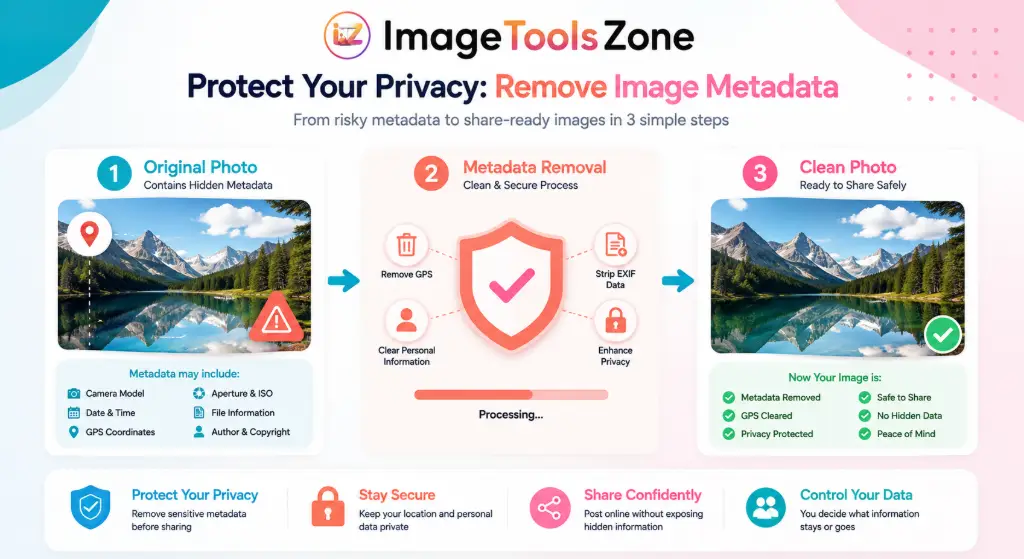
How to Remove Metadata From an Image
Once you've learned how to view image metadata online and discovered what information your photos contain, you might want to remove some or all of it before sharing. People remove metadata for privacy protection, file size reduction, or professional reasons.
Most online metadata viewers also offer removal tools. The process is simple: upload your image, review what metadata exists, choose what to remove, and download the cleaned image. After cleaning, you might even want to compress the image further to save space without losing visual quality.
Removing metadata does not reduce image quality. Metadata is stored separately from the actual image pixels. When you strip metadata, you're just deleting the hidden information, not changing the photo itself.
When Should You Check Image Metadata?
Knowing how to view image metadata online is useful in many situations. Here are the most common scenarios:
Learn from settings
Verify authenticity
Check properties
Remove GPS data
Prepare products
Check software
Specific Situations
🛒 Online Sellers
Inspect images before uploading them to marketplaces. Remove personal information and verify image properties. You can also use tools to remove the background for a clean, professional product listing.
💼 Web Developers
Check image dimensions, format, and technical properties to optimize website performance. If an image is too large, you can easily resize images to exact dimensions after verifying their original properties.
🎨 Designers
Check image dimensions, color information, and software details to ensure compatibility with design projects. A professional image editor can help you make necessary adjustments while preserving quality.
Frequently Asked Questions
Image metadata is hidden information stored within photo files that includes camera settings, GPS coordinates, timestamps, and device information. You should care because it can reveal your location, daily routines, expensive equipment you own, and other personal details you might not want to share publicly.
Simply use a free online metadata viewer. Upload your photo by dragging and dropping or clicking to browse, and within seconds you'll see all available metadata including EXIF data, GPS coordinates, camera information, and file properties. No software installation needed.
Yes! You can view image metadata on both Android and iPhone using online metadata viewers. Simply open your mobile browser, navigate to an online tool, upload your photo, and view all metadata instantly. This works better than built-in apps because it shows complete EXIF data.
Photo metadata can reveal: exact GPS coordinates showing where the photo was taken, camera make and model, precise date and time, software used for editing, and sometimes author information. This is why checking metadata before sharing photos publicly is so important.
Metadata might be missing because social media platforms strip it when you upload, the image was downloaded from a website, it's a screenshot, editing software removed it, someone deliberately stripped it, or the file format doesn't support EXIF data.
It's safe if you use a reputable tool that processes images locally in your browser. This means your photo never leaves your device – it's analyzed right in your browser without uploading to servers. Look for tools that clearly state they don't store your images.
No, removing metadata does not reduce image quality at all. Metadata is stored separately from the actual image pixels. When you strip metadata, you're just deleting hidden information, not changing the photo itself. The image quality remains 100% intact.
Upload your photo to an online metadata viewer and look for a section labeled "GPS," "Location," or "Geolocation." If GPS data exists, you'll see latitude and longitude coordinates. Most smartphone photos contain GPS data by default unless you've disabled location services.
Yes, many metadata removal tools let you choose what to remove. You can selectively strip GPS coordinates while keeping camera settings, or remove only personal information while preserving technical data.
Most major platforms like Facebook, Instagram, Twitter, and TikTok automatically strip EXIF metadata when you upload photos. However, this isn't guaranteed. If you share photos via email, messaging apps, or file-sharing services, the metadata usually remains intact.
Metadata is the broad category of all information about an image. EXIF is one specific type of metadata that contains camera settings, technical data, GPS coordinates, and timestamps. Other types include IPTC and XMP.
Yes, metadata can provide strong evidence of when and where a photo was taken. GPS coordinates show the exact location, and timestamps show the precise date and time. However, this information can be manipulated or may be incorrect if the camera's clock wasn't set properly.
Photographers view metadata to learn camera settings. Investigators check it to verify authenticity. Journalists use it to confirm source credibility. Web developers check it to verify image properties. Always respect privacy when viewing metadata from publicly shared photos.
Yes, PNG and WebP files can contain metadata, though typically less than JPEG files. PNG files can include creation date, software used, color profiles, and text comments, but they don't support EXIF camera data or GPS coordinates like JPEG files do.
To protect your privacy: always check metadata before sharing, remove metadata from photos showing your home or workplace, use metadata removal tools before uploading to public platforms, and disable location services in your camera app if you don't want GPS data embedded.
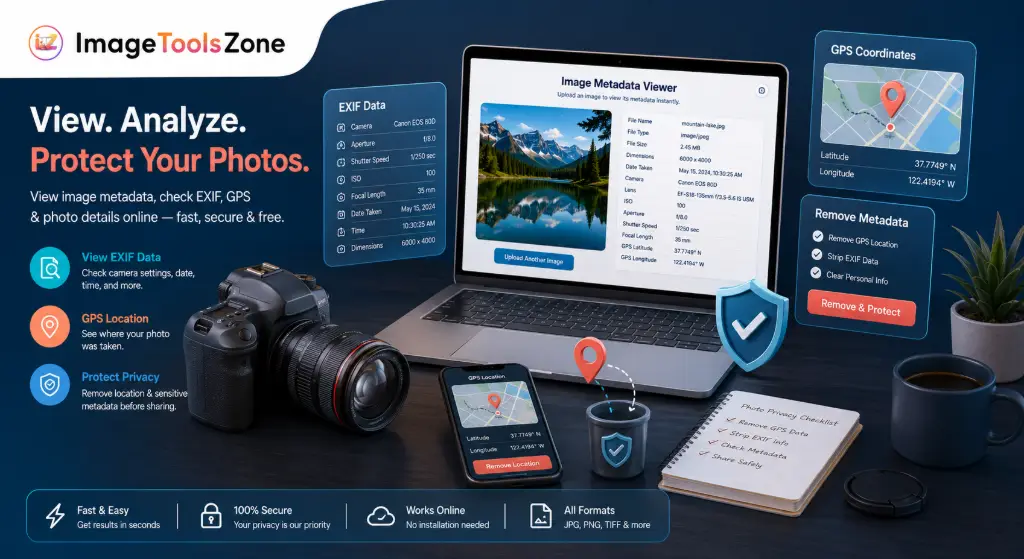
Ready to Check Your Image Metadata?
Join thousands of photographers, designers, and privacy-conscious users who trust our free tool to view and remove image metadata safely.
View Image Metadata Now – It's Free✓ No registration required ✓ 100% free ✓ Processed locally in your browser ✓ No quality loss